Online Admission System for Schools: From Form to Student Record

In this article 17 sections
- 1.What an Online Admission System Does, and What Stays Offline
- 2.Step 1: Decide What the Admission Form Must Ask
- 3.Step 2: Collect Photos and Documents Without the Headaches
- 4.Step 3: Give Every Guardian an Application Number and an SMS
- 5.Step 4: Run the Office Review Queue
- 6.Step 5: Turn an Approved Application Into an Enrolled Student
- 7.Keep a Paper Route for Families Who Need It
- 8.Application Fees and Online Payment
- 9.Promoting the Admission Window
- 10.Online Admission System Mistakes That Cost Applications
- 11.Planning the Admission Season: A Simple Timeline
- 12.Handling Applicant Data Responsibly
- 13.Measuring How the Admission Season Went
- 14.What an Online Admission System Costs
- 15.Try the Admission Flow in Our Demo
- 16.How Nexteio Can Help With Your Online Admission System
- 17.Frequently asked questions
An online admission system lets guardians apply for a school seat from a phone, upload the child's photo and papers, and track the application without standing in a queue at the school gate. For the office, it turns the busiest weeks of the year into a list on a screen instead of a pile of forms on every desk.
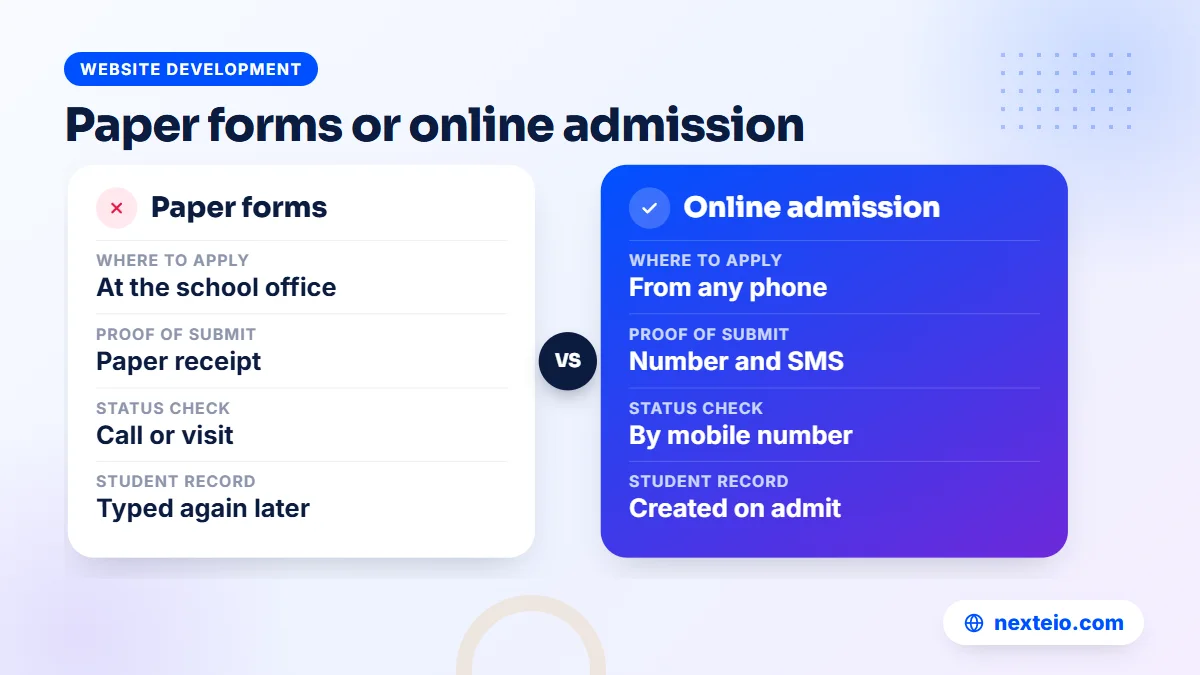
Most schools in Bangladesh know the paper version well. Forms are printed and sold at the office, guardians travel in to buy them and travel again to submit them, and staff type the same details into a register later. Somewhere in that chain, a form goes missing or a mobile number is copied wrongly, and the school only finds out when it cannot reach the family.
Moving admission online does not mean handing decisions to software. The head teacher and the committee still decide who gets a seat. What changes is how the information arrives, how it is checked and how it becomes a student record once a child is admitted.
This guide walks through the whole process step by step, from designing the form to creating the student record, with the timeline, costs and mistakes to plan for. It also shows how our School Management Software handles each step, so you can compare it with your current routine.
What an Online Admission System Does, and What Stays Offline
A complete online admission system covers five jobs. It collects the application with photo and documents, gives each guardian an application number, confirms by SMS, lets the office review and decide, and turns an approved application into an enrolled student. If a product does only the first job, it is an online form, not an admission system. The other four jobs need logins, records and rules behind the page, which makes a real admission system a small web application, the kind of work our Laravel web application service covers.
Some parts of admission stay in the real world, and they should:
- Checking original documents. An uploaded photo of a birth certificate is useful, but staff should still see the original before final admission.
- Admission tests or interviews, where the school holds them.
- Seat decisions by the head teacher or the admission committee.
- Meeting families who need help, have questions or cannot use a phone form.
One national point is worth checking first. Government secondary schools, and some non-government schools, take admissions for certain classes through a central online process announced each year by the Directorate of Secondary and Higher Education. If your school is covered by that process, follow the current circular. Your own system then handles what happens after selection: collecting details, confirming admission and building the student record.
For most private, kindergarten and non-government schools that run their own admission, the school's online system covers the full journey. That is the case this guide focuses on.
Step 1: Decide What the Admission Form Must Ask
The form is where most online admission projects go wrong. Schools copy every field from the old paper form, add a few more "just in case", and end up with a page that takes twenty minutes to fill on a phone. Guardians give up halfway, or they fill fields with guesses.
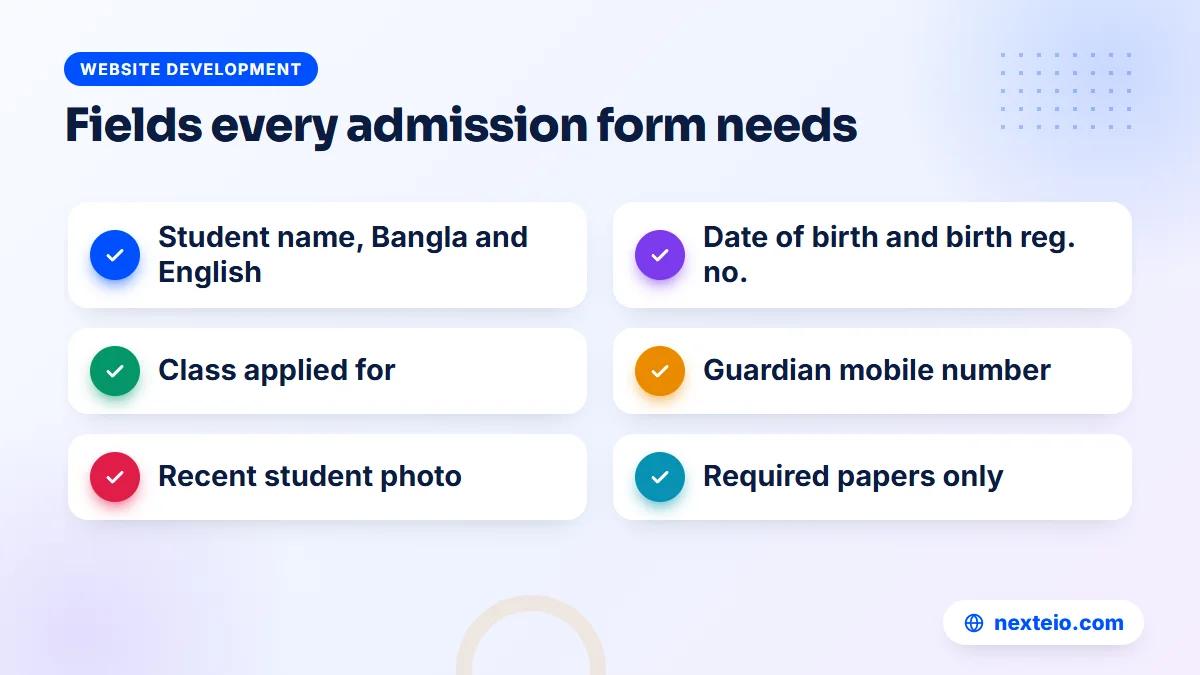
Start from a simple rule: ask only for what you will use during admission or in the first month of school. Everything else can be collected later from enrolled families. Here is a practical field list:
| Field | Why the school needs it | Required? |
|---|---|---|
| Student's name in Bangla and English | Records, ID card, certificates | Yes |
| Date of birth and birth registration number | Age check for the class, later board registration | Yes |
| Class applied for | Seat planning and review queue | Yes |
| Guardian names and mobile number | SMS updates, contact, parent login | Yes |
| Present and permanent address | Contact, catchment checks | Yes |
| Previous school and last result | Placement decisions | For higher classes |
| Student photo | Identification, ID card | Yes |
| Supporting papers | Birth certificate, transfer papers, result card | As your rules require |
Small design choices that matter
Put Bangla labels beside the English ones, or offer the whole form in Bangla. Many guardians are more confident reading Bangla, and a wrong answer caused by a misunderstood label costs the office time later. Mark required fields clearly, and show errors next to the field instead of only at the top of the page.
Use the right field types. A date picker avoids five different date formats. A number field for the mobile number opens the numeric keypad on a phone. Class should be a drop-down list, not a free text box. The MDN guide to HTML forms explains these basics well if your developer needs a reference.
Test the finished form on an ordinary mid-range Android phone over mobile data, not on the office desktop. That is how most guardians will see it. Our guide to responsive website design explains why phone layout decides whether people finish a form.
Step 2: Collect Photos and Documents Without the Headaches
Uploads often cause more support calls than any other part of an online form. A guardian takes a photo of the birth certificate on a phone, the file is several megabytes, and the upload fails on a weak connection. Or the photo is sideways, blurred, or shows half the page.
A few simple rules prevent most of this:
- State the accepted file types plainly, such as JPG, PNG or PDF.
- Set a sensible size limit and say what it is before the guardian uploads.
- Give a short tip for the student photo: plain background, face clearly visible, recent.
- Show a preview after upload, so the guardian can see the file is the right one.
- Keep the number of required documents low at the application stage.
There is a security side too. Upload fields are a common target, because an attacker may try to send a harmful file disguised as a photo. A properly built system checks file types and sizes on the server, renames uploaded files and stores them where they cannot be run as code. The OWASP file upload guidance lists the checks a developer should apply.
Our School Management Software takes the student photo and supporting papers as part of the online form, so documents arrive attached to the application instead of in a separate messaging thread. Nobody has to match a photo sent over a messaging app with a form submitted on a different day.
Step 3: Give Every Guardian an Application Number and an SMS
The moment after a guardian presses submit is when trust is won or lost. If the page simply says "thank you", the guardian has no proof the application arrived. Many will call the school to check, or come in person, which defeats the point of applying online.
A good system gives three things at once. First, an application number shown on screen. Second, an SMS to the guardian's mobile with that number. Third, a way to check the status later without calling anyone.
Our software does all three. Each submission gets an application number, an SMS goes out on submit, and the guardian can check the application status later using the mobile number. During admission weeks, that one feature removes a large share of the "did you get my form" calls the office would otherwise take.
Keep the confirmation SMS short and specific. Include the school's name, the application number and what happens next, such as when results of the review will be shared. Avoid long Bangla messages here, since they cost more per send and admission season already means a high SMS volume.
Step 4: Run the Office Review Queue
Once applications arrive, the office needs a clear routine. Without one, applications sit in a list while different staff each assume someone else is handling them.
Decide three things before the window opens. Who reviews applications, and who gives final approval? What are the criteria for each class, such as age, previous result or the outcome of an admission test? And how quickly should each application get a first response?
Our School Management Software gives the office three actions for each application, and the guardian gets an SMS each time:
| Action | When to use it | What the guardian should do |
|---|---|---|
| Approve | The child meets the criteria and a seat is available | Follow the next instructions, such as visiting with original papers |
| Ask to contact | Something is missing or unclear | Call or visit the office |
| Reject | The application does not meet the criteria or seats are full | No further step for this application |
The "ask to contact" step is easy to overlook, but it saves many applications. A blurred document or a wrong class selection no longer means a rejected application. The office sends a request, the guardian calls, and the problem is fixed in minutes.
Write your criteria down and share them with everyone on the review team. When two staff members apply different rules to similar applications, families notice, and complaints reach the managing committee quickly.
Step 5: Turn an Approved Application Into an Enrolled Student
This is the step that separates a real admission system from an online form. With a form alone, staff still copy each approved application into the student register by hand. That repeats the very work the system was meant to remove, and it brings back typing errors. Linking the form to the student database is what a Laravel-based school system does well, because the application and the student record live in the same place.
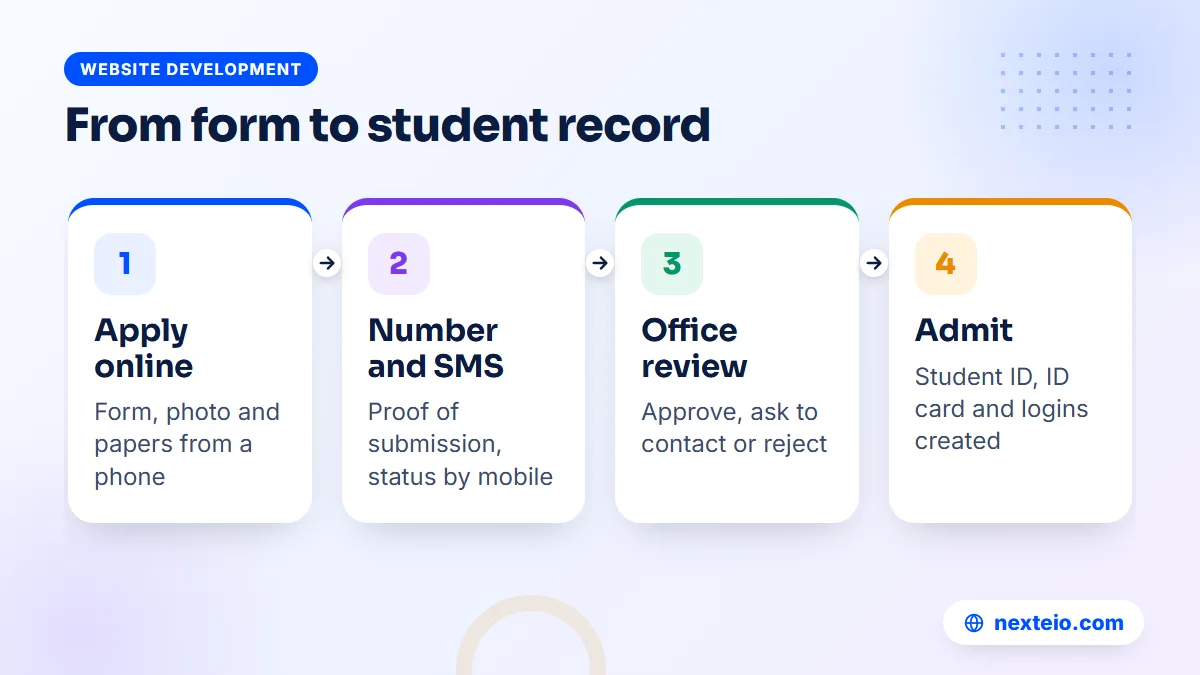
In a student enrollment management system, the approved application becomes the student record directly. The details the guardian entered, the photo and the papers all carry over. The office adds what only the school knows, such as section and roll, and the student exists in every part of the system from that moment. Our guide to a student management system explains what the school does with that record for the rest of the child's years there.
In our software, this is one "Admit" action. It creates the student with an automatic student ID, prepares the ID card, and can create logins for the parent and the student if the school uses them. From then on, the child appears in attendance lists, fee billing and exam mark entry without anyone typing the name again.
Plan what happens straight after admission as well. Guardians will want to know the fee structure, the class start date and the uniform list. If your website has a clear notices page, post this information there and point to it in the approval SMS. Our guide on educational website design covers how to organize notices so families find them.
Keep a Paper Route for Families Who Need It
Not every family will apply online. Some guardians do not have a smartphone, some are not comfortable with forms, and some simply prefer to come to the school. An online admission system should not shut them out.
The practical answer is a paper route that leads back to the same system. Our School Management Software includes a printable paper form, so families who prefer paper get the same questions the website asks. A guardian can fill it at home and bring it in, and the office can then submit the details through the online form on the guardian's behalf. Every application then sits in the same review queue, with the same application number, SMS updates and decision process.
Some schools also set up a help desk during admission weeks, where a staff member fills the online form for a guardian on a school computer. That keeps all applications in one place and lets the office track numbers per class from the first day.
Related guides for schools planning admission season: features a school management system needs, campus management software for colleges and how to build a landing page that converts.
Application Fees and Online Payment
Many schools charge a fee for the admission form. When admission moves online, the question is how to collect that fee without creating new work. The options are the same ones schools use for monthly fees:
- A payment gateway, such as bKash Payment Gateway or SSLCommerz, where the guardian pays inside the website and the payment is confirmed automatically.
- Send Money with a transaction ID, where the guardian pays to the school's mobile wallet number and enters the TrxID for staff to check.
- Payment at the school, where the fee is collected in cash when the guardian visits with original papers.
Each route has a cost. Gateways charge a fee per transaction and need a merchant account in the school's name. Send Money avoids that, but staff must check every TrxID against the wallet statement. Cash keeps things familiar, but it brings guardians back to the office. Our payment gateway guide compares these routes for organizations in Bangladesh.
In our School Management Software, online payment through bKash Payment Gateway, SSLCommerz or Send Money is part of the fees module, which handles bills and receipts for enrolled students. The admission form itself focuses on collecting the application and documents. If you want to charge an application fee online, raise it during the requirements review so we can discuss how it would fit your process before you decide.
Promoting the Admission Window
An online form only helps if guardians find it. In admission season, many search Google for the school's name with "admission" and the year, and many more see the news on Facebook. Both should lead to the same place: the admission notice on your website, with a clear link to the form.
A few practical steps help:
- Post a single admission notice on the website with dates, classes, seats, documents and the form link.
- Share that notice on the school's Facebook page and pin it for the season.
- Print the website address and a QR code on banners and leaflets.
- Keep the notice updated when dates change, and remove it when the window closes.
Schools in competitive areas sometimes advertise as well. Short Facebook ad campaigns aimed at guardians nearby, or Google search ads for admission searches, can bring more applications in a short window. Some schools try Facebook lead ads to collect interest without a website visit, but for actual applications it is better to send guardians to your own form, where the full details and documents are collected once.
Search visibility helps without any ad spend. A school website with clean page titles, a fast mobile layout and a proper admission page tends to show up when guardians search by name. That is the kind of work our SEO service handles.
Online Admission System Mistakes That Cost Applications
Most failed online admission seasons fail for ordinary reasons. These are the ones to watch for:
- A form that only works well on a desktop. Most guardians apply from a phone.
- No confirmation. Without an application number and SMS, guardians call or come in anyway.
- Unclear deadlines. State the last date and time, and what happens to late applications.
- Too many required documents at the first stage, which stops guardians who do not have scans ready.
The other three happen behind the scenes, in the office and on the server:
- A slow or overloaded website on the first day, when most applications arrive at once.
- No owner in the office. Applications pile up because nobody is clearly responsible for the queue.
- Retyping approved applications into another register, which brings back the errors the system was meant to remove.
The overloaded first day deserves a note. If the notice goes out on a Friday or a holiday, hundreds of guardians may open the form within hours. Shared hosting can handle a typical school's traffic, but check with your provider before a big launch, ask whether the plan has room for a short spike, and avoid running heavy tasks on the server that day.
Planning the Admission Season: A Simple Timeline
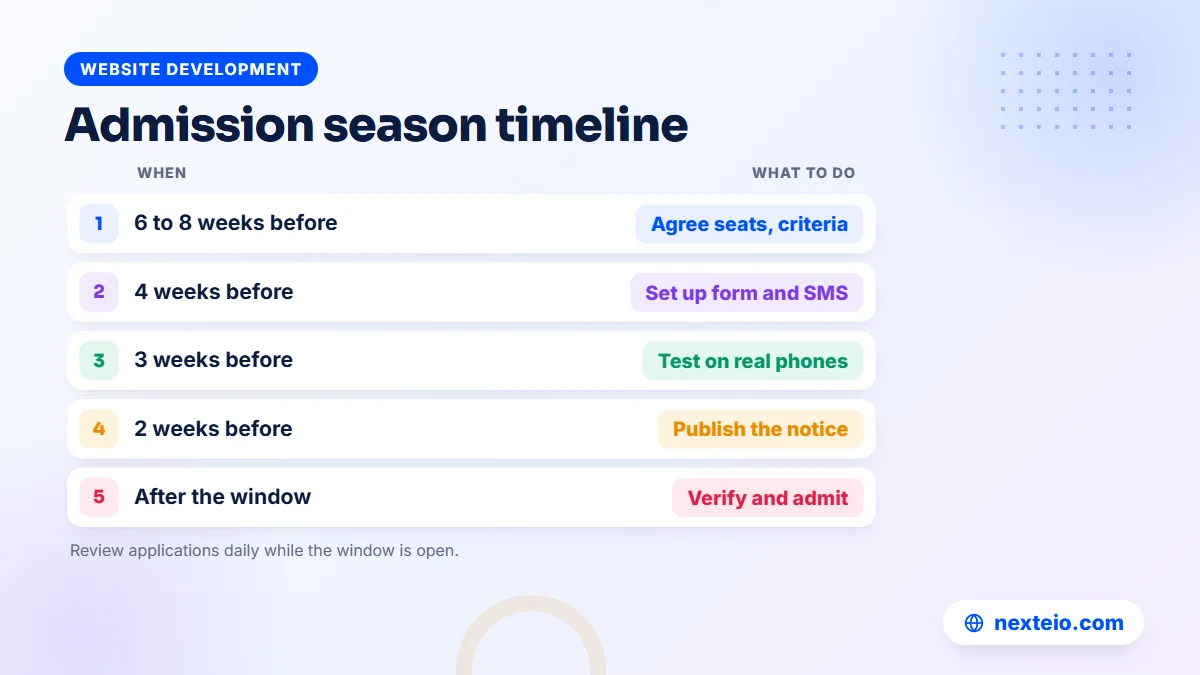
Online admission runs smoothly when the preparation starts well before the notice. Here is a timeline that works for a typical school with one main admission window:
| When | What to do |
|---|---|
| 6 to 8 weeks before | Agree classes, seats, criteria and fields with the head teacher and committee |
| 4 weeks before | Set up the form, SMS templates and status messages |
| 3 weeks before | Test the full flow on phones with two or three staff members acting as guardians |
| 2 weeks before | Publish the admission notice and share it |
| During the window | Review applications daily and use "ask to contact" for unclear ones |
| After the window | Approve, verify originals, admit students and send next-step notices |
The test in the third week is the step most schools skip. Ask two or three staff members to apply as if they were guardians, using their own phones and mobile data. They will find the confusing label, the upload that fails and the SMS with a typo before real families do.
Keep a short record of what went wrong after each season. Next year's setup then takes a day instead of a week, and the same problems do not return.
Handling Applicant Data Responsibly
An admission form collects a lot of personal information about children who are not yet your students: birth details, home addresses, photos and guardian phone numbers. Families trust the school with it, and that trust should shape how the system is set up.
Start with access. Not every staff member needs to see every application. The person at the front desk may need to view and update applications, while the accountant may not need them at all. Our School Management Software has a built-in Receptionist role alongside roles for admins, the principal, accountants and teachers. Permissions for each role can be edited, so you decide who handles applications, and pages a role should not see cannot be opened by typing the address.
A few habits protect applicant data further:
- Give each staff member their own login, never a shared office password.
- Remove access for temporary admission helpers once the season ends.
- Do not export applicant lists to personal phones or share them in group chats.
- Decide how long to keep data from applicants who were not admitted, and follow that rule.
The activity log in our software records who did what, so if an application is changed or a decision is questioned, the office can see exactly when and by whom. That matters when a guardian disputes a rejection months later.
Measuring How the Admission Season Went
The first online season is a test. To improve the second one, you need a few simple numbers rather than impressions. Most of them come straight from the application list and the SMS log.
- Applications per class, compared with seats, to see where demand is high or low.
- Online versus paper applications, to see how many families still need the paper route.
- Time to first response, from submission to approve, ask to contact or reject.
- Approved versus admitted, since a gap here often means families chose another school.
- Calls and visits to the office, a rough count kept by the front desk.
The last number tells you whether the system is doing its job. If calls about "did you receive my form" drop sharply compared with the paper years, the application number, SMS and status check are working. If they do not, look at the wording of the confirmation message and the admission notice first.
What an Online Admission System Costs
There are two ways to get an online admission system. One is a ready school product that includes admission along with other modules. The other is a custom build designed around your exact process, usually as part of a wider school or campus portal.
For custom school management software and portals, typical market prices in Bangladesh are quoted after a requirements review. When a range is needed, projects usually fall between BDT 150,000 and 1,200,000 or more, depending on modules and users. A custom build makes sense when your admission process has unusual rules, several campuses or links to other systems. Our Laravel website and portal service handles that kind of project.
A ready product costs less to start because the admission flow is already built and tested. Either way, budget for the running costs:
- Domain renewal, about BDT 1,500 to 2,500 a year for a .com.
- Hosting, about BDT 2,000 to 8,000 a year for shared plans, more for heavy traffic.
- SMS credit, which rises sharply in admission season.
- Gateway charges per transaction, if you collect fees online.
Admission is part of the Basic package of our School Management Software, along with the website, students, academic setup, attendance, notices, SMS and teacher and parent logins. Higher packages add exams, results, fees, online payment and more. There is no published price, so send us your requirements for a quote that fits your school.
Try the Admission Flow in Our Demo
The quickest way to judge any online admission system is to apply to it yourself. Our school website demo lets you do exactly that, from the guardian's side and the office's side.
- Open the demo website on your phone and fill in the admission form with a test photo.
- Note the application number shown after you submit.
- Check the application status using the mobile number.
- Log in to the dashboard as Super Admin and find the application in the list.
- Try "ask to contact", then approve it and use "Admit" to create the student.
- Look up the new student, the ID card and the parent login.
SMS, gateway and user settings are locked in the demo, and the data resets every three hours, so nothing you do there affects anyone. The School Management Software project page shows the rest of the system, from attendance to results.
While you test, keep your own admission rules in front of you. Note anything your school does that the demo flow does not show, and bring that list to the conversation with us.
How Nexteio Can Help With Your Online Admission System
Our School Management Software gives your school an online admission system as part of a complete school website and dashboard, in Bangla and English. Guardians apply with photos and papers, get an application number and SMS, and check their status by mobile. Your office approves, asks to contact or rejects, and admits students with one action.
We set the system up on your school's own domain and hosting, with your name, logo and colors, and import your existing student data so admission and current students sit in one place. Each school has its own copy, and Nexteio has no access to your data. Nightly backups go to your server and your own Google Drive.
Try the demo first, then look at the full project details. If your admission process needs something beyond the product, our custom Laravel development can build it, and a fully original public site can come from our custom website design team. When you are ready, send a project request with your classes and expected applications, read more about Nexteio, or reach us through the contact page.
Keep reading: learning management systems for schools, how web applications are built, or browse our website development guides.
Frequently asked questions
Can guardians apply from a phone without installing an app?
Yes. A well-built online admission system runs in the phone's browser, so guardians open a link, fill in the form and upload the photo and papers. Our School Management Software has no separate app; the website and dashboard are designed to work on phones.
What if a guardian makes a mistake in the application?
The office can use the review step to ask the guardian to get in touch, then correct the detail together. Many schools also let guardians check their status by mobile number, which gives them a reason to look again and spot errors before the decision.
Do we still need to see original documents?
Yes, in most cases. Uploaded copies help the office review applications quickly, but final admission should still include a check of original papers such as the birth registration certificate. Say clearly in the approval message when and where guardians should bring them.
Can an online admission system handle admission tests?
It can collect the applications and track decisions, but the test itself is usually held at the school. Publish test dates, seat plans and results through notices on the website, and record the outcome when you approve or reject each application.
How many applications can a school website handle on the first day?
A typical school with a decent shared hosting plan can handle normal admission traffic. Problems usually come from a very large rush within an hour or two of the notice. Tell your hosting provider about the expected launch day and keep the form page light so it loads quickly on mobile data.
Is online admission suitable for kindergarten and primary classes?
Yes. Younger classes often have the most applicants and the simplest criteria, so they benefit the most from online forms, application numbers and SMS updates. Keep the form short, since guardians of young children often apply from a phone in a spare moment.
What happens to rejected applications?
They stay in the system as a record of the decision, and the guardian receives an SMS. Keep them for the season in case of questions or appeals, and follow your school's own rules on how long to keep applicant data after that.