Google Shopping Ads: How They Work and How to Set Them Up
In this article 15 sections
- 1.What Google Shopping Ads Are and Where They Appear
- 2.How Shopping Ads on Google Work Behind the Scenes
- 3.Can You Run Google Shopping Ads From Bangladesh?
- 4.What You Need Before You Advertise on Google Shopping
- 5.Setting Up Google Merchant Center Step by Step
- 6.Building a Product Feed That Gets Approved
- 7.Fixing Disapprovals and Account Suspensions
- 8.Creating Your First Google Shopping Ads Campaign
- 9.Structuring Product Groups, Bids and Search Terms
- 10.Budget and Bids for Google Shopping Ads: A Worked Example
- 11.Measuring Results: Conversion Tracking and ROAS
- 12.Google Shopping Ads vs Search Ads vs Facebook Catalog Ads
- 13.Common Mistakes With Google Shopping Ads
- 14.How Nexteio Can Help With Google Shopping Ads
- 15.Frequently asked questions
Google Shopping ads show a product photo, its title, the price and your store name right on Google, before anyone visits your site. A shopper searching for a rice cooker, a leather wallet or a school bag can compare options at a glance and click the one that fits. Because the price is visible up front, the clicks you pay for tend to come from people who are already comfortable with what you charge.
They also work differently from the text ads most businesses know. You do not choose keywords. Google reads your product data, decides which searches each product matches and shows the ad when it thinks the product fits. That makes the quality of your product information more important than almost any setting inside Google Ads.
For online stores in Bangladesh, there is one more question that has to come first: where you can actually show these ads. Shopping ads depend on country support in Google Merchant Center, and that changes over time. This guide covers that question honestly, then walks through the full setup, the product feed, campaign structure, budgets and how to tell whether the ads are making money.
Google renames menus and campaign options often. The steps below describe how the system works at the time of writing, so expect small differences in labels on your screen.
What Google Shopping Ads Are and Where They Appear
Google Shopping ads are product ads built from a product feed rather than from text you write. Each ad shows an image, a title, a price and the store name, and it may also show extras such as ratings, a sale price or delivery details where your data supports them. Older marketers still call them Google Product Listing Ads, or PLAs, which was the original name for the format, and older guides often say "Google Shopping product listing ads".
According to Google's own overview of Shopping ads, they can appear on the Shopping tab, in Google Search results, on Google Images and on search partner sites. When you run them through Performance Max, your products can also show across YouTube, Gmail, the Display Network and Maps. You pay when someone clicks, not when the ad is shown.
Some people simply call these Google product ads, and you may also see the phrase "Google shoppable ads" in marketing material. They all describe the same idea: an ad that sells one specific product with its price and picture, sending the shopper straight to that product's page.
How they differ from text search ads
- No keyword list. Google matches searches to products using your titles, descriptions, categories and other product data.
- Price and image first. The shopper sees what you sell and what it costs before clicking.
- One product per ad. Each ad points to a single product page, not to your homepage or a category.
- Two accounts needed. You need Google Merchant Center for the product data and Google Ads for the campaign.
These differences change how you plan, measure and improve the campaign.
How Shopping Ads on Google Work Behind the Scenes
It helps to see the full chain once, because most problems happen in the gap between two links. Shopping ads on Google rely on four pieces working together.
- Your website holds the product pages, prices, stock status and checkout.
- Google Merchant Center receives your product data, checks it against Google's rules and approves or rejects each item.
- Google Ads holds the campaign, the budget and the bids, and uses the approved products from Merchant Center.
- The auction decides, for each search, which products to show and in what order, based on bids, relevance and expected performance.
When anything in that chain is out of step, ads stop or get disapproved.
A common example is a price mismatch. If your site shows BDT 2,450 and your feed still says BDT 2,200, Google treats that as a problem for the shopper and can disapprove the product. A store that changes prices for every sale or runs out of stock often needs its feed to update automatically from the website.
Google also asks that product data be refreshed at least every 30 days. In practice, a store that changes daily should sync daily, or connect the feed directly to the store platform.
Can You Run Google Shopping Ads From Bangladesh?
This is the question to answer before you spend anything on setup. Google Shopping ads are only available for countries that Merchant Center supports as target countries, and the list is set by Google, not by your agency or your hosting company.
At the time of writing, Bangladesh does not appear in Google's main table of supported languages and currencies for Merchant Center. Google also says it is expanding Shopping ads and free listings into new markets as "beta countries", where participation may at first be limited to certain retailers and results may differ from established markets. Availability can therefore change, and it can differ between accounts.
The practical step is simple. Create a Merchant Center account, start adding a product data source and check which target countries you can select. If Bangladesh is available for your account, you can plan Shopping ads for local shoppers. If it is not, you still have two useful routes.
Route one: sell abroad from Bangladesh
Many businesses here sell to buyers outside the country: leather goods, jute products, handicrafts, clothing brands with an overseas following, or specialty foods for expatriate communities. If you can ship to a supported country, accept payment from there and handle returns, you can target that country with Shopping ads. Your prices must suit that market, usually in its own currency or through Google's currency conversion feature where it is offered, and the product pages should be in a language the shoppers read.
Route two: use other formats for local shoppers
If you sell only inside Bangladesh and Shopping ads are not open to you yet, regular search ads with strong product landing pages can do much of the same work. Meta catalog ads on Facebook and Instagram are another option for product-led stores. Our guide to Google Ads vs Meta Ads explains how the two platforms compare for sales, and our Google Ads management service can set up search campaigns that point straight to product pages.
Either way, the work you do on product data is not wasted. Clean titles, correct prices and good images help your Google Shopping ads later, and they also help your products show in regular Google search through structured data and on-page SEO.
What You Need Before You Advertise on Google Shopping
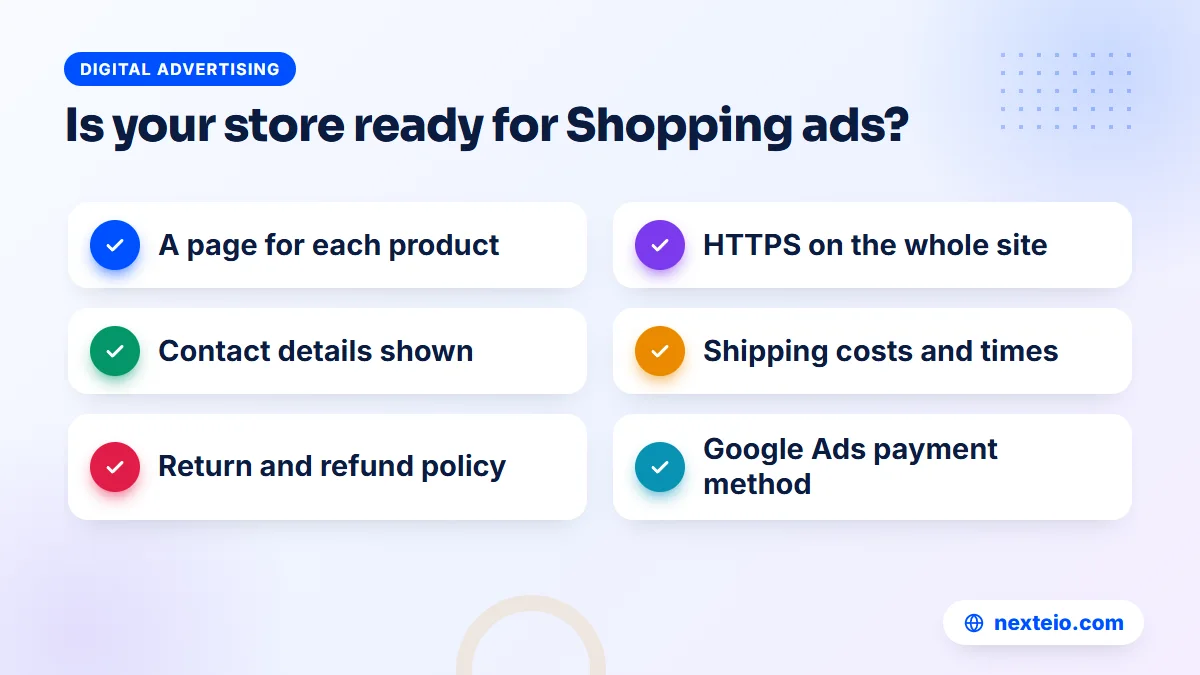
Before you advertise on Google Shopping, check that your store meets the basics. Google's reviewers look at your website as a shopper would, and a store that feels incomplete is likely to be held back or suspended.
- A working online store with a separate page for each product, a clear price and a way to buy.
- A secure checkout. The whole site should load over HTTPS, especially checkout and payment pages.
- Clear contact details: a phone number, an email address and a business address where possible.
- Shipping information: where you deliver, how long it takes and what it costs.
- A return and refund policy that is easy to find from every product page.
- A Google Ads account with a payment method that works for international charges.
Missing any of these is the usual reason a new account stalls.
If your store is still a Facebook Page with orders through the inbox, you need a proper website first. In Bangladesh, typical market ranges for an e-commerce store are about BDT 25,000-60,000 for a ready theme, 60,000-150,000 for a custom design and 150,000 or more for a custom-built store with integrations. Our e-commerce website development service builds stores with clean product pages and feeds in mind, and the related guide on planning and budgeting an e-commerce website covers the decisions in more detail.
Setting Up Google Merchant Center Step by Step
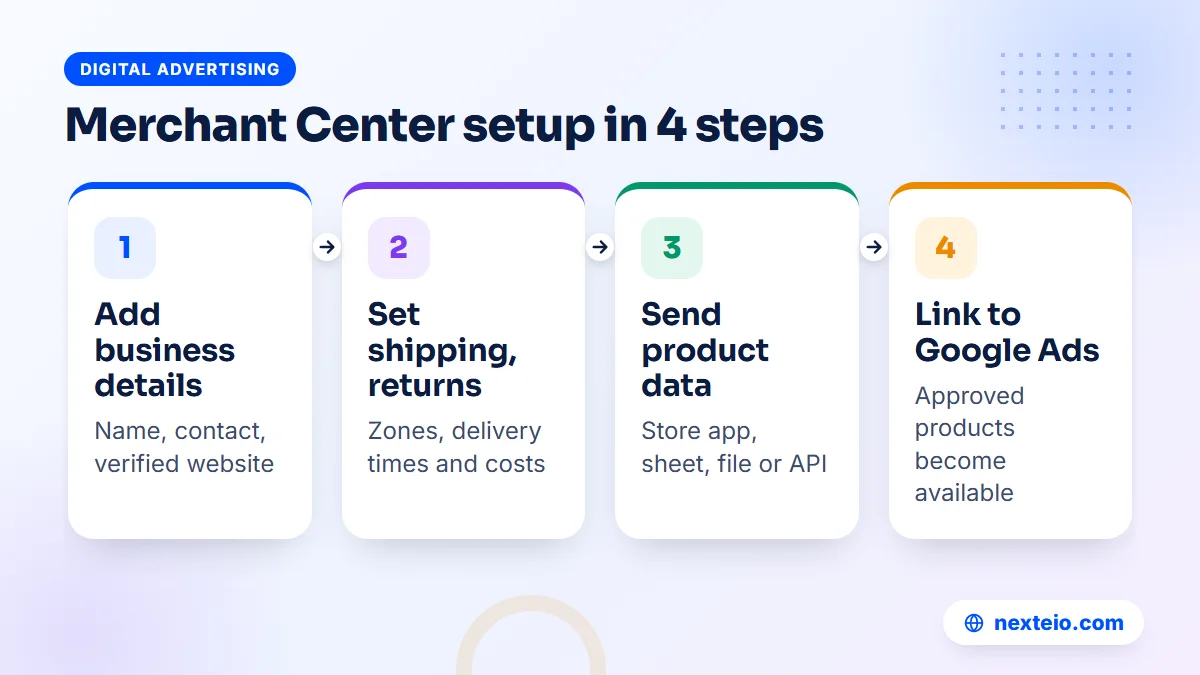
Merchant Center is where your products live for Google. Google's getting started guide for Merchant Center covers the official process. In practice, the setup has five parts.
1. Business information
Enter your business name, address, phone number and customer service contact. Use the same details that appear on your website. A mismatch between the store name in Merchant Center and the name on the site can trigger a review.
2. Verify and claim your website
Google needs proof that you own the online store. You can usually verify through an HTML tag, a file upload, Google Analytics, Google Tag Manager or your store platform's integration. Claiming the website then links it to this Merchant Center account. Whoever does this for you should use an account your business controls, not a freelancer's personal Gmail.
3. Shipping and returns
Add your shipping zones, delivery times and costs, and set up your return policy. If you charge different delivery fees inside and outside certain areas, or offer free delivery over a certain order value, enter that accurately. Shoppers see delivery cost information, and wrong details create complaints and disapprovals.
4. Add your products
There are several ways to send products to Merchant Center:
- Store platform app: the Google for WooCommerce extension and Shopify's Google and YouTube app sync products automatically.
- Google Sheets: good for a small catalog that rarely changes.
- Scheduled file: a feed file on your server that Merchant Center fetches on a timetable.
- Content API: for custom stores, a developer pushes updates whenever products change.
- Website crawl: Google reads product details from structured data on your pages.
For most growing stores, an automatic sync beats a manual sheet.
If your shop runs on WordPress and WooCommerce, the official extension is usually the quickest path. Custom stores built on Laravel or similar frameworks often need a small feed module, which a developer can build once and reuse.
5. Link Merchant Center to Google Ads
In Merchant Center, send a link request to your Google Ads account, then accept it inside Google Ads. Once linked, the approved products become available when you create a Shopping or Performance Max campaign.
Building a Product Feed That Gets Approved
The product feed is the heart of Google Shopping ads. Google's product data specification lists every attribute and its rules. These are the ones that matter most for a typical store:
| Attribute | What it holds | Common mistake |
|---|---|---|
| id | A unique code for each product or variant | Changing IDs, which resets history |
| title | Product name with key details | Only a model code, or all capitals |
| description | What the product is and its features | Copied supplier text or promo slogans |
| link | The product page address | Pointing to the homepage |
| image_link | The main product photo | Watermarks or sale text on the image |
| price and availability | Current price and stock status | Not matching the website |
| brand, gtin, mpn | Product identifiers | Missing GTIN for branded goods |
| condition | New, used or refurbished | Left out for used items |
Get these right before you touch the campaign settings.
For products you make yourself, such as a garment brand's own designs, there is usually no GTIN. In that case, the specification lets you tell Google that no identifier exists, rather than inventing a number. For branded goods from manufacturers, such as electronics or cosmetics, use the real GTIN printed on the packaging.
Product titles that match real searches
The title is the strongest signal Google uses to match your product to a search. Put the most important words first: what the product is, the brand if people search for it, then key details such as size, material, color or model. "Leather Wallet" tells Google very little. "Men's Bifold Leather Wallet, Genuine Cowhide, Brown, RFID Blocking" matches far more of the searches real shoppers type.
Keep titles honest and readable. Do not stuff them with search terms or add "best price" and "free delivery". Our guide on Google Ads keyword research is useful here: even though Shopping campaigns do not use keyword lists, knowing how people phrase searches helps you write better titles.
Images that pass review and earn clicks
Use a clear photo of the actual product, ideally on a plain light background, with the product filling most of the frame. Avoid logos, watermarks, borders and text such as "50% off" on the main image. For clothing and shoes, show the item worn or laid out neatly, and add extra images for other angles through the additional image attribute.
Related guides for product-led advertisers:
- How much Google Ads costs for a small business in Bangladesh
- What an e-commerce SEO service includes
- How to build a high-converting landing page
Fixing Disapprovals and Account Suspensions
Almost every new Merchant Center account sees some disapproved products in the first weeks. That is normal. What matters is reading the issue, fixing the cause on the website or in the feed, and letting Google re-check. Google's Shopping ads and listings policies explain what is not allowed and why.
The most frequent problems fall into a few groups:
- Price or availability mismatch: the feed and the product page disagree. Sync more often.
- Missing identifiers: branded products without GTIN. Add the real code from the packaging.
- Image problems: promotional text, watermarks or a placeholder image. Replace with a clean photo.
- Landing page errors: the link is broken, slow or redirects to another page. Fix the URL.
- Restricted products: some categories, such as certain health products, have extra rules.
Most of these are item-level problems that fix one product at a time.
Account-level suspensions are more serious. The most common one is for misrepresentation, which usually means Google does not trust the store enough: missing contact details, no return policy, unclear business identity, prices that look too good to be true or claims that cannot be checked. Fix the website first, then request a review. Repeated requests without real changes tend to make things harder.
Creating Your First Google Shopping Ads Campaign
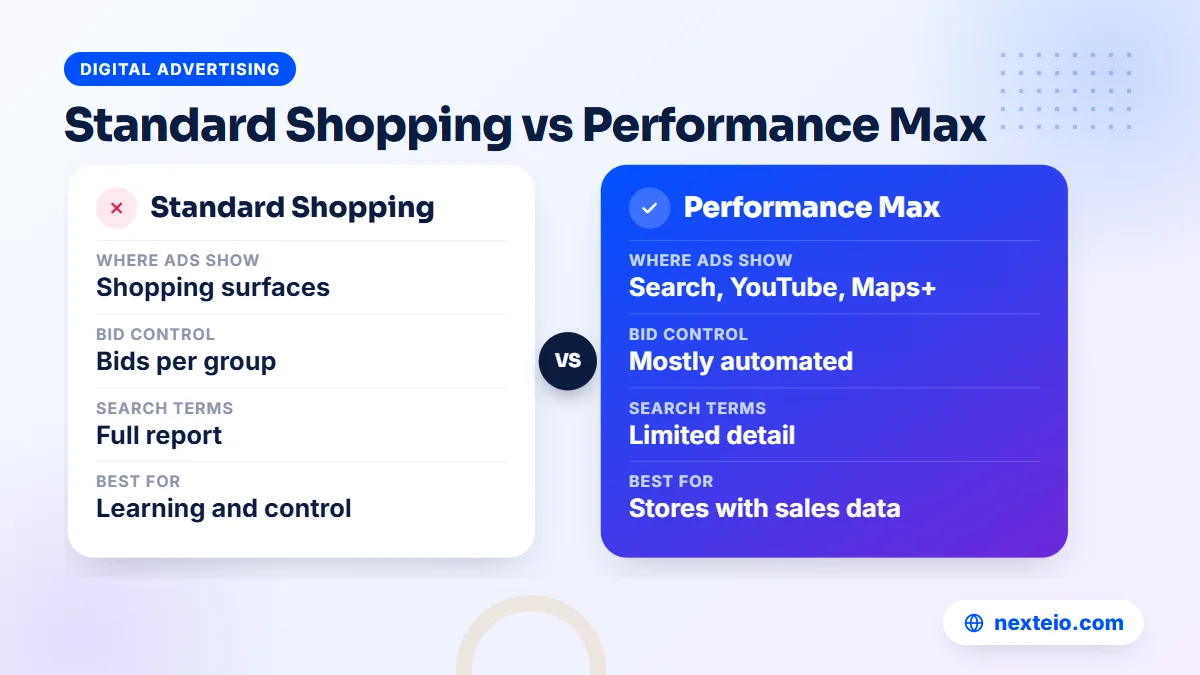
Once products are approved and the accounts are linked, you can build the campaign. In Google Ads, you have two main choices for Google Shopping ads: a Standard Shopping campaign or a Performance Max campaign.
Standard Shopping
Standard Shopping shows your products on Google's Shopping surfaces and gives you direct control over bids for each product group. You can add negative keywords, see the search terms report and use campaign priority settings when the same products sit in more than one campaign. It suits stores that want to learn how their products perform before handing control to automation.
Performance Max
Performance Max uses your product feed together with images, videos and text you provide, and shows ads across Search, Shopping, YouTube, Display, Gmail and Maps. It relies heavily on conversion data and automated bidding, so it works best once your conversion tracking is reliable and you have some sales history. You get less detail about where each click came from.
A common path is to start with Standard Shopping, learn which products and searches convert, and test Performance Max once tracking is solid. Write down what you want each campaign to achieve before you build it. If you are unsure which type suits your catalog, our Google Ads team can review your products and tracking first.
Setup steps for a Standard Shopping campaign
- In Google Ads, create a new campaign and choose sales as the objective.
- Select Shopping as the campaign type and choose your linked Merchant Center account.
- Pick Standard Shopping, then set the country of sale and the daily budget.
- Choose a bid strategy: manual cost per click to start, or maximize clicks for early data.
- Create an ad group and split products into groups, such as by category or brand.
- Set bids per product group, review the settings and publish.
Check the campaign daily for the first week.
Structuring Product Groups, Bids and Search Terms
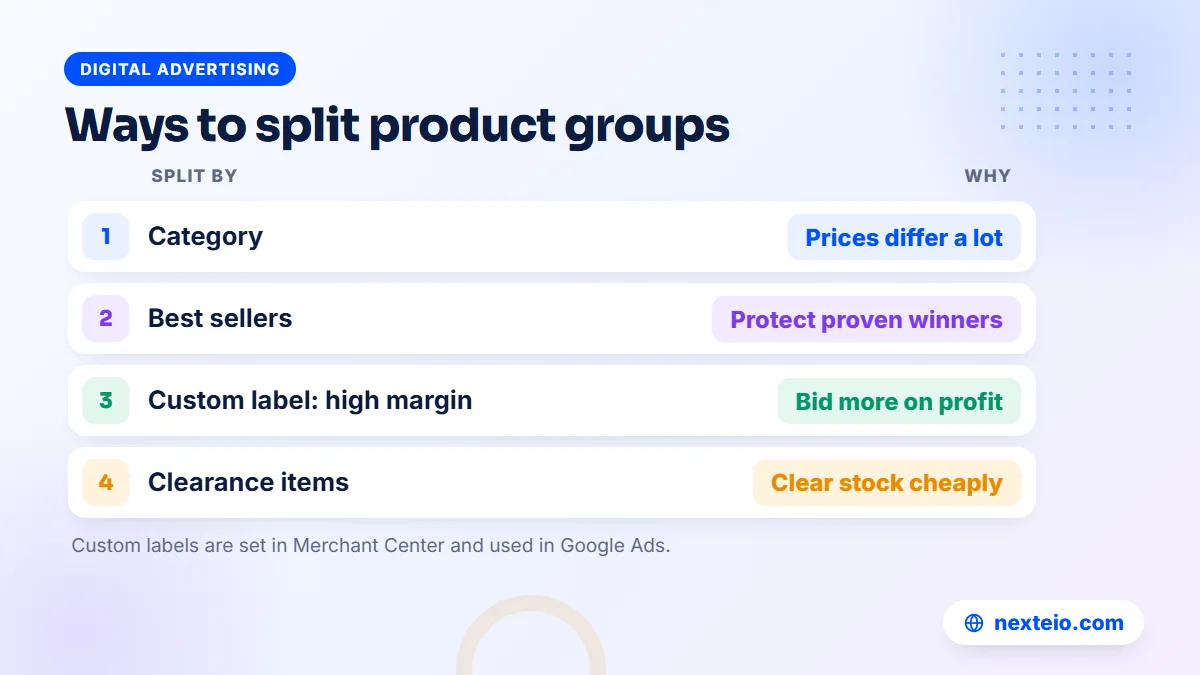
A single product group with one bid for the whole store is the most common beginner setup, and also the weakest. A BDT 400 phone case and a BDT 18,000 blender should not share the same bid, because one click on the blender is worth far more.
Split the store into product groups that make business sense. Category is the usual first split. Within categories, separate your best sellers, high-margin items and products with very low prices. Merchant Center's custom labels let you tag products with your own groups, such as "high margin", "clearance" or "Eid collection", and then bid on those groups directly.
Review the search terms report every week. You will find searches that make no sense for your products, such as "free", "second hand" when you only sell new items, or "repair" when you do not offer repairs. Add those as negative keywords. Over a few weeks, this one habit often removes a noticeable share of wasted clicks.
Campaign priority is useful once you have more than one Standard Shopping campaign containing the same products. A common setup uses a high-priority campaign with low bids to catch broad searches, and a lower-priority campaign with higher bids that only receives the searches you push into it with negative keywords. It sounds complex, but it gives you more control over what you pay for generic versus specific searches.
Budget and Bids for Google Shopping Ads: A Worked Example
Nobody can tell you in advance what each click will cost. It depends on the country, the product, the competition and the quality of your data. What you can work out before you start is how much you can afford to pay, which keeps the test budget sensible.
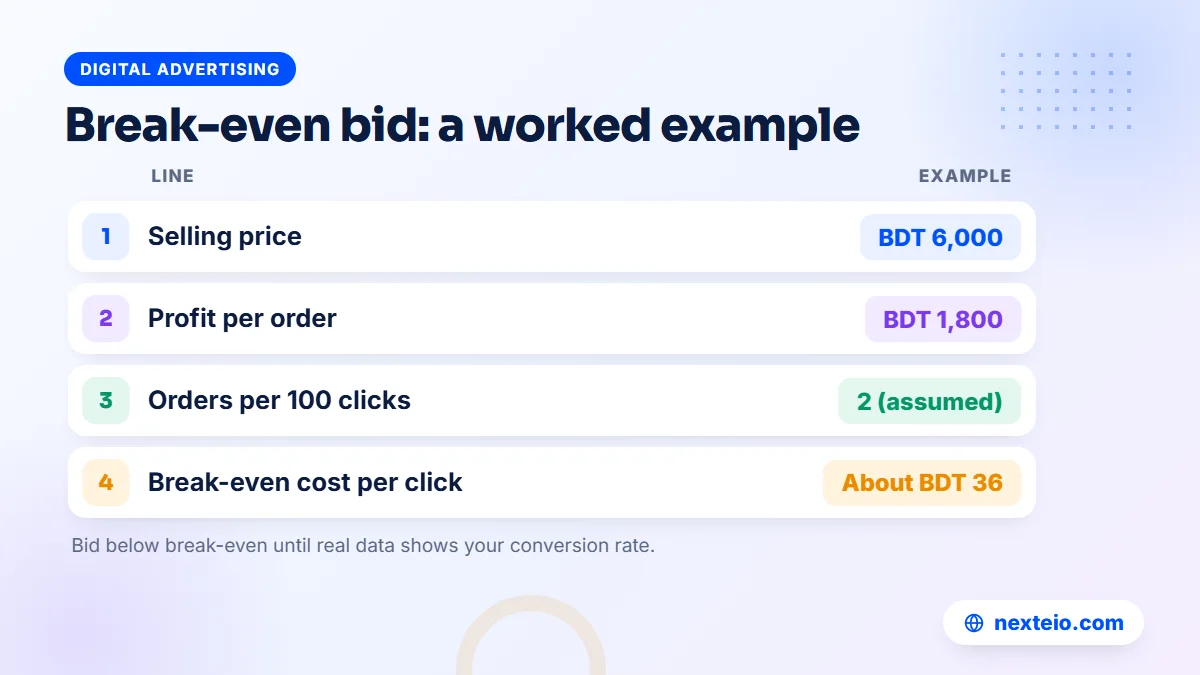
Take an example. A store sells a ceramic dinner set to buyers abroad for the equivalent of BDT 6,000. After product cost, packaging, shipping and payment fees, the store keeps about BDT 1,800 per sale. If roughly 2 in every 100 clicks become orders, then 100 clicks may bring two orders and BDT 3,600 of profit. To break even, 100 clicks must cost no more than BDT 3,600, which means the store can pay up to about BDT 36 per click and still not lose money. These are planning numbers, not market data.
The real conversion rate will only become clear after a few weeks of data. Start with bids below the break-even point, collect clicks and orders, and adjust. Use the example below as a template for your own figures.
| Line | Example figure | Your figure |
|---|---|---|
| Selling price | BDT 6,000 | From your store |
| Profit per order after all costs | BDT 1,800 | From your accounts |
| Orders per 100 clicks (assumed) | 2 | From your data after testing |
| Profit per 100 clicks | BDT 3,600 | Profit per order times orders |
| Break-even cost per click | About BDT 36 | Profit per 100 clicks divided by 100 |
Keep the first month's spend small enough that a bad result does not hurt.
Also budget for the setup work: feed cleanup, Merchant Center fixes and tracking can take more time than the campaign itself. If you also advertise on Facebook or TikTok, an ads campaign service can split one budget across platforms and compare them fairly. To get a realistic setup plan for your own catalog, send us your store link and target countries.
Measuring Results: Conversion Tracking and ROAS
Shopping campaigns without conversion tracking are guesswork. You need to know which products and searches lead to orders, and how much those orders are worth. Our guide to Google Ads conversion tracking walks through the setup for a typical store.
Pass the order value with each conversion, not just a count. That lets you see return on ad spend, or ROAS: the revenue the ads brought divided by what they cost. A ROAS of 4 means BDT 4 of sales for every BDT 1 spent. Whether that is profitable depends on your margins, which is why the break-even calculation above matters.
Cash on delivery needs extra care. A conversion is recorded when the order is placed, but some cash orders are refused at the door or returned. If that happens often, your real revenue is lower than Google Ads reports. Compare the ad report with your delivered orders each month, and adjust your targets to match what actually reaches your bank account.
For bigger catalogs, look at results by product, not only by campaign. A few products usually bring most of the sales. Raise bids on those, lower or pause the ones that spend without selling, and check whether the poor performers have weak titles, weak images or prices well above competitors.
Google Shopping Ads vs Search Ads vs Facebook Catalog Ads
Shopping ads are not the only way to sell products online. The right mix depends on how your customers search and what your store can support.
| Point | Google Shopping ads | Google search ads | Facebook catalog ads |
|---|---|---|---|
| What triggers the ad | Searches matched to product data | Keywords you choose | Audiences and past behavior |
| What the shopper sees | Image, title, price, store | Text headline and description | Images or video in the feed |
| Main setup work | Merchant Center and feed quality | Keywords and ad copy | Catalog, Pixel and creatives |
| Best for | Shoppers comparing products | Services and specific searches | Discovery and repeat buyers |
Many stores use more than one of these at the same time.
For stores that rely on Facebook and Instagram for most sales today, our Facebook ads service can set up catalog ads from the same product data. Organic search is the other long-term channel: an e-commerce SEO service helps product and category pages appear in regular results without paying per click.
Common Mistakes With Google Shopping Ads
Most underperforming Shopping campaigns share a handful of problems. Fix these before raising the budget:
- Weak titles. Short or vague titles limit which searches your products can match.
- One bid for everything. Cheap and expensive items compete for the same money.
- No negative keywords. Irrelevant searches keep spending week after week.
- Feed not synced. Price and stock changes on the site never reach Merchant Center.
- Tracking without values. You see conversions but not which products earn money.
- Slow product pages. Clicks are paid for, then lost while the page loads on mobile data.
- Judging too early. A few days of data rarely tells you which products work.
The fixes are routine work, not clever tricks.
A final point about the store itself. Google Shopping ads send people straight to a product page, so that page has to answer every question on its own: clear photos, price, delivery cost, payment options, return policy and an easy way to order. If your product pages are thin, improving them often raises sales from every channel, not just from ads. Our article on Google Ads tips for small budgets covers more ways to get better results from limited spending.
How Nexteio Can Help With Google Shopping Ads
Running Google Shopping ads well is mostly about data and discipline. Through our Google Ads service, we start by checking which target countries your Merchant Center account can use, so you know what is possible before money is spent. Then we set up or clean up Merchant Center, verify the website, fix shipping and return details and resolve product disapprovals.
On the feed side, we rewrite product titles and descriptions, add missing identifiers and set custom labels so bids follow your margins. We connect the store to Merchant Center through the right method for your platform, whether that is a WooCommerce or Shopify integration or a custom feed for a Laravel store. Campaigns are built with clear product groups, negative keywords and conversion tracking that passes order values, and you keep ownership of every account.
If your store is not ready yet, we can also build it. See our portfolio and the full list of services, tell us about your store and target markets, or contact us with questions about Google Shopping and search campaigns.
Keep reading: a practical buyer's guide to Google Ads services, SEO vs Google Ads and which to use, or browse all our digital advertising guides.
Frequently asked questions
Are Google Shopping ads available in Bangladesh?
It depends on what Merchant Center allows for your account at the time you set it up. Bangladesh is not in Google's main table of supported countries and currencies at the time of writing, and Google adds new markets as beta countries over time. Create a Merchant Center account and check which target countries you can select before planning a budget.
Do I need a website to run Google Shopping ads?
Yes. Each Shopping ad links to a product page on your own online store, and Google checks that the page shows the same price and availability as your product data. A Facebook Page or marketplace listing is not enough. The site also needs clear contact details, shipping information and a return policy.
How much do Google Shopping ads cost?
You set the budget, and you pay only when someone clicks an ad. The cost per click varies by country, product and competition, so nobody can quote it in advance. Work out your break-even cost per click from your profit per order and expected conversion rate, start below it, and adjust once you have real data.
What is the difference between Merchant Center and Google Ads?
Merchant Center holds your product data and checks it against Google's rules. Google Ads holds the campaigns, budgets and bids that decide when and how much you pay to show those products. You need both, linked together, to run Shopping ads.
Why were my products disapproved in Merchant Center?
The usual causes are a price or stock mismatch between the feed and the website, missing product identifiers for branded goods, images with promotional text or watermarks, and broken product links. The issue list in Merchant Center names the problem for each product. Fix the cause on the site or in the feed, and Google re-checks the item.
Should I choose Standard Shopping or Performance Max?
Standard Shopping gives more control and clearer search term data, which suits stores that are still learning what sells. Performance Max reaches more Google surfaces with heavy automation and works best once conversion tracking is reliable and you have sales history. Many stores start with Standard Shopping and test Performance Max later.
Can I advertise on Google Shopping without GTIN codes?
Yes, for products that genuinely have no GTIN, such as your own handmade or private-label items. The product data specification lets you state that no identifier exists. For branded products from manufacturers, add the real GTIN from the packaging, because missing codes can limit or block those items.