Best Video Editor for PC: 10 Free and Paid Picks for Windows
In this article 16 sections
- 1.How We Judged Each Editor
- 2.The Best Video Editor for PC at a Glance
- 3.DaVinci Resolve: The Best Free Video Editor for PC With Serious Power
- 4.Adobe Premiere Pro: The Paid Choice for Teams and Agencies
- 5.CapCut Desktop and Canva: Fast Tools for Reels and Promos
- 6.Clipchamp: The Simple Video Editor for Windows 10 and 11
- 7.Shotcut, Kdenlive and OpenShot: Free and Open Source
- 8.Filmora and VEGAS Pro: Paid Editors for Everyday Work
- 9.Which Editor Fits Which Job
- 10.The PC You Need for Smooth Editing
- 11.Phone Footage, Bangla Text and Other Practical Problems
- 12.A Simple Editing Routine From Import to Export
- 13.Free or Paid: When the Best Video Editor for PC Is Worth Paying For
- 14.When Editing In-House Stops Making Sense
- 15.How Nexteio Can Help With Video Editing
- 16.Frequently asked questions
Picking the best video editor for PC sounds simple until you install three of them and lose a weekend. Some free editors are excellent, some paid ones are far more than a 30-second Facebook reel needs, and a few will crawl on an office laptop with 8 GB of RAM. The right choice depends on what you make, who edits it and the computer it has to run on.
The jobs are different too. A school media teacher cuts a prize-giving video once a term. A garment exporter needs a clean factory walkthrough before a buyer visit. An online shop wants five product reels every week, each with captions and a price on screen.
No single program is best at all three. A tool that feels perfect for quick vertical clips can be painful for a 20-minute event film, and the reverse is just as true.
This guide compares ten editors for Windows, free and paid, against the work businesses and institutions in Bangladesh actually do. It also covers the PC specs that matter, problems with phone footage and Bangla text, a simple editing routine, and the point where handing the edit to someone else costs less than doing it yourself.
How We Judged Each Editor
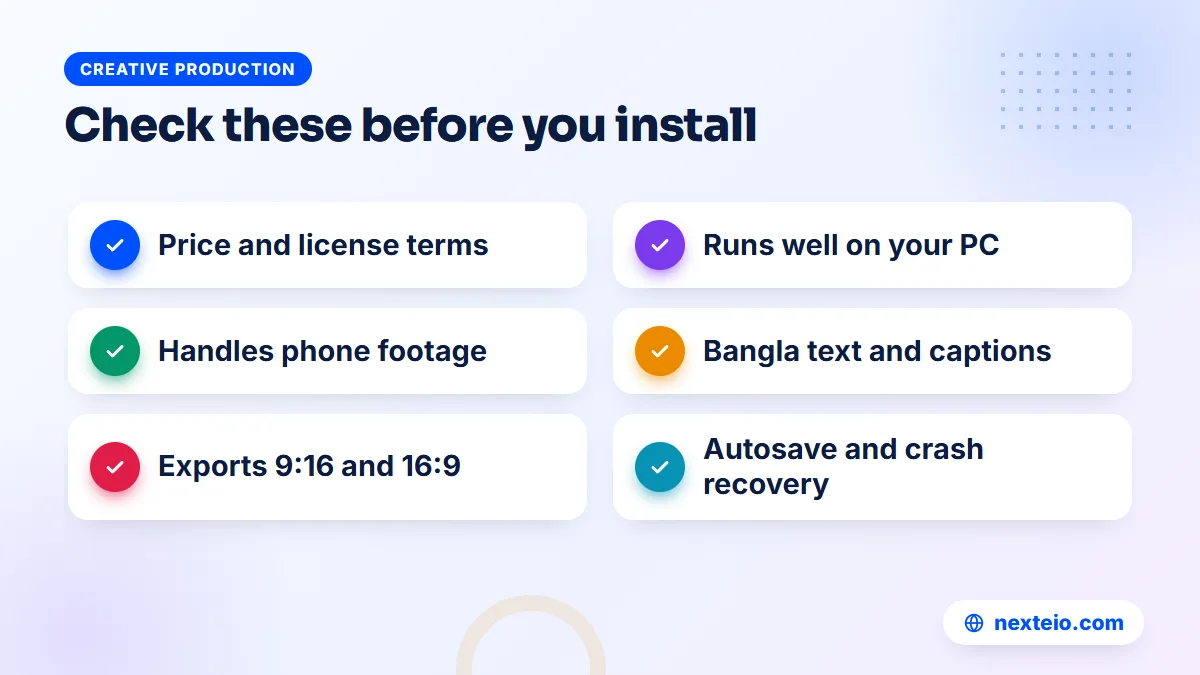
Review sites often rank editors by feature count. That is not very useful for a business. A marketing officer who edits twice a month needs something different from a full-time editor, and a long list of effects means little if the program freezes on your hardware. We wanted the best video editor for PC users in ordinary offices, so we looked at seven practical points:
- Cost and license: free, one-time purchase or monthly subscription, and whether exports carry a watermark.
- Learning time: how long before a new user can finish a simple video without help.
- Hardware demand: whether it runs on an ordinary office PC or needs a strong graphics card.
- Phone footage: how well it handles the files that modern phones record.
- Text and captions: automatic captions, title tools and how Bangla text displays.
- Export options: vertical 9:16 for reels, horizontal 16:9 for YouTube, square for feeds.
- Stability: autosave, crash recovery and how it behaves on long projects.
Prices and features change often, so treat the details below as correct at the time of writing and check the official site before you pay.
The Best Video Editor for PC at a Glance
Here is the short version. Each editor gets its own section below, with the reasons behind its place in this list.
| Editor | Price model | Best for | Learning curve |
|---|---|---|---|
| DaVinci Resolve | Free, or one-time Studio license | Long videos, color work | Steep |
| Adobe Premiere Pro | Subscription | Teams and agencies | Moderate to steep |
| CapCut Desktop | Free, with paid Pro | Reels and short ads | Easy |
| Microsoft Clipchamp | Free, with paid plan | Quick office edits | Very easy |
| Canva | Free, with paid Pro | Template promos | Very easy |
| Shotcut | Free, open source | Zero budget, older PCs | Moderate |
| Kdenlive | Free, open source | Free multi-track editing | Moderate |
| OpenShot | Free, open source | Very simple cuts | Easy |
| Wondershare Filmora | Paid, with trial | Beginners who want effects | Easy |
| VEGAS Pro | Paid | Experienced Windows users | Moderate |
If you only want one line: for long, polished work the best video editor for PC is DaVinci Resolve, and for short social videos it is CapCut Desktop.
DaVinci Resolve: The Best Free Video Editor for PC With Serious Power
DaVinci Resolve from Blackmagic Design is the best free video editor for PC if you are willing to learn. It combines editing, color correction, visual effects, audio mixing and delivery in one program, and the free version does not add a watermark. Blackmagic states that the free version handles most 8-bit formats at up to 60 frames per second and resolutions up to Ultra HD (3840 x 2160), which covers almost every business video.
Its color tools are the main reason professionals use it. Footage from a factory floor under tube lights, or a classroom with mixed daylight, can be corrected to look natural. The Fairlight audio page can clean up a noisy interview, which matters more than most people expect. Viewers forgive average pictures far sooner than bad sound.
Free or Studio
The paid DaVinci Resolve Studio is a one-time purchase rather than a subscription, listed at USD 295 on Blackmagic's site when we checked. It adds the AI-based Neural Engine tools, noise reduction, more effects, higher resolutions and hardware-accelerated decoding and encoding of H.264 and H.265 files. That last point matters for phone footage, which usually comes in one of those formats.
The downside is weight. Resolve leans heavily on the graphics card, and on a laptop with only integrated graphics, the timeline can stutter. The interface also takes time to learn. For a person who edits one short clip a month, it can feel like flying a plane to cross the road.
Adobe Premiere Pro: The Paid Choice for Teams and Agencies
Premiere Pro is the editor most agencies, TV channels and freelance editors already know. It is sold as a monthly or yearly subscription, either on its own or inside Adobe's Creative Cloud bundle. You need a card that works for international payments, and the cost adds up over a year, so it rarely suits someone who edits occasionally.
Where it shines is teamwork and file exchange. If you hire a freelancer, they can open your Premiere project directly. It works closely with Photoshop for graphics and After Effects for motion titles, and it includes automatic captions and text-based editing, where you cut the video by deleting lines from a transcript.
It is also demanding on hardware and has a busy interface. For a company that keeps one person on video full-time, it is a sensible standard. For a school or a small shop, a free editor usually does the same job.
CapCut Desktop and Canva: Fast Tools for Reels and Promos
CapCut Desktop
Many people know CapCut as a phone app, but the CapCut desktop editor runs on Windows and is free to download. It is built for short vertical video: automatic captions, trending text styles, quick transitions, background removal and easy 9:16 framing. For an online shop making daily product reels, it is often the fastest route from raw clips to a finished post.
Some effects, templates and AI tools are marked Pro. If your project uses one of them, CapCut asks you to subscribe before export, so check for the Pro label as you work. CapCut is also less comfortable for long projects with many tracks. Treat it as a short-form tool rather than a full studio.
Canva
This one is a design tool first, but its video editor is useful for template-based promos: an admission announcement, an offer video, a short event invitation. It runs in the browser and as a Windows app, keeps your logo and brand colors in one place, and lets several staff members work from the same templates.
It is not built for real editing. Trimming a long interview or syncing two cameras is awkward. Use it for videos that are mostly graphics, text and a few clips.
Clipchamp: The Simple Video Editor for Windows 10 and 11
Clipchamp is Microsoft's editor. It comes with Windows 11 and is available for Windows 10 from the Microsoft Store, so there is nothing to hunt for or configure. You sign in with a Microsoft account, drag in clips and use simple templates, text and transitions.
Many office computers in Bangladesh still run Windows 10, so a common search is simply "video editor Windows 10". Clipchamp is the closest thing to a built-in answer. Most other editors in this list still run on Windows 10, but Microsoft ended regular Windows 10 support in October 2025 and software makers are slowly dropping it, so check each program's requirements before you install.
At the time of writing, the free plan exports up to 1080p, which is enough for Facebook and YouTube. Premium stock media and some features need a paid plan. Clipchamp relies on an internet connection for sign-in and some features, so on a weak office connection it can feel slow.
Clipchamp suits an office assistant who needs to join three clips, add a logo and a caption, and post the result the same afternoon. It is not the tool for a 30-minute annual report film.
For most offices, these first editors cover nearly everything. If you would rather skip the learning curve entirely, our video editing service takes your raw footage and returns finished files, so your staff can stay on their actual jobs.
Shotcut, Kdenlive and OpenShot: Free and Open Source
Open-source editors are free forever, add no watermark and do not ask for an account. They are maintained by volunteer communities, so updates and polish vary. All three below run on Windows as well as Mac and Linux.
Shotcut
This editor is light, stable and supports a very wide range of file formats. It runs reasonably well on older PCs, which makes it a good free video editor for PC setups in schools and NGOs where the computers are a few years old. The interface looks plain and uses a filter-based approach that takes a little getting used to.
Kdenlive
Built by the KDE community, Kdenlive is the most complete of the three. It offers multi-track editing, proxy clips for smoother playback on slow machines, and an optional speech-to-text tool for subtitles. If you want something close to a professional editor at no cost and Resolve is too heavy for your PC, try Kdenlive.
OpenShot
The simplest of the three, OpenShot comes with a clean drag-and-drop layout. It works well for short, simple edits. Users often report that it slows down or becomes unstable on longer projects with many effects, so keep it for basic jobs and save often.
Filmora and VEGAS Pro: Paid Editors for Everyday Work
Wondershare Filmora
Wondershare's editor sits between the simple free tools and the professional suites. It has a friendly interface, many built-in effects, titles and transitions, and automatic captions. The free trial adds a watermark to exports, so you need a paid plan for client or public videos. Plans are offered yearly, and Wondershare has also sold perpetual licenses, so compare the options when you buy.
It suits beginners who want stylish results quickly, such as a coaching center making promo clips. Experienced editors may find the effects packs limiting after a while.
VEGAS Pro
VEGAS Pro is a Windows-only editor with a long history and a loyal user base. Its timeline is flexible and quick once learned, and many self-taught editors grew up on it. It is a paid product, and the license options have changed over the years between subscriptions and one-time editions, so check the current offer. If someone on your team already knows VEGAS well, there is little reason to force a switch.
Related guides for teams that make video for marketing:
- A practical guide to video editing services in Bangladesh
- What a good video ad edit includes and costs
- Meta ads tips for better results in Bangladesh
Each one looks at a different part of the job, from shooting and editing to running the finished video as an ad.
Which Editor Fits Which Job
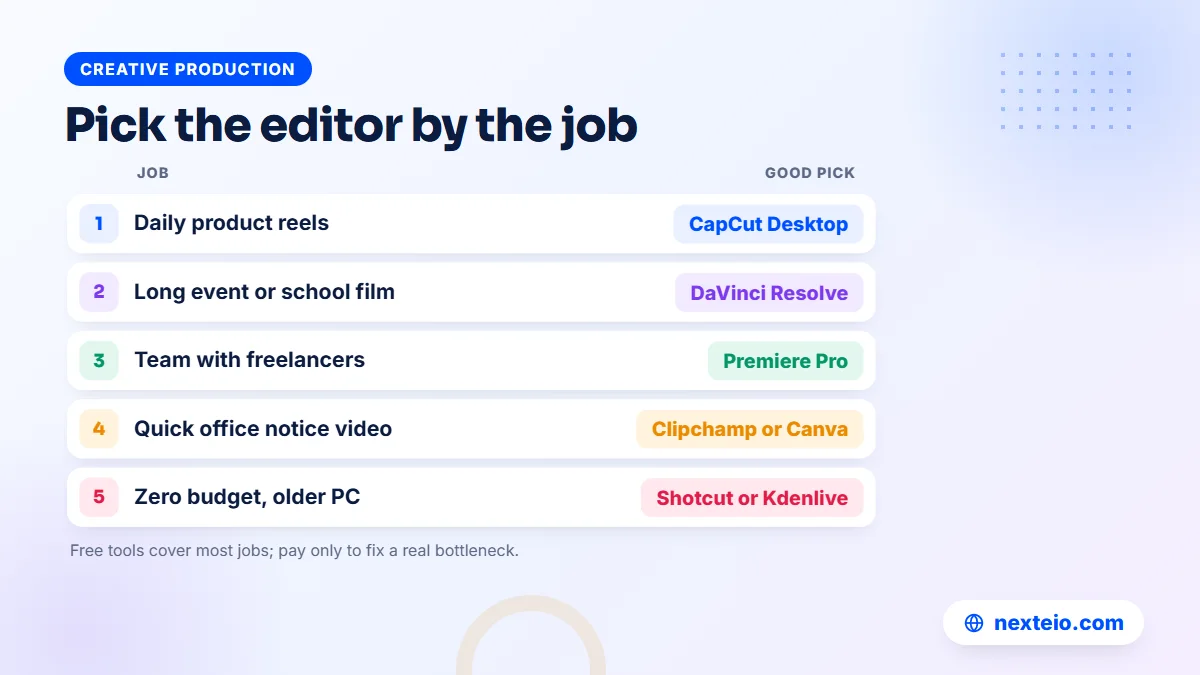
The best video editor for your organization depends far more on the job than on any ranking. These are common situations we see, with the editor that usually fits each one.
| Situation | Good pick | Why |
|---|---|---|
| Online shop, daily product reels | CapCut Desktop | Fast captions and vertical framing |
| School or college event film | DaVinci Resolve | Handles long timelines and audio cleanup |
| Garment factory buyer video | DaVinci Resolve or Premiere Pro | Color correction for factory lighting |
| Clinic or office notice video | Clipchamp or Canva | Templates, logo and text in minutes |
| NGO with older computers | Shotcut or Kdenlive | Free and lighter on hardware |
| Agency with freelancers | Premiere Pro | Shared project files |
Most organizations end up with two tools: one quick editor for social clips and one stronger editor for longer work.
If the videos are meant to run as paid ads, the edit matters even more. The first three seconds, captions for muted viewing and a clear offer decide whether people stop scrolling. Our video ad editing service focuses on exactly that, and the edits then feed into campaigns on Facebook and Instagram or TikTok.
The PC You Need for Smooth Editing
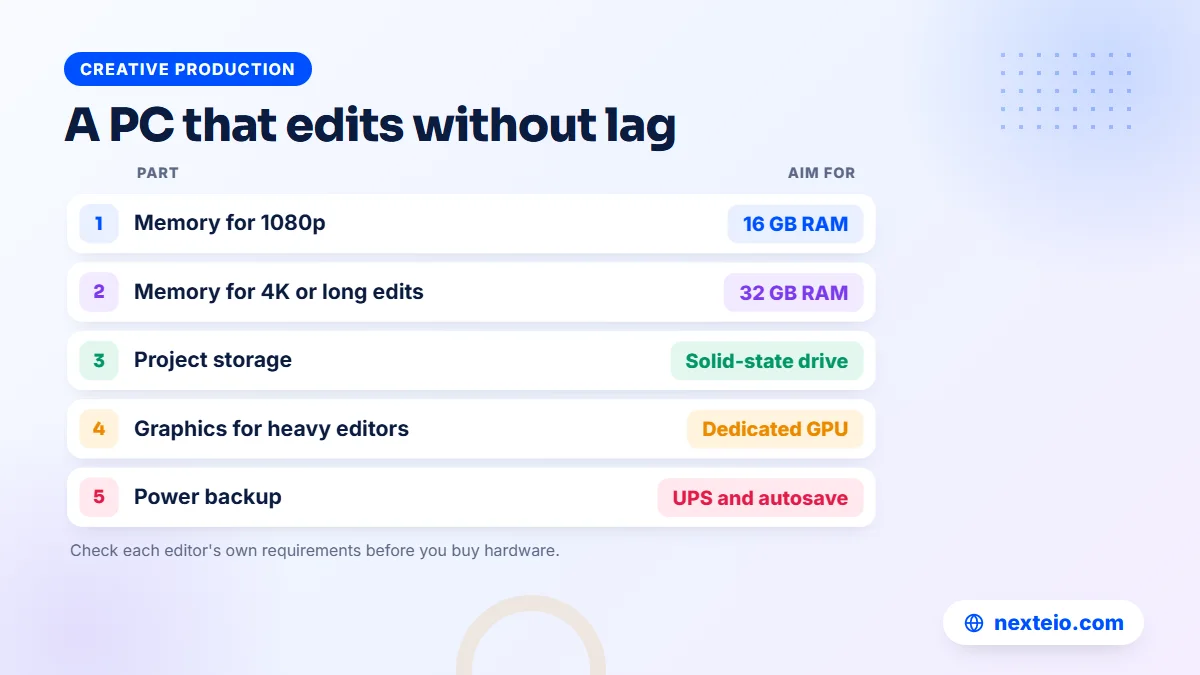
Even the top video editor feels terrible on the wrong machine, and the best video editor for PC work is only as good as the computer under it. Before you blame the software, check the hardware. These are practical levels, not official minimums, so read each program's own requirements as well.
| Part | Basic 1080p editing | Comfortable 4K or long edits |
|---|---|---|
| Processor | Recent Intel Core i5 or AMD Ryzen 5 | Recent Core i7, Ryzen 7 or better |
| Memory (RAM) | 16 GB | 32 GB |
| Graphics | Integrated graphics for light editors | Dedicated graphics card with 6 GB or more of memory |
| Storage | Solid-state drive for projects | Separate fast drive for media |
Editing on 8 GB of RAM is possible with light tools and short clips, but expect waiting.
Storage is the most overlooked part. Editing from a slow hard disk, or from a phone connected by cable, makes every editor lag. Copy footage to a solid-state drive first, and keep a second copy on an external drive until the project is delivered.
Power cuts and autosave
In Bangladesh, a power cut in the middle of an export is a real risk. Put the editing PC on a UPS that can keep it running long enough to save and shut down. Turn on autosave in your editor and set it to save every few minutes. Resolve, Premiere Pro and most others have this option, but it is not always on by default.
Also think about upload speed. A 2 GB final file can take a long time to upload on a busy office connection. Export a smaller, compressed version for review and keep the full-quality master for final use.
Phone Footage, Bangla Text and Other Practical Problems
Variable frame rate and HEVC files
Most business videos are now shot on phones. Phones often record with a variable frame rate, which can make audio drift out of sync in some editors, and many save video in HEVC (H.265) to save space. Windows may need Microsoft's HEVC Video Extensions from the Store to play these files in some apps.
If playback stutters or sound slips, convert the clips to a constant frame rate first, or create proxy files. Proxies are lighter copies the editor uses while you work, swapped back to the originals on export. Resolve, Premiere Pro, Kdenlive and Shotcut all support some form of this.
Bangla captions and titles
Automatic captions in most editors work far better in English than in Bangla. Some tools offer Bangla, some do not, and accuracy varies. Plan to check every line by hand, or type Bangla captions yourself.
Bangla titles bring a second problem: some editors do not join conjunct letters correctly, so the text looks broken. Test a line with a few conjuncts before you build a whole video around a font. If an editor gets it wrong, design the title as a transparent PNG in a design tool and place it on the timeline as an image.
Music and footage rights
Popular songs can get your video muted or blocked on Facebook and YouTube, and they are especially risky in ads. Use the licensed music libraries inside your editor or the platform's own audio library, and keep a note of where each track came from.
For campaigns that mix video with search ads, our guide on Google Ads versus Meta ads explains where video tends to work best.
A Simple Editing Routine From Import to Export
Good editing is mostly good habits. This routine works in any of the editors above and keeps a beginner from getting lost in a project.
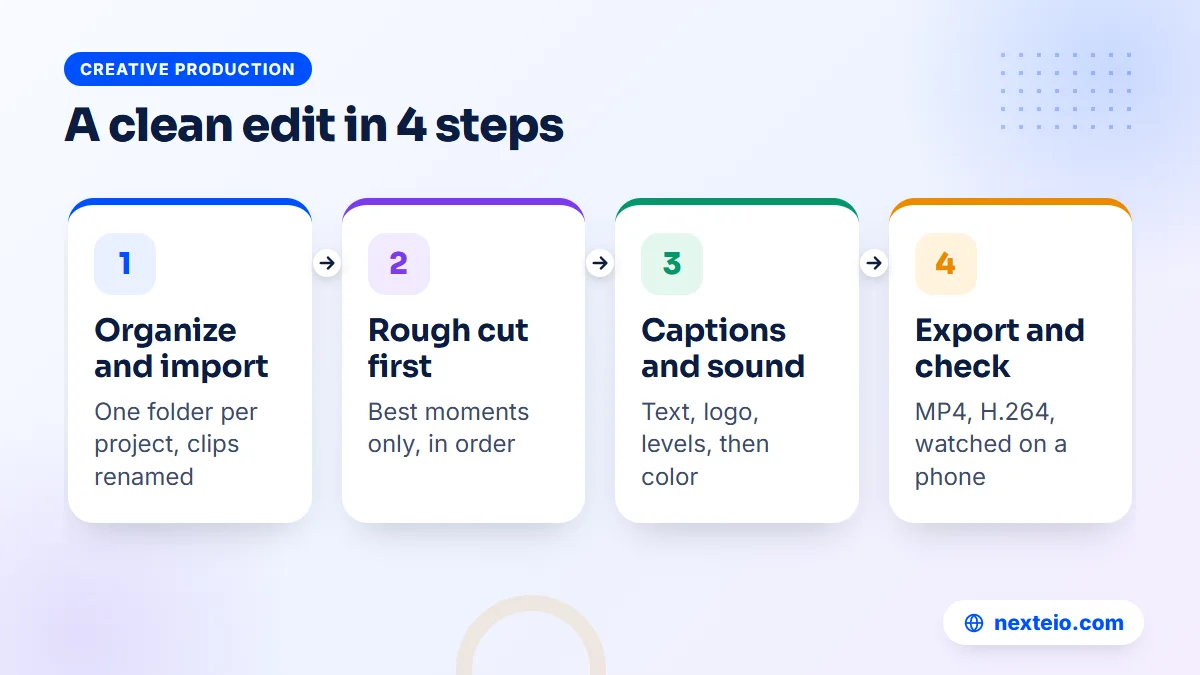
- Create one folder per project with subfolders for footage, audio, graphics and exports.
- Copy all clips to the PC and rename the important ones.
- Set the project format first: 9:16 for reels, 16:9 for YouTube.
- Build a rough cut with only the best moments, in order.
- Tighten it: remove pauses, repeated lines and shaky starts.
- Add captions, titles, logo and the call to action.
- Fix sound levels, then correct color.
- Export, then watch the file on a phone before posting.
Rough cut before effects is the habit that saves the most time. Many beginners spend an hour on transitions for clips that end up deleted.
For export, H.264 in an MP4 file is the safe default for Facebook, Instagram, TikTok and YouTube. YouTube publishes its recommended upload encoding settings, which are a good reference for bitrate and frame rate. Keep the frame rate the same as your footage, and export vertical videos at 1080 x 1920.
Finally, watch the export on a real phone with the sound off. If the message still makes sense in silence, the captions are doing their job. If the video will be promoted, plan where it sends people. A strong clip that lands on a slow or confusing page wastes the click, which is why our guide to a high-converting landing page is worth reading before you spend on ads.
Archive the project, not only the video
Once a video is posted, most people delete the project and keep only the MP4. Months later someone asks for the same video with a new phone number or a different price, and the whole edit has to be rebuilt. Keep the project file, the original footage and the graphics together in the project folder, then move that folder to an external drive or cloud storage.
Name exports clearly, with the platform, format and date, such as "admission-reel-9x16-2026-10". When three versions of the same video exist, a clear name stops the wrong one from going out.
Free or Paid: When the Best Video Editor for PC Is Worth Paying For
Many businesses in Bangladesh never need more than a free editor. DaVinci Resolve, CapCut Desktop, Clipchamp and Shotcut can produce professional-looking video with no license cost at all. The question is not whether free tools are good, but whether a paid one saves enough time to justify its price.
Paying usually makes sense in these cases:
- You edit every week and the paid version removes a real bottleneck, such as slow playback of phone footage.
- You work with freelancers or an agency that uses a specific program.
- You need features only the paid edition offers, such as advanced noise reduction.
- Your team wants templates, stock media and support in one place.
Paying rarely makes sense when the real problem is skill or time. A subscription does not teach pacing, and it does not free up the marketing officer who also handles the Facebook page, the website and the printing orders.
Count the full cost of in-house editing: software, a capable PC, a UPS, storage, and the staff hours spent learning and editing. For some teams the best video editor for PC is still the free one they already know well. For others, sending footage out is cheaper than all of the above.
Mistakes to avoid when choosing
The same few mistakes come up again and again when an office picks its editing tool. Each one costs time rather than money, which is why they are easy to miss:
- Choosing by popularity: a tool famous with film editors may be far too heavy for your PC and your staff.
- Installing several at once: switching between three editors means learning none of them properly.
- Ignoring the license: a cracked copy of a paid editor can carry malware and has no place on a business computer.
- Skipping a test project: one real video, start to finish, tells you more than any review.
The last point matters most. Before you settle on the best video editor for Windows in your office, give two candidates the same raw footage and a two-day deadline. The one your staff finish with, and are happy to open again next week, is your answer.
Software is also only half the result. Good video editors, meaning the people, make a free tool look expensive, while a beginner can make the most costly program look cheap. Skill in pacing, sound and storytelling travels from one editor to the next.
When Editing In-House Stops Making Sense
In-house editing works well for quick, frequent clips: a notice, a behind-the-scenes reel, a short product demo. It struggles when the stakes rise, such as a corporate film for buyers, an admission campaign, or a set of ads that will run with real budget behind them.
Signs it is time to get help:
- Videos are always late because editing waits for someone's free hour.
- Your ads get views but few clicks or messages.
- Important videos have uneven sound, shaky openings or no captions.
- Staff spend more time fighting the software than planning content.
A mixed setup often works best. Your team shoots and handles daily clips in a simple editor, while a professional editing service takes the important pieces. If those videos go into paid campaigns, it also helps to look at YouTube ads and the wider budget picture in our article on TikTok advertising costs per month.
Before you hire anyone, ask to see finished work similar to yours and ask who owns the raw footage and project files afterwards. A good editor will also ask about your audience, platform and goal before cutting a single frame.
How Nexteio Can Help With Video Editing
If you would rather spend your time running the business than learning an editor, our video editing team can take the work off your desk. You send the footage from a phone or camera, along with any logo, product details or notes. We cut it into the formats you need: reels, YouTube videos, product promos, event films or brand videos.
Each edit includes the parts that are easy to skip in-house: captions for viewers who watch without sound, cleaned-up audio, color correction, and exports sized correctly for each platform. For advertising, our ad-focused edits put the offer early and come in versions you can test against each other.
We can also connect the finished videos to your marketing through our ads campaign service, so the edit and the ad plan work together. You can see examples of our work in our portfolio, read more about Nexteio, or send us a short brief with your footage details. For a quick question first, reach us through the contact page. When you are ready to plan a full batch of videos, our editing service page explains how a project runs, and the project form is the fastest way to begin.
Keep reading: what to expect from a TikTok ads service, why Meta ads sometimes underperform, or browse all our creative production guides.
Frequently asked questions
What is the best free video editor for PC?
For most people it is DaVinci Resolve, because the free version has no watermark and includes professional editing, color and audio tools. If your computer is older or you only make short social clips, CapCut Desktop, Shotcut or Kdenlive will feel lighter and quicker to learn.
Is DaVinci Resolve really free, and does it add a watermark?
Yes, the standard version is free to download and use, including for commercial work, and it does not watermark your exports. The paid Studio version is a one-time purchase that adds AI tools, extra effects, noise reduction and faster handling of phone video formats.
Can I edit videos on a laptop with 8 GB of RAM?
You can, but keep projects short and choose a light editor such as Clipchamp, Shotcut or CapCut Desktop. Close other programs, store footage on a solid-state drive and use proxy files if the editor supports them. For regular editing, 16 GB of RAM makes a clear difference.
Which video editor works on Windows 10?
Clipchamp installs from the Microsoft Store, and most of the other editors in this guide still support Windows 10 on capable hardware. Microsoft ended regular Windows 10 support in October 2025, though, so software makers are gradually dropping it. Check the requirements on each official download page, and plan a move to Windows 11 for any PC you will edit on for years.
Can these editors handle Bangla captions and titles?
Most can display Bangla text, but some do not join conjunct letters correctly, and automatic Bangla captions are less accurate than English ones. Test a title with conjuncts before starting a project. If it breaks, make the title as a transparent image in a design tool and add it to the timeline.
Should my company buy Premiere Pro or hire an editor?
Buy software if someone on your team edits every week and already has the skill. If videos are occasional or important, such as buyer films or paid ads, hiring an editor is often cheaper once you count staff hours, hardware and the learning time. Many organizations use both: simple clips in-house and key videos outsourced.
Is there one best video editor for PC for every business?
No. A shop making daily reels, a school filming a long annual event and an agency working with freelancers all need different strengths. Most organizations do well with two tools: a quick editor for short social clips and a stronger one, such as DaVinci Resolve, for longer or more important videos.
Which editor is best for Facebook and TikTok reels?
CapCut Desktop is usually the fastest for vertical reels because of its caption styles, templates and 9:16 framing. Canva also works well for promos built mostly from text and graphics. Whichever you use, export at 1080 x 1920 and check the video on a phone with the sound off.