Redirection Plugin WordPress Guide: Fix Old Links After a Redesign
In this article 14 sections
- 1.Why Redirects Matter After a Website Redesign
- 2.How Redirects Work: 301, 302, 307 and 308
- 3.Which Redirection Plugin WordPress Sites Should Use
- 4.Before the Redesign: Build a Redirect Map
- 5.Redirection Plugin WordPress Setup, Step by Step
- 6.Adding Redirects One by One and in Bulk
- 7.Handling Tricky URLs After a Redesign
- 8.Launch Day: Test Every Important Redirect
- 9.After Launch: Watch the 404 Log and Search Console
- 10.Redirect Mistakes That Lose Rankings
- 11.Domain, HTTPS and www Changes
- 12.Performance and Long-Term Redirect Maintenance
- 13.How Nexteio Can Help With Redirects and Your WordPress Redesign
- 14.Frequently asked questions
The redirection plugin WordPress site owners most often turn to is simply called Redirection, and it solves a problem that appears after almost every website redesign: old links stop working. Pages get new addresses, sections are merged, and old blog posts move. Visitors who click an old link from Google, Facebook or a saved bookmark land on a "page not found" error, and the search rankings those pages had built up start to slip.
A redirect fixes this by sending anyone who asks for an old address to the right new one automatically. Done properly, visitors never notice, and search engines pass most of the old page's standing to the new one. Done carelessly, or not at all, a redesign that looks better can quietly bring in fewer enquiries than the old site.
Think of a college that rebuilt its website just before admission season. The old admission circular PDF had been shared in hundreds of messages and groups. After launch, every one of those links showed an error. A single redirect would have saved a week of phone calls.
This guide walks through the full job: how redirects work, which tool to use, how to build a redirect map before launch, how to set up and use the plugin, how to handle difficult URLs, how to test, and how to watch for problems afterwards.
Why Redirects Matter After a Website Redesign
Every page on your site has an address, and that address lives in many places you do not control. Google has it in its index. Other websites link to it. Customers saved it, shared it on messaging apps or printed it on brochures. Your own ads may still point to it. When the address changes and nothing tells browsers where the page went, all of those paths break at once.
Three things are at stake when a redesign changes URLs:
- Visitors: people who reach an error page usually leave rather than search your new menu.
- Search rankings: old pages may have ranked for years. Without a redirect, Google eventually drops them, and the new pages start with less history behind them.
- Paid traffic and campaigns: ads, QR codes, email signatures and printed material that point to old URLs waste money and goodwill.
A careful redirect plan, run through a redirection plugin WordPress site owners can manage from the dashboard, protects all three.
URLs change in a redesign more often than owners expect. Moving from an old custom PHP site to WordPress usually changes every address. Changing the permalink structure, merging thin pages, renaming categories, moving from HTTP to HTTPS or switching domains all do the same. Even a redesign that keeps WordPress can change dozens of URLs if the new theme uses different page names. Google's guidance on site moves with URL changes treats redirects as the core of any such move.
How Redirects Work: 301, 302, 307 and 308
When a browser asks for a page, the server answers with a status code. A redirect is an answer that says "this page is somewhere else" and gives the new address. The number tells browsers and search engines whether the move is permanent or temporary. The MDN guide to HTTP redirections explains each code in detail. For website owners, this is the short version:
| Code | Meaning | Use it when |
|---|---|---|
| 301 | Moved permanently | A page has a new permanent address |
| 308 | Permanent, same method | Rarely needed on normal sites |
| 302 | Found, temporary | A page moves for a short time |
| 307 | Temporary, same method | Short moves where forms are involved |
For a redesign, the answer is almost always 301.
Google's page on redirects and Google Search explains that permanent redirects are a strong signal that the new URL should be shown in results, while temporary ones are a weaker signal. If you use 302 for a permanent move, Google may keep showing the old address for longer than you want. Use 302 only for genuinely temporary situations, such as a seasonal page or a page under maintenance.
Two other terms are worth knowing. A redirect chain happens when page A points to B and B points to C. A redirect loop happens when A points to B and B points back to A, which breaks the page completely. Both usually come from redirects added over time without anyone reviewing the whole list.
Which Redirection Plugin WordPress Sites Should Use
WordPress already does a little redirect work on its own. If you change the slug of a published post, WordPress normally remembers the old slug and sends visitors to the new one. That helps with small edits, but it does not cover a redesign, a changed permalink structure, pages from an old non-WordPress site, renamed categories or moved files.
For anything bigger, you have four main options:
| Option | Good for | Watch out for |
|---|---|---|
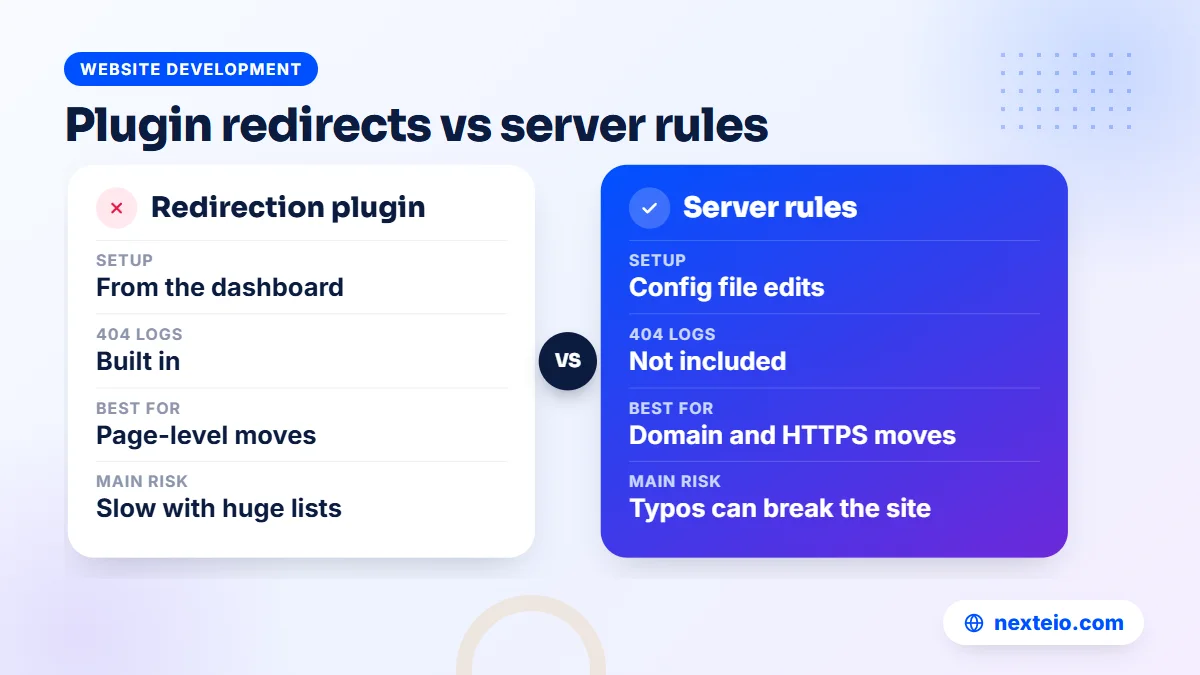
| Redirection plugin | Most sites, with logs and bulk import | Large regex lists can add load |
| SEO plugin redirect manager | Sites already using that SEO plugin | Some are paid features |
| Server rules (.htaccess or Nginx) | Domain moves, HTTPS, huge lists | Errors can take the site down |
| Hosting panel redirects | A few simple redirects | Hard to review and maintain |
For most business, school and organization sites, a plugin is the right balance.
The free Redirection plugin WordPress.org hosts has been a standard choice for years. It manages redirects from the dashboard, logs 404 errors so you can see which old links people still use, supports bulk import and export, and can track permalink changes automatically. If your site already runs Rank Math, its built-in redirection module can do similar work. What matters is choosing one tool and keeping all redirects in it, rather than spreading them across a plugin, a theme setting and the server. If you are not sure what your site uses today, a WordPress specialist can check the plugins and server rules in one review.
Before the Redesign: Build a Redirect Map
The most important redirect work happens before launch, not after. A redirect map is a simple spreadsheet that lists every old URL worth keeping and the new URL it should point to. Without it, you discover broken links one complaint at a time.
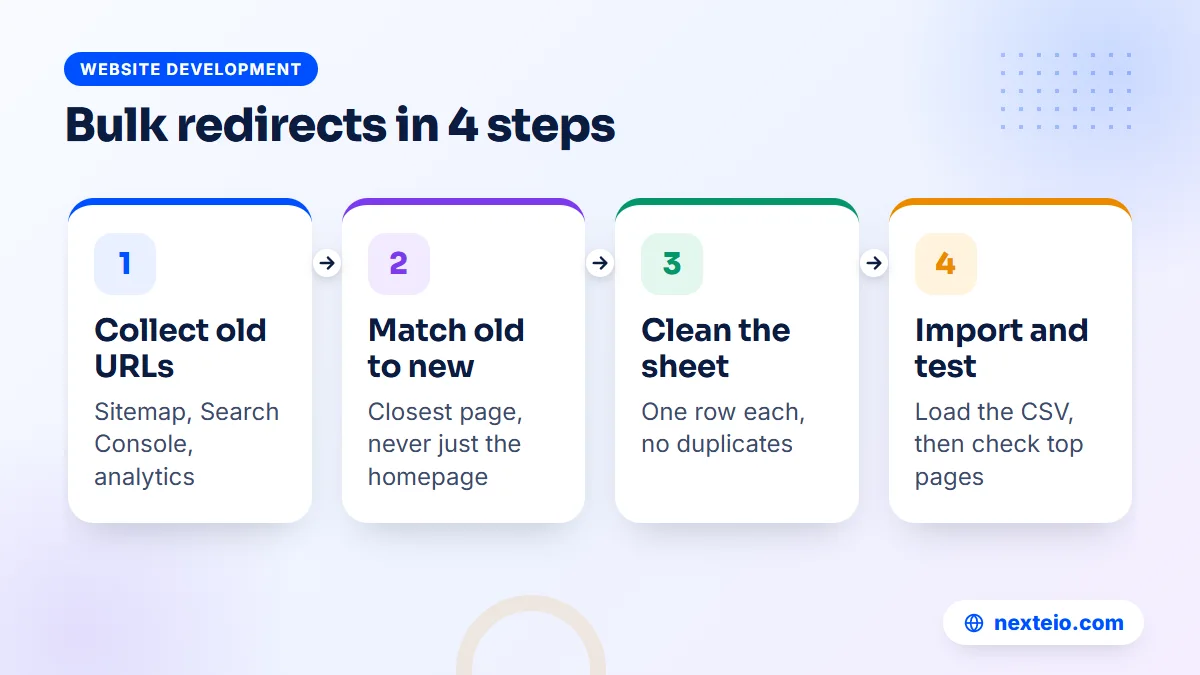
Collect every old URL
Gather old addresses from several sources, because no single list is complete:
- The old site's XML sitemap, usually at /sitemap.xml or /sitemap_index.xml.
- Google Search Console, in the pages report and the performance report, which shows pages that get search clicks.
- Your analytics tool's landing pages report for the last 12 months.
- A crawl of the old site with a website crawler tool.
- Important files: PDFs, notices, price lists and forms people have shared.
- URLs used in running ads, printed material and QR codes.
Save this list before the old site is switched off.
Match old to new
Put the old URLs in column A and the matching new URLs in column B. Match each page to the closest equivalent, not just to the homepage. A service page goes to the new service page, an old notice goes to the notice section or its new copy, and a discontinued product goes to its category or a close replacement. Here is what a few rows might look like:
| Old URL | New URL | Note |
|---|---|---|
| /services.php?id=4 | /services/web-design | Old PHP page |
| /about-us-2 | /about-us | Duplicate removed |
| /2021/05/admission-notice | /admission | Merged page |
| /products/old-model-x | /products/filters | Product retired |
Mark the pages with the most traffic so they are tested first.
If a page truly has no replacement and nobody visits it, it can be left to return a 404 or 410. Not every old URL needs a redirect. But anything that gets visits, has links from other sites, or appears in search should have one. Our article on technical SEO basics explains how status codes and indexing fit together.
Redirect maps are part of every redesign we plan in our WordPress website development work, because fixing them after launch costs more than doing them first.
Redirection Plugin WordPress Setup, Step by Step
Setting up the redirection plugin WordPress needs for a redesign takes a few minutes. Take a full backup of the site first, as you would before installing any plugin. Then follow these steps:
- In the dashboard, go to Plugins, then Add New, and search for "Redirection".
- Check that it is the plugin listed on WordPress.org with the matching name and author, then install and activate it.
- Open Tools, then Redirection. A setup screen appears the first time.
- Choose whether to monitor permalink changes, which creates redirects automatically when you change a post or page URL.
- Choose whether to keep logs of redirects and 404 errors. Both are useful during a redesign.
- Decide whether to store visitor IP addresses in logs. Leave this off unless you need it, since it is personal data.
- Finish the setup and let the plugin create its database tables.
The plugin is now ready to accept redirects.
Look at the options page once setup is done. Set how long logs are kept, since logs that are never cleared can grow large on a busy site. Thirty days to a few months is usually enough. Note the default settings for URL matching and query parameters, because they affect how old addresses are matched later.
The plugin organizes redirects into groups. Create groups that reflect your redesign, such as "Old services", "Old notices" and "Old products". When something goes wrong months later, groups make it much easier to find the redirect responsible.
Check also how your permalinks are set, under Settings, then Permalinks. WordPress's guide to the Permalinks settings screen explains the options. Decide the final structure before you add redirects, because changing it afterwards changes every URL again.
Adding Redirects One by One and in Bulk
Adding a single redirect
On the Redirection screen, click Add New. Enter the old path in the Source URL field, such as /old-services-page, and the new address in the Target URL field. Choose the group and leave the HTTP code at 301 for permanent moves. Save it, then open the old URL in a private browser window to confirm it lands on the new page.
Use relative paths for the source, starting with a slash, rather than the full domain. For the target, a relative path works for pages on the same site, while a full URL is needed for another domain.
Importing a redirect map in bulk
Typing hundreds of redirects by hand invites mistakes. The Redirection plugin WordPress administrators rely on for large moves can import a CSV file, which means your redirect map spreadsheet can be loaded directly. Clean up the spreadsheet first: one redirect per row, old path in the first column, new URL in the second, no extra spaces, and no duplicate source URLs. Check the plugin's import screen for the exact columns and format it accepts, then save the sheet as CSV.
After the import, sort the list and scan it. Look for rows where the source and target are the same, which creates a loop, and for targets that are themselves old URLs, which creates a chain. Fix them before launch.
Export the full list after any big change and store the file with your site documents. If the database is ever restored from an old backup, or you move to another redirect tool, that export saves hours of work.
Handling Tricky URLs After a Redesign
Most redirects are simple one-to-one moves. A few types of URL need more thought, and they are common on older Bangladeshi sites that grew over many years.
Old PHP pages with query strings
Sites built in plain PHP often used addresses like notice.php?id=125 or product.php?cat=3. The part after the question mark is a query string. The redirection plugin WordPress sites commonly use lets you choose how query parameters are matched: exactly, ignored, or passed through to the target. For old dynamic pages, you usually need exact matching for each important ID, so that each old notice or product goes to its own new page rather than all of them landing in one place.
Patterns and regular expressions
When many URLs follow the same pattern, a regular expression can redirect them all with one rule. For example, if every old blog post moved from /2022/03/post-name to /blog/post-name, one pattern can handle the whole archive. Regular expressions are powerful but easy to get wrong. Test each pattern on a staging copy, keep the number of pattern rules small, and write a note explaining what each one does.
PDFs, images and uploaded files
Admission circulars, exam routines, price lists and company profiles are often shared as direct PDF links. If the new site stores uploads in a different folder, those links break. Add redirects for every important file, especially anything shared publicly in the last year or two. Schools, madrasas and coaching centres should check their notice PDFs first.
Bangla slugs
Some sites use Bangla words in their URLs. Browsers display them as Bangla, but the server sees them as long percent-encoded strings. When you redirect a Bangla URL, test it by clicking a real link, not only by typing it, and confirm the plugin matched the encoded form. For new pages, short English slugs are usually easier to share and manage, even when the page content is in Bangla.
Categories, tags and shop URLs
A new theme or a cleaner menu often renames categories, and every post inside them may change address if the category is part of the permalink. Check the old category and tag archive pages in your redirect map as well as the posts. Online stores need the same care for product and product category URLs, because those pages often carry the most search traffic and the most links from ads.
If a shop moves from one platform to WooCommerce, product addresses almost always change. Map the best-selling products one by one, and point retired products to their nearest category rather than the shop homepage.
Related guides that help during a redesign:
- Common SEO mistakes that hurt business websites
- How to connect your pages with internal links
- WordPress or a custom website: which fits your business
Launch Day: Test Every Important Redirect
On launch day, check redirects before you announce the new site. Start with the pages marked as high traffic in your redirect map, then work down the list. Testing each one by hand in a browser is slow, but for the top 20 to 50 URLs it is worth it.
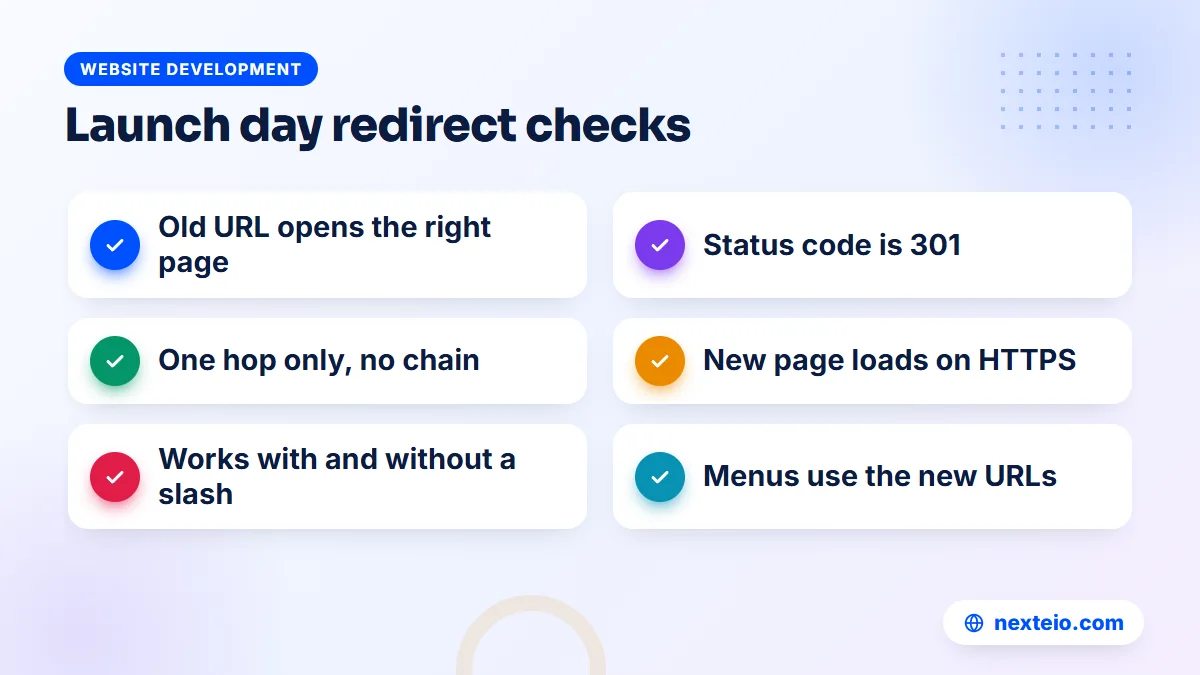
For each redirect, confirm these points:
- The old URL lands on the correct new page, not the homepage or an error.
- The status code is 301, which you can see in the browser's developer tools under the Network tab.
- There is only one hop, not a chain through two or three addresses.
- The new page loads over HTTPS and shows the expected content.
- Old URLs with and without a trailing slash both work.
Write down any failures and fix them the same day.
Update what you control directly. Change links in your menus, footers and page content to the new URLs, so your own site does not depend on redirects. Update ad destination URLs, social media profile links, email signatures and Google Business Profile links. Redirects protect you from links you cannot change, but internal links should always point straight to the final address.
Submit the new XML sitemap in Google Search Console, and use the URL Inspection tool on a few key pages to confirm Google can fetch them. Keep the old sitemap list in your files, since it is your record of what used to exist.
After Launch: Watch the 404 Log and Search Console
No redirect map is perfect. Some old links will be missing, usually ones nobody remembered: a page linked from a partner's site, an old campaign landing page, or a PDF shared in a group years ago. This is where a redirection plugin WordPress owners can check without technical help proves its worth: the 404 log shows exactly which missing addresses people are requesting, and how often.
For the first month, check the log every few days. For each frequent 404, decide whether it deserves a redirect. Real old pages and files usually do. Random requests from bots probing for weak spots do not, and you can ignore them.
In Google Search Console, watch the pages report for a rise in "Not found (404)" errors and for old URLs that are still indexed. It is normal for old URLs to stay visible for a while as Google recrawls them. Over the following weeks, the new URLs should replace them. Our guide on how long SEO takes explains why ranking changes after a big move often take time to settle.
Also compare traffic before and after launch. A small dip for a few weeks is common after a redesign. A steep, lasting drop on specific pages usually points to a missing redirect, a wrong target or new pages that dropped important content. Ongoing checks like these are part of good SEO support after launch.
Redirect Mistakes That Lose Rankings
These are the errors that most often turn a redesign into a traffic loss:
- Sending everything to the homepage. Google may treat mass homepage redirects as errors, and visitors lose the page they wanted.
- Using 302 instead of 301 for permanent moves.
- Building chains by redirecting old redirects to newer ones instead of updating them to the final page.
- Creating loops with conflicting rules in the plugin, the theme and the server.
- Removing redirects too early, a few months after launch.
- Deleting the plugin during a later cleanup without moving its redirects elsewhere.
- Redirecting to unrelated pages just to avoid a 404.
Each one is easy to avoid with a written map and a review once in a while.
On timing, Google's site move guidance recommends keeping redirects for as long as possible, and generally at least a year. In practice, there is little reason to remove them at all on a normal business site, so leave the redirection plugin WordPress setup in place and backed up. Old links keep appearing in places you never expected.
If your site already has many of these problems from earlier redesigns, a cleanup is worthwhile. Export all redirects, map every chain to its final target, remove duplicates, and test again. A skilled WordPress developer can usually complete this kind of cleanup quickly on a typical company site.
Domain, HTTPS and www Changes
Some redesigns go beyond page names. The site might move from HTTP to HTTPS, from www to non-www, or to an entirely new domain, for example after a rebrand or a move from a .com.bd domain to a .com. These changes affect every URL at once.
Site-wide changes like these are usually best handled at the server level or by the hosting panel, with one rule that covers the whole site. Page-by-page redirects then sit on top of that rule only where page names also changed. Mixing both carelessly is a common cause of chains, such as http://old-domain to https://old-domain to https://new-domain to the final page.
For a full domain change, keep the old domain registered and renewed for years, keep redirects running on it, and use the Change of Address tool in Google Search Console once the new domain is verified. Update the domain in your Google Business Profile, ad accounts and social profiles. Tell your regular customers and partners too, because many of them still type the old address.
Check the SSL certificate on both domains. If the old domain loses its certificate, visitors on HTTPS links see a security warning before the redirect can even happen.
Performance and Long-Term Redirect Maintenance
A redirection plugin WordPress sites use for a few hundred simple redirects has no noticeable effect on most sites. Problems start with thousands of rules, many regular expressions, or very large logs on a busy server. Each request has to be checked against the list, and an overloaded database can slow page loads, which matters on mobile data. Our guide to website speed and SEO explains why slow pages cost both rankings and visitors.
If your redirect list grows very large, consider these steps:
- Clear old logs regularly and shorten how long they are kept.
- Replace groups of similar rules with one well-tested pattern.
- Move stable, site-wide rules to the server configuration.
- Remove duplicate and conflicting rules after each review.
Most small and medium sites never need to go this far.
Add redirect checks to your regular maintenance routine. Each quarter, review the 404 log, look for new chains, and export a fresh backup of the redirect list. When anyone changes a page URL, they should add the redirect at the same time. This small habit keeps the site clean for years and avoids another round of broken links at the next redesign.
On larger systems such as portals and online stores built with Laravel web applications or e-commerce website development, redirects may live in the application code instead of a WordPress plugin. The principles stay the same: a map, permanent redirects, testing and monitoring.
How Nexteio Can Help With Redirects and Your WordPress Redesign
We plan redirects as part of every redesign rather than after complaints arrive. In our WordPress website service, we collect the old URLs from your sitemap, Search Console and analytics, build the redirect map with you, and set up the Redirection plugin or your existing SEO plugin's redirect manager so every important page and file has a home on the new site.
On launch day, we test the key redirects, update internal links and submit the new sitemap. After launch, we watch the 404 log and Search Console for missing pages and fix them as they appear. If you move from an old custom site, we handle query-string pages, shared PDFs and Bangla URLs as part of the same job.
If you are planning a new design rather than a WordPress rebuild, our custom website design team follows the same redirect process. You can see the kind of sites we build in our portfolio or read about Nexteio. To plan your redesign with a WordPress team that handles redirects properly, share your project details or reach us on the contact page.
Already launched and seeing errors? Send us the site address and we will check what is missing.
Keep reading: on-page SEO for beginners, how to build a professional business website, or browse all our website development guides.
Frequently asked questions
Is the Redirection plugin free?
Yes. Redirection is a free plugin listed in the official WordPress.org plugin directory. It covers single redirects, groups, pattern rules, bulk import and export, and 404 logging without a paid upgrade, which is why many site owners choose it for a redesign.
Do I need a redirect plugin if I already use Rank Math or Yoast?
Rank Math includes a redirection module in its free version, so many sites using it do not need a separate plugin. Yoast's redirect manager is part of its paid version. Whichever you choose, keep all redirects in one tool so they are easy to review and do not conflict.
How long should I keep redirects after a redesign?
Google's guidance on site moves suggests keeping redirects for as long as possible, generally at least a year. On a normal business or school site there is little reason to remove them, because old links keep appearing in messages, documents and other websites for years.
Will redirects make my site slower?
A few hundred simple redirects have no noticeable effect on most sites. Very large lists, many pattern rules or logs that are never cleared can add load. If your list grows into the thousands, move stable site-wide rules to the server and clean up duplicates.
Should I redirect deleted pages to the homepage?
Usually not. Redirect each old page to the closest matching new page, such as a related service or product category. If nothing related exists and the page gets no visits or links, it is better to let it return a 404 or 410 than to send everyone to the homepage.
What is the difference between a 301 and a 302 redirect?
A 301 tells browsers and search engines the move is permanent, so Google should show the new address in results. A 302 says the move is temporary, which is a weaker signal. For a redesign or a changed URL, use 301 unless the move really is short-term.
Can I add redirects before the new site goes live?
Yes, and it is the best approach. Build the redirect map during the redesign, set up the plugin on the new site before launch, and import the list so redirects work from the first minute. Then test the most important old URLs as soon as the new site is live.