Blogger Themes: How to Choose, Install and Customize One Safely
In this article 16 sections
- 1.What Blogger Themes Control, and What They Do Not
- 2.Built-in Themes vs Third-Party Blogspot Templates
- 3.Free Blogspot Templates or Premium Blogger Templates
- 4.Ten Checks Before You Choose Blogger Themes
- 5.Where to Find Safe Blogspot Themes
- 6.How to Install Blogger Themes Step by Step
- 7.After the Install: Menus, Gadgets and Layout
- 8.Customizing Blogger Themes Without Breaking Them
- 9.Mobile Speed and Core Web Vitals on a Blogspot Blog
- 10.Theme Settings That Affect SEO and AdSense
- 11.Matching the Theme to Your Kind of Blog
- 12.Common Theme Problems and How to Fix Them
- 13.When a Ready-Made Theme Is Not Enough
- 14.A Short Maintenance Routine for Your Theme
- 15.How Nexteio Can Help With Your Blogger Theme
- 16.Frequently asked questions
Blogger themes decide how your blog looks, how fast it opens on a phone and how clearly Google can read each post. The theme is the single file that controls your header, menu, post layout, sidebar, fonts and colors on a Blogspot blog. Pick a good one and readers get a clean page that loads quickly on mobile data. Pick a careless one and you can spend months fixing broken menus, slow pages and odd search results.
Most people choose a theme from a screenshot. A demo full of perfect photos and sample posts looks great, but it tells you little about how the design will hold up with your own Bangla headlines, phone photos and ad slots.
This guide is about choosing Blogger themes well and then installing one without losing your work. It covers the built-in options, the difference between free and paid designs, the checks to run before you upload anything, a safe install routine, customization that will not break on the next change, and the problems people meet most often after switching.
The steps apply to personal blogs, news pages, school notice blogs and small business blogs alike. Where a step is different for a site with a custom domain or AdSense ads, we point it out.
What Blogger Themes Control, and What They Do Not
On WordPress, design and features are split between a theme and many plugins. Blogger has no plugins. Almost everything you see on the page comes from one XML file plus the gadgets you place in its sections. That makes Blogger themes far more important than themes on most other platforms.
The theme controls these parts of your blog:
- Layout: the header, menu, number of columns, sidebar position and footer.
- Typography: fonts, text sizes, line spacing and how Bangla text renders.
- Post pages: where the title, date, labels, author box, share buttons and related posts appear.
- Technical output: the page title format, meta description tags, heading levels and any structured data.
- Ad space: which areas can hold AdSense units and how they behave on small screens.
Your posts, pages, comments and settings live outside the theme, so changing it does not delete your writing.
What the theme does not control is just as useful to know. Your blog address, custom domain, HTTPS setting, search description switch and robots settings sit in Blogger's Settings page. Your post content and labels stay the same whichever design you use. Gadgets are a middle ground: they belong to the blog, but the theme decides where they can sit, so some may move or disappear after a switch.
Built-in Themes vs Third-Party Blogspot Templates
You have two broad sources. The first is the set of themes Google ships inside Blogger. The newer families, such as Contempo, Soho, Emporio, Notable and Essential, are responsive, which means one design adapts to phones, tablets and desktops. You choose one from the Theme page, adjust colors and fonts in the theme designer, and you are done in a few minutes.
The second source is third-party blogspot templates made by independent designers. These are XML files you download and upload to Blogger. They usually look more like a news portal or a magazine than the built-in designs, with featured post sliders, mega menus, tabbed widgets and ready ad slots.
Built-in Blogger themes are maintained by Google, load reasonably well and rarely break after platform changes. Their weakness is that thousands of blogs look alike, and the options for layout are limited. Third-party designs give you more control over the look, but quality varies a great deal. Some are clean and fast. Others carry heavy scripts, hidden links or code that stops working when Blogger changes something.
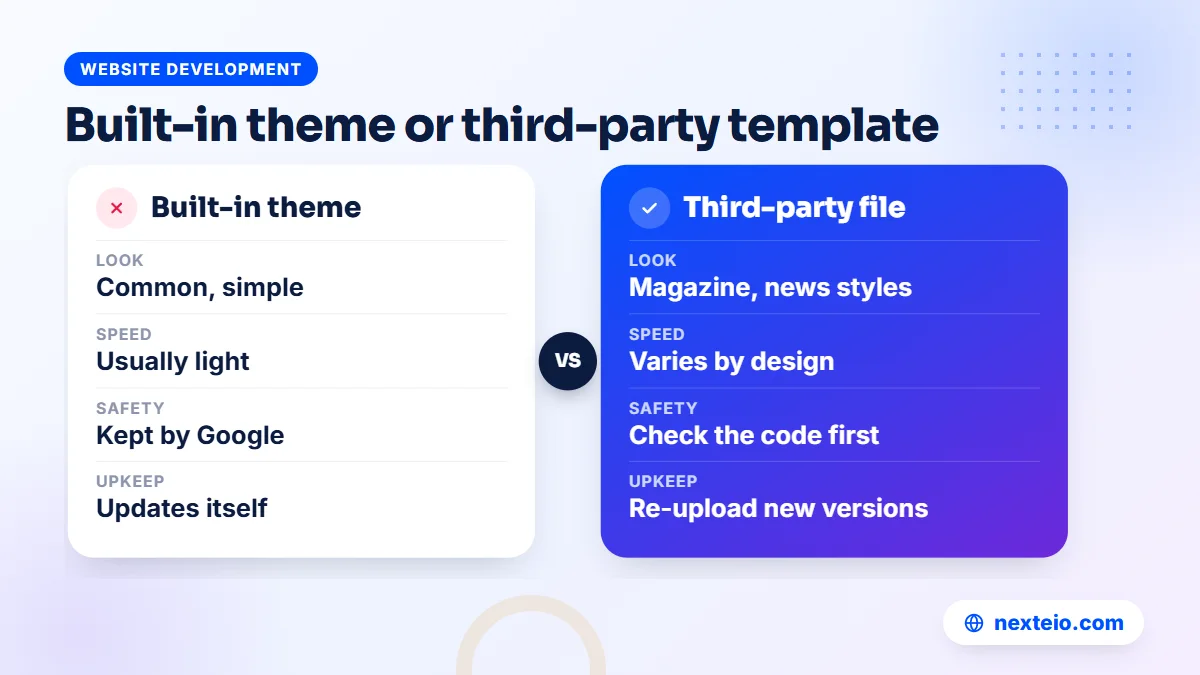
A simple rule works for most people. If the blog is new and you are still finding your voice, start with a built-in theme. Switch to a third-party design only when you know what you need that the built-in options cannot give you, such as a homepage that shows several categories at once for a news site.
Free Blogspot Templates or Premium Blogger Templates
Free blogspot templates are everywhere, and many are perfectly usable. The catch is that the free version is often a sample of a paid product. The designer keeps the best features, the support and sometimes the right to remove the footer credit for buyers of the paid version.
Premium Blogger templates are paid designs, usually sold for a one-time fee. Before you pay, read what the license actually gives you. Ask whether it covers one blog or several, whether updates are included, how long support lasts and whether documentation exists. A paid theme without documentation can be harder to set up than a free one.
| Question | Free template | Paid template |
|---|---|---|
| Footer credit | Usually must stay | Removal often allowed |
| Support | Rare or none | Usually for a set period |
| Updates | Not promised | Often included |
| Documentation | Short or missing | Setup guide in most cases |
| Code quality | Varies widely | Varies, but easier to judge |
Price alone does not decide the quality of Blogger themes. Judge any design by the checks in the next section.
One warning deserves its own paragraph. Avoid "nulled" or cracked copies of paid templates shared on file sites. These copies are a common way to plant hidden spam links or scripts on a blog. You save a small fee and risk your search visibility and your AdSense account.
Ten Checks Before You Choose Blogger Themes
Run these checks on the live demo and, where possible, on the theme file itself. They take about half an hour and save weeks of trouble later.
- Phone first: open the demo on your own phone, on mobile data, not office Wi-Fi.
- Speed test: run the demo URL through PageSpeed Insights and note the mobile result.
- Bangla text: check that the fonts support Bengali script, or that you can change them.
- Post page: open a single post, not just the homepage, and read a full article on it.
- Menus: test the mobile menu, dropdowns and search box with your thumb.
The second group looks at what a screenshot cannot show you: the ads, the designer and the code.
- Ad slots: see where ads would sit and whether they push the content far down.
- Recent updates: check when the theme was last updated and whether the designer is still active.
- Documentation: look for a setup guide that explains menus, sliders and widgets.
- License terms: read the rules about footer credits and use on more than one blog.
- Clean code: scan the XML for scrambled scripts and links to unrelated sites.
A demo that fails the phone test should be dropped at once, however good it looks on a laptop.
Google's free PageSpeed Insights tool shows how the demo performs on a simulated phone and lists what slows it down. Do not chase a perfect score. A demo is often loaded with sample images and extra widgets, so look for warning signs instead: very large scripts, many external files and a slow first view of the content.
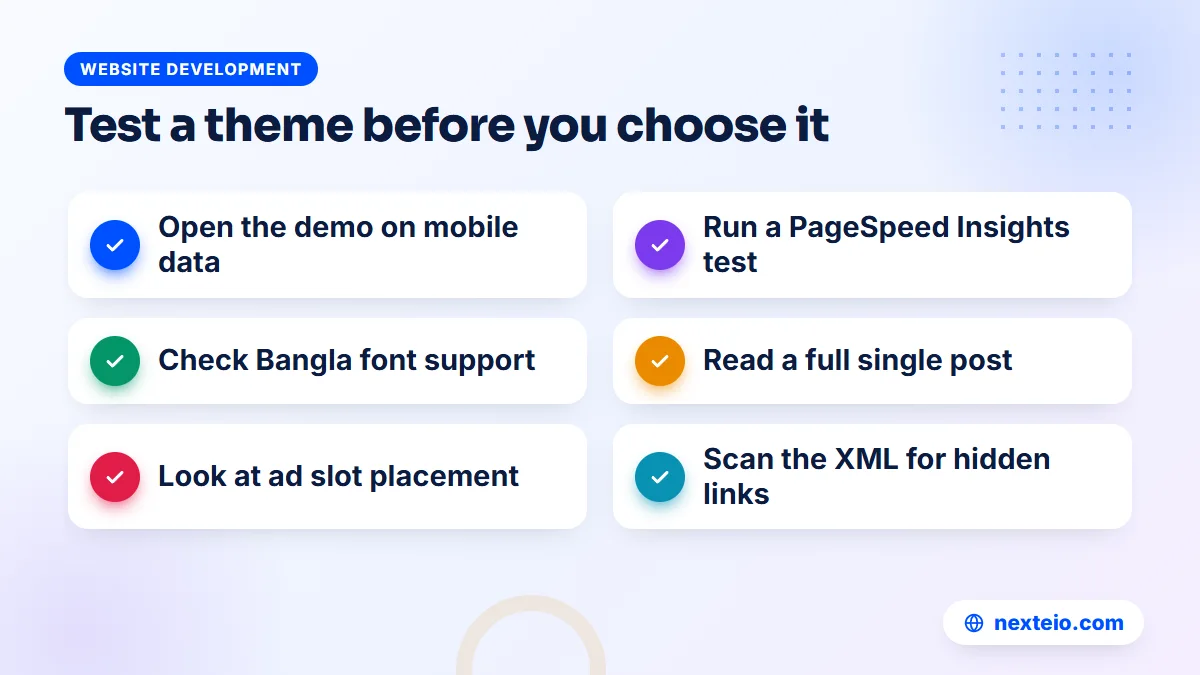
For the clean code check, open the XML file in a plain text editor and search for "eval", long unreadable strings of letters and numbers, and links to domains that have nothing to do with the designer. A small amount of packed code is common in Blogger design files. Large scrambled blocks near the footer usually protect a credit link, and sometimes they hide more than that.
Where to Find Safe Blogspot Themes
Start with the built-in gallery of Blogger themes. It costs nothing, it is maintained by Google, and you can test every design without uploading a file. Google's help page on changing the design of your blog explains where the theme, layout and HTML options sit in the dashboard.
For third-party blogspot themes, prefer designers who run their own site with a clear name, demos for each theme, documentation, a changelog and a way to contact them. A marketplace page with reviews can also help, if the reviews describe real setup experience rather than one-line praise.
Be careful with these sources:
- File-sharing sites that offer paid designs for free.
- Download pages that make you click through several ad pages or install a browser extension.
- Themes with no visible author, no demo and no date.
- Videos that link to a download in the description through a link shortener.
If a free download is wrapped in pop-ups and fake buttons, walk away.
Your theme sits on every page of your blog. Treat it the way you would treat any software you install on an office computer. If you would not trust the source with your files, do not trust it with your blog's code.
How to Install Blogger Themes Step by Step
First, back up your current theme
Blogger lets you download a copy of the active theme as an XML file. Do this every time before you switch, edit HTML or upload a new design. If something goes wrong, you can restore the old file and be back where you started in a minute.
On the Theme page, open the menu beside the Customize button and choose the backup option to download the current file. Save it with a clear name and date, for example "blog-theme-before-switch-2026-10.xml", and keep a copy in cloud storage as well as on your computer.
Two other things are worth saving before a switch:
- Gadget content: copy the text of any HTML/JavaScript gadgets, such as an about box, contact details, ad code or a custom menu, into a document.
- Screenshots: take screenshots of your Layout page and the current homepage, so you know which gadget sat where.
If the blog has many posts, also use Blogger's own backup tool under Settings to download your content. Changing a theme should not touch your posts, but a full backup costs nothing and protects you from other mistakes.
Installing the new theme file
Built-in Blogger themes need no upload. On the Theme page, scroll through the gallery, click a design to preview it, and apply it. The rest of this section covers a third-party XML file, which takes a few more steps.
- Download the theme package and unzip it on your computer. Find the file that ends in .xml; packages often also contain documentation and image files.
- Sign in to Blogger, select the blog and open Theme from the left menu.
- Back up the current theme as described above, and confirm the file downloaded properly.
- Open the menu beside Customize and choose Restore.
- Upload the new .xml file and wait for the confirmation.
- If Blogger warns that some widgets do not fit the new theme, decide whether to keep or delete them. Keeping them is safer on a first attempt.
- View the blog on a phone and a computer before you change anything else.
If the upload fails, the file is usually damaged or is not a Blogger theme at all.
A few theme packages include two XML files, one minified and one readable. Use the one the documentation recommends. If there is no documentation, the readable version is easier to fix later.
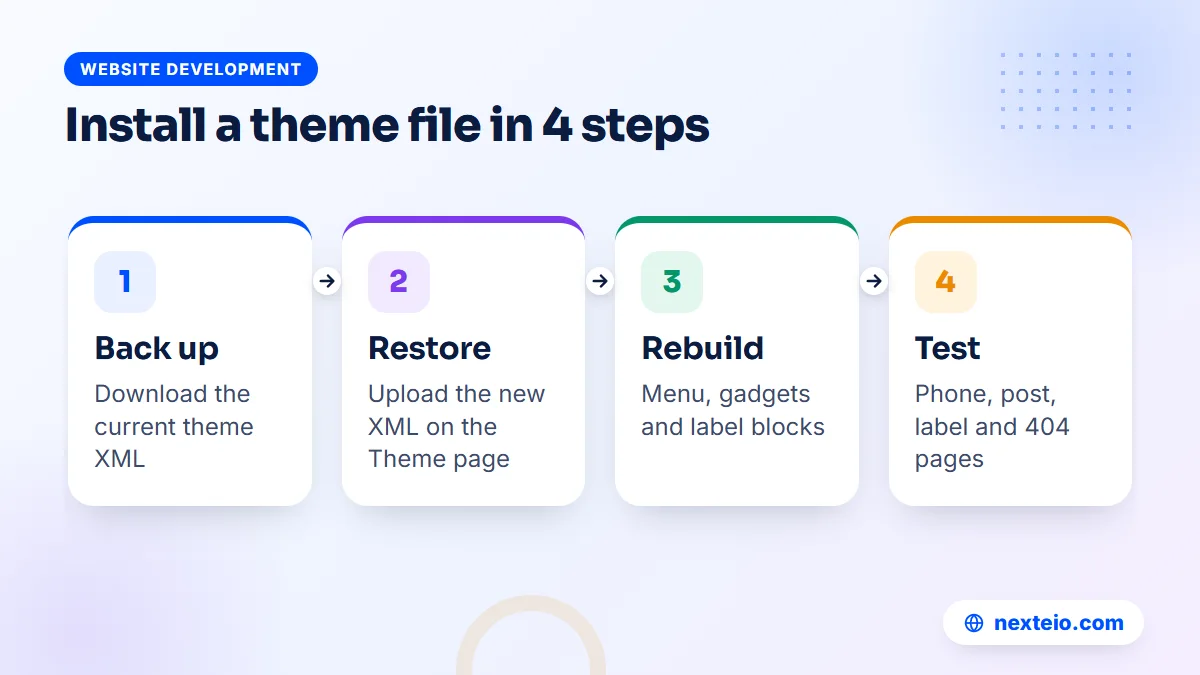
Try a new design on a test blog first if your main blog already gets steady traffic. Create a second blog in the same account, import a handful of real posts, and install the theme there. You will see how your own titles, images and Bangla text look without showing a half-finished design to your readers. A test blog takes a couple of minutes to create, and you can delete it once the switch is done.
After the Install: Menus, Gadgets and Layout
A new theme rarely looks like its demo on the first load. The demo was built with sample posts, sample labels and a menu pointing to the designer's own pages. Your job now is to rebuild those pieces with your content.
Rebuild the menu
Most third-party designs build the menu from a LinkList gadget or a special HTML gadget in the header area. The documentation will say which format it expects. Some themes use a dash or underscore before an item name to make it a dropdown child, which is easy to miss. Point the menu at your main labels and key pages, such as About, Contact and your most popular topics.
Put gadgets back in place
Open the Layout page and compare it with your screenshots. Gadgets that existed before may now sit in a different section, or the new theme may not have an equivalent area. Re-add the about box, popular posts, labels and follow links where they make sense. Remove demo gadgets you do not need, because every extra gadget adds weight to the page.
Set up featured areas
Magazine-style themes often fill homepage blocks by label. If your labels do not match the names in the documentation, those blocks stay empty or show an error. Use the labels you already have where the theme allows it, rather than renaming posts to fit the design.
Check every page type
Open the homepage, a label page, a search results page, a single post, a static page and the 404 page. Each uses a different part of the theme code, and problems often hide in the pages you check least.
Customizing Blogger Themes Without Breaking Them
Blogger gives you three levels of change, from safest to riskiest. Use the safest one that does the job.
The theme designer
The Customize button opens the theme designer. Here you can change colors, fonts, background and, in some themes, widths, without touching code. Changes made here survive in a clean way and are easy to undo. Use this first for brand colors and readable fonts.
Adding CSS
Inside the theme designer, the Advanced section lets you add your own CSS. This suits small fixes, such as larger body text, a different link color or hiding an element on phones. Because the CSS sits in its own box, it is easy to find later and copy across if you ever switch designs.
Editing HTML
Edit HTML opens the full XML. It is powerful and unforgiving. One missing closing tag can stop the theme from saving, and a careless change can break a section that only appears on certain pages. Always back up first, change one thing at a time, and write down what you changed and why. If you are not comfortable reading the code, this is the point to ask for help through our Blogger website service rather than experimenting on a live blog.
For Bangla blogs, font choice deserves special care. Not every web font includes Bengali characters, and a missing font makes the browser fall back to whatever the phone has, which can look uneven. Fonts made for Bengali script, such as Noto Sans Bengali or Hind Siliguri, give a more consistent result. Load only the weights you use, since every extra font file is another download on a slow connection.
Related guides for blog owners:
- How to write SEO-friendly content that people actually read
- On-page SEO for beginners, step by step
- How internal links connect your posts
Each one covers work that a theme cannot do for you.
Mobile Speed and Core Web Vitals on a Blogspot Blog
In Bangladesh, most blog readers arrive on a phone, often on mobile data with an uneven signal. A theme that feels instant on broadband can take several seconds to show text on a weak 4G connection. Readers do not wait long, and many will go back to search results before your first paragraph appears.
Google uses the mobile version of a page for indexing, as explained in its guide to mobile-first indexing. If your theme hides content or links on phones, Google may not see them either. Responsive Blogger themes avoid this problem, because the same content shows at every screen size.
Google also measures loading speed, responsiveness and layout stability through Core Web Vitals. On Blogger, the usual causes of poor results come from the theme and its gadgets:
- Large sliders at the top of the homepage.
- Several web fonts in many weights.
- Third-party widgets for share counts, chat, popular posts or visitor counters.
- Ad slots without reserved space, which make the page jump as ads load.
- Full-size images placed in thumbnails.
Fix the biggest of these first and test again.
You cannot change Blogger's servers, but you control what the theme loads. Remove gadgets that nobody uses, replace a slider with a simple featured post, and resize images before upload instead of posting 4 MB phone photos. Our guide on website speed and SEO explains why these small fixes help both readers and rankings.
Theme Settings That Affect SEO and AdSense
Two blogs with the same posts can perform differently in search simply because of what their themes output in the page code. When you test Blogger themes, look past the design and check the technical side.
Titles, descriptions and headings
Open a post on the new theme and view the page source. The title tag should show the post title first, not the blog name. If you have turned on search descriptions in Blogger settings, the theme should print the description you wrote for each post. Check that each post has one clear main heading, and that the theme does not wrap the blog name in the same top-level heading on every page.
Structured data
Many third-party designs add schema markup for blog posts. Correct markup is helpful, but broken or outdated markup can produce errors in Search Console. Google's introduction to structured data explains what the markup is for, so you can judge whether a theme's version makes sense.
AdSense placement
Themes built with ads in mind include slots below the title, inside the post and in the sidebar. Placement matters more than the number of ads. Too many ad units above the first paragraph on a phone push your content down and annoy readers. If you plan to apply for AdSense, our Google AdSense service page explains how we review a blog before an application, and the article on what AdSense help covers in Bangladesh sets realistic expectations.
A theme does not make content rank on its own. It removes technical barriers, and the rest comes from useful posts, sensible labels and links between related articles. Our list of common SEO mistakes shows problems that no design can fix.
Matching the Theme to Your Kind of Blog
Which Blogger themes suit you depends on what readers come to do. A few common cases in Bangladesh:
| Blog type | What matters most | Good theme style |
|---|---|---|
| News or local updates | Fresh posts, categories, fast homepage | Magazine layout with label blocks |
| Recipes or tutorials | Readable steps, image size, print view | Single column, wide content area |
| School or madrasa notices | Clear dates, downloads, contact info | Simple list layout with a notice label |
| Small business blog | Trust, contact details, product posts | Clean business style with a strong footer |
| Personal or travel blog | Photos, long reading, comments | Minimal design with large images |
Pick the style first, then the design.
A school that posts exam routines and holiday notices does not need a slider. It needs dates that stand out, attachments that open properly on phones, and contact details on every page. A recipe blog needs a wide reading area and steps that stay readable when the reader's hands are busy. A news page needs a homepage that shows the latest posts in each category without loading every image at full size.
If your blog is really a business website, think twice before forcing it into a blog design. A company that needs service pages, enquiry forms and a portfolio may be better served by a WordPress website or a fully custom-designed site. Our comparison of WordPress and custom websites helps you decide which way to go.
Common Theme Problems and How to Fix Them
Most problems after switching Blogger themes fall into a few patterns. Here is what usually causes each one and what to try first.
The homepage shows empty blocks or "No posts found". The featured blocks are looking for labels that do not exist on your blog. Check the label names in the gadget settings and match them exactly, including capital letters.
The menu shows the designer's links. The demo menu came with the theme. Edit the menu gadget on the Layout page and replace each link with your own.
The theme will not save after an HTML edit. Blogger checks the XML before saving. The error message usually points to a broken or unclosed tag near the line you changed. Undo your last change or restore the backup.
Images look blurry in thumbnails. Many themes request a small version of each image from Blogger's image server. If the theme asks for a size smaller than it displays, thumbnails look soft. The documentation often explains how to change the size setting.
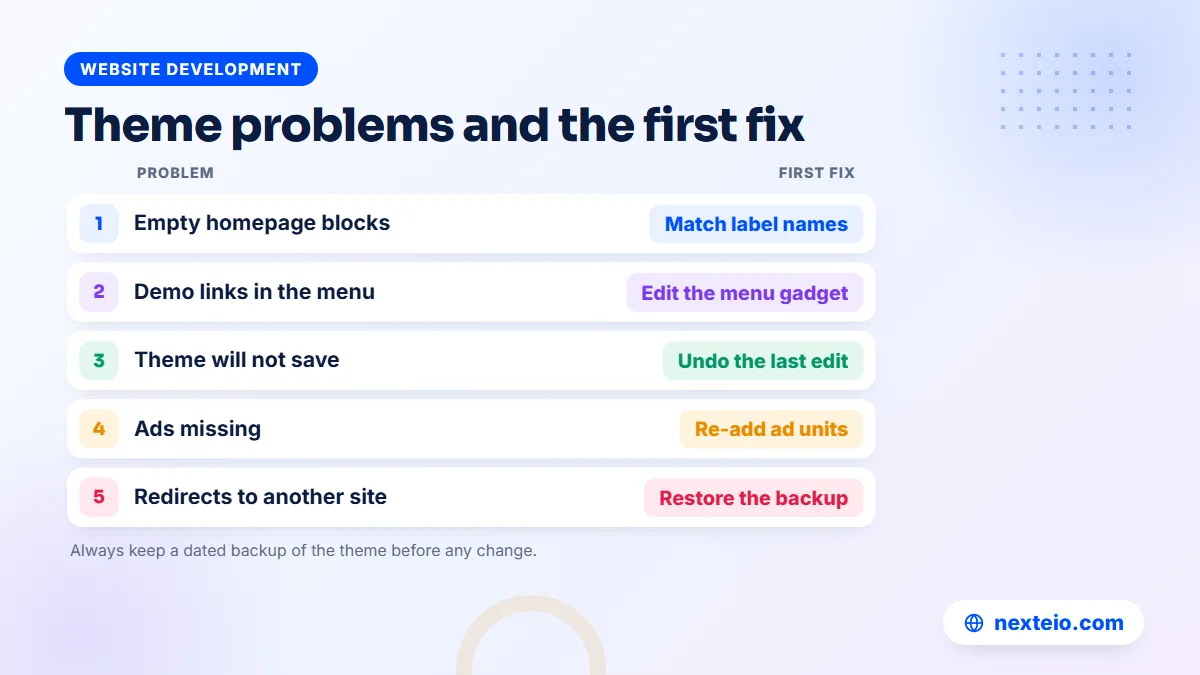
Ads stopped showing. Ad code placed in the old theme's HTML does not move to a new design automatically. Re-add your ad units in the new theme's slots or gadgets, and check the AdSense account for any policy messages.
The blog redirects to another site. This is serious. It usually means the theme contains code that redirects visitors, either as a punishment for removing a credit link or as plain spam. Restore your backup immediately, then find a cleaner theme.
The custom domain shows a security warning. The theme does not control HTTPS. Check that HTTPS is turned on in Settings and that your domain is set up as described in Google's guide to setting up a custom domain.
When a Ready-Made Theme Is Not Enough
Some blogs outgrow ready-made Blogger themes. A news site might need a layout that no ready theme offers. A business might want its blog to match its main website exactly. An organization might need a clean, fast design without any third-party credit links or unknown code.
In those cases, a custom Blogger design is an option. A developer can start from a lean base, build only the sections you need and keep the code readable, so later changes are simple. You still get Blogger's free hosting and Google's infrastructure, and you only pay for your own domain, which usually costs about BDT 1,500 to 2,500 a year for a .com.
Custom work is not always the right answer, though. If your needs keep growing, with membership areas, online payments, booking forms or a product catalog, Blogger itself may be the limit rather than the theme. In that case, moving to WordPress or a custom-built site is the more honest advice, even though a theme change would cost less in the short term.
Ask yourself three questions before you spend money on design. Do readers find and read your posts today? Is the current design actually stopping something you need? Will the new design still be easy to update in a year? If the answers point to content or reach rather than looks, put the money into writing and promotion instead. Our SEO service is built for that kind of work.
A Short Maintenance Routine for Your Theme
Even well-built Blogger themes need a little routine once they are in place. None of these steps take long, and together they prevent most of the surprises described above.
- Monthly: open the blog on a phone, test the menu and search, and check one older post.
- Quarterly: run PageSpeed Insights on the homepage and one post, and remove gadgets nobody uses.
- Before any change: download a fresh backup of the theme.
- After any change: check the homepage, a post, a label page and a static page.
- Yearly: check whether the designer has released an update, and read the changelog before you apply it.
Keep your notes on changes in the same folder as the backups.
Updating a third-party theme usually means uploading the new XML file over the old one, which resets any HTML edits you made. This is why CSS added through the theme designer and a written list of changes are so useful. With them, an update takes minutes instead of an afternoon, and you can repeat the same checks after any big change to the blog.
How Nexteio Can Help With Your Blogger Theme
Choosing and installing Blogger themes is easy for some people and a frustrating weekend for others. Through our Blogger website setup and customization service, we take that work off your hands. We start by understanding what your blog is for: news, notices, recipes, a business blog or personal writing. Then we suggest a built-in theme or a clean third-party design that fits, or a custom design when nothing ready-made does.
We back up your current theme and content first, install the new design, rebuild the menu and gadgets with your own labels and pages, and set fonts that render Bangla properly. We also check the mobile view, page titles, search descriptions, HTTPS on your custom domain and the space for AdSense ads, so the design does not get in the way of search or earnings.
You get a working blog, the backup files and a short note on what we changed. You can see examples of our work in our portfolio, read about Nexteio, or tell us about your blog through the project brief form. If you are not sure whether Blogger is still the right platform for you, ask us through the contact page and we will give you a straight answer. When you are ready for a new look, start your Blogger project here and mention the Blogger theme work you need.
Keep reading: simple SEO tips for small business websites, technical SEO basics for site owners, or browse all our website development guides.
Frequently asked questions
Will changing my Blogger theme delete my posts?
No. Posts, pages, comments and labels are stored separately from the theme, so they stay in place when you switch designs. Gadgets can move, lose their position or disappear from view, which is why you should back up the theme and note your gadget content before switching.
Are free Blogspot templates safe to use?
Many are, but quality varies. Download only from the designer's own site or a known marketplace, avoid cracked copies of paid templates, and open the XML file to look for scrambled scripts or links to unrelated sites. Test the design on a spare blog before using it on your main one.
Can I remove the footer credit from a free Blogger template?
Check the license first. Many free templates require the credit to stay, and some include code that breaks the layout or redirects visitors if it is removed. If you need a design without a credit link, buy the paid version that allows removal or use a built-in theme.
Which Blogger theme is best for AdSense?
There is no single best design. Look for a fast, responsive theme with clear ad slots that do not push the article far down on a phone. Approval depends far more on original, useful content and clear site pages than on the design itself.
How do I go back to my old theme if the new one breaks?
Open the Theme page, choose Restore from the menu beside Customize and upload the backup XML file you downloaded before the switch. Then check the Layout page, because some gadgets may need to be added back by hand.
Do I need to know HTML to customize a Blogger theme?
Not for most changes. The theme designer handles colors, fonts and backgrounds, and small CSS fixes can go in the Advanced section. Editing the full HTML is only needed for structural changes, and it is safer to leave those to someone who reads XML comfortably.
Does a Blogger theme affect Google rankings?
Indirectly. The theme controls page speed, mobile layout, title tags, headings and structured data, and problems in any of these can hold a blog back. A clean theme removes barriers, but rankings still depend on helpful posts that answer what people search for.