WordPress Security Plugins: How to Choose and Set Them Up
In this article 13 sections
- 1.What WordPress Security Plugins Can and Cannot Do
- 2.How Company Websites Usually Get Hacked
- 3.The Main Types of Protection Explained
- 4.7 WordPress Security Plugins Worth Knowing
- 5.Comparing the Options Side by Side
- 6.Which Setup Fits Which Kind of Site
- 7.Setting Up a WP Security Plugin Without Locking Yourself Out
- 8.Hardening Steps That Need No Plugin
- 9.Mistakes That Make Security Plugins Useless
- 10.What to Do If Your Site Is Already Hacked
- 11.A Monthly Security Routine for Office Staff
- 12.How Nexteio Can Help With WordPress Security
- 13.Frequently asked questions
WordPress security plugins are the quickest way to add a firewall, malware scanning and login protection to a company website, and most of the well-known ones have a free version that covers the basics. But a plugin is only one layer. A site with a good security plugin and an outdated theme, a shared admin password or no off-site backups can still be hacked in an afternoon.
Most attacks on business websites in Bangladesh are not personal. Automated bots scan huge numbers of sites, looking for a known flaw in an old plugin, a login page that allows endless password guesses, or a forgotten test copy of the site. When they find one, they add spam pages, redirect visitors to scam sites or use the server to send junk email. The company usually finds out when a buyer, a guardian or Google warns them.
This guide compares the plugins worth knowing, explains what each type of protection actually does, and shows which setup suits a company profile, a school site or an online store.
It also covers the hardening steps that need no plugin at all, a setup sequence that avoids locking yourself out, and what to do if your site has already been hacked.
What WordPress Security Plugins Can and Cannot Do
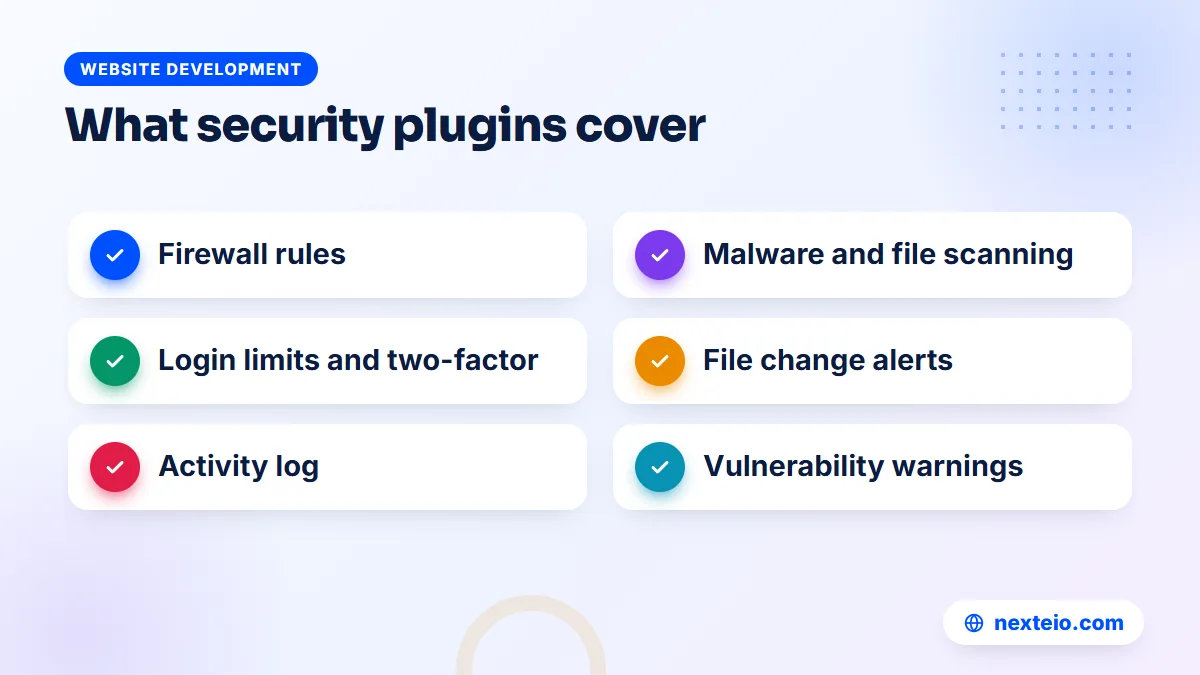
It helps to be clear about the job before choosing a tool. Good WordPress security plugins handle the routine defenses that are hard to do by hand on a busy site:
- Blocking bad requests with firewall rules before they reach vulnerable code.
- Stopping password guessing by limiting failed logins and adding two-factor authentication.
- Scanning files for known malware, backdoors and unexpected changes.
- Logging activity such as logins, plugin installs and settings changes, so you can see who did what.
- Warning you when a plugin, theme or WordPress core has a known vulnerability.
What they cannot do matters just as much. A security plugin cannot fix a plugin you never update. It cannot protect a site whose admin password is written on a sticky note at reception, or whose hosting account was registered by a freelancer who has since disappeared. It cannot restore your site after a disaster unless you also keep proper backups somewhere else.
Think of a security plugin as the lock and alarm on an office door. They are worth having, but they do not help if the window is open, the keys are copied for everyone and nobody checks the alarm panel.
How Company Websites Usually Get Hacked
Knowing the common ways in tells you which protections matter most, and which features of WordPress security plugins deserve your attention. For typical company, school and NGO sites, the same few causes come up again and again.
Outdated plugins and themes
This is the most common cause. When a security flaw in a popular plugin is fixed and the update is published, the fix also tells attackers where the weakness was. Bots then scan for sites still running the old version. A site that updates within days is rarely caught. A site that has not been updated for a year almost certainly carries several known holes.
Weak or shared passwords
Many offices share one admin login between three or four people, often with a simple password based on the company name. Bots try common passwords against the login page thousands of times a day. Without login limits and two-factor authentication, a weak password is only a matter of time.
Nulled themes and plugins
Premium themes and plugins downloaded free from unofficial sites often contain hidden backdoors. The site looks fine, but someone else already has a way in. They also never receive genuine updates, so any later flaw stays open forever.
Forgotten accounts and copies
An intern from two years ago who still has admin rights, a developer's account that was never removed, or an old "test" copy of the site sitting in a folder on the same hosting account: each of these is an open side door. Test copies are especially dangerous because nobody updates them.
Weak hosting
Cheap shared hosting where one infected neighbor can affect others, outdated PHP versions, and no isolation between sites on the same account all make cleanup harder. If one site on your hosting account is hacked, every other site on that account is at risk too.
The Main Types of Protection Explained
The feature lists of WordPress security plugins use a lot of jargon. Here is what each term means in practice and why it matters for a company site.
| Protection | What it does | Why it matters |
|---|---|---|
| Web application firewall | Checks each request against rules and blocks known attack patterns | Stops many attacks on vulnerable plugins before they run |
| Malware scanner | Compares files with known clean versions and malware signatures | Finds infections that are invisible from the front of the site |
| Login protection | Limits failed logins, blocks repeat offenders, adds two-factor login | Stops password guessing, the most common automated attack |
| File change monitoring | Alerts you when core or plugin files change unexpectedly | Early sign that someone has modified your site |
| Activity log | Records logins, new users, plugin changes and settings edits | Shows who did what, which helps after an incident |
| Vulnerability alerts | Warns when an installed plugin or theme has a known flaw | Tells you what to update or remove first |
Most suites combine several of these, but few do all of them equally well.
Plugin firewall or cloud firewall
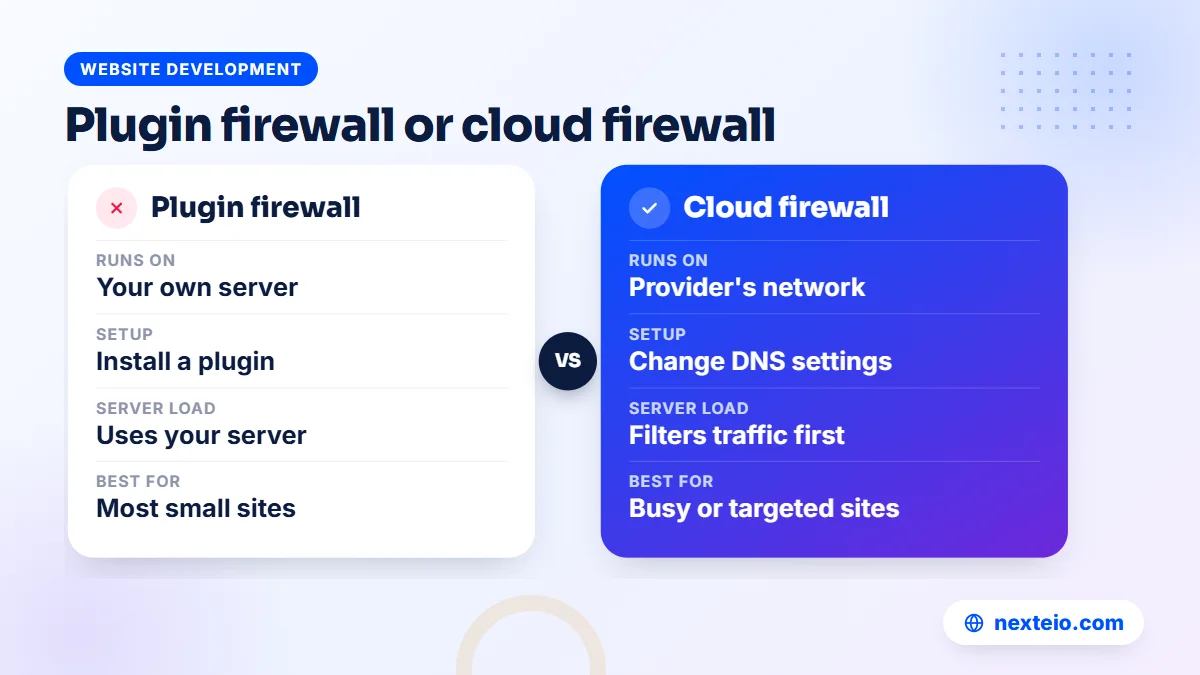
There are two kinds of firewall. An endpoint firewall runs inside WordPress on your own server, as a plugin. It understands WordPress well and is easy to install, but it uses your server's resources and only acts once a request has reached your hosting. A cloud firewall sits in front of your site on the provider's network, and you connect it by changing your DNS settings. It filters traffic before it reaches your server, which can also reduce load during attacks.
For most small company sites, a good plugin firewall is enough. Busy online stores, sites that have been targeted before, and organizations with high public visibility may benefit from a cloud firewall as well. The two can work together, but you should not run two plugin firewalls at the same time.
7 WordPress Security Plugins Worth Knowing
The list below covers widely used options from the official WordPress plugin directory. Features change between versions, so always check the plugin's own page for what the current free version includes before you decide. Most sites should run one main security suite, plus separate tools for backups and, if needed, two-factor login.
1. Wordfence Security
Wordfence Security is one of the best-known WordPress security plugins. It combines an endpoint firewall, a malware scanner, login protection with two-factor authentication, and a live view of traffic hitting your site. The scanner checks core files, themes and plugins for malware, unexpected changes and malicious redirects.
The free version is useful on its own, but its firewall rules and malware signatures arrive 30 days after paying users receive them, according to the plugin's own description. For a company profile that is usually acceptable. For a store or a site that has been targeted before, the real-time updates of a paid plan are worth considering. Scanning can use a fair amount of server resources on very small hosting plans, so check server load after you turn it on.
2. Sucuri Security
The free Sucuri Security plugin focuses on auditing and monitoring rather than blocking. It logs security-related activity, watches core files for unauthorized changes, runs remote malware scans, checks whether your site appears on major blocklists, and offers hardening options plus post-hack actions such as resetting passwords.
Sucuri's website firewall is a separate paid cloud service that sits in front of your site. The plugin works well on its own as a monitoring layer, especially next to another security tool that handles login protection. It is a sensible choice when you want clear alerts and an audit trail without a heavy scanner running on your own server.
3. Kadence Security (formerly iThemes Security)
Kadence Security, previously known as iThemes Security and later Solid Security, concentrates on login and user security. Its free version covers brute force protection, two-factor authentication and password requirements. The plugin also offers setup templates for different kinds of site, such as e-commerce, non-profit or brochure sites. The paid version adds vulnerability protection through an integration with Patchstack.
Because it has changed names twice, you may see older guides that call it by either earlier name. It suits sites with many users, such as a school site where teachers log in to post notices, because much of its strength lies in controlling who can log in and how.
4. All-In-One Security (AIOS)
All-In-One Security comes from the same team behind the UpdraftPlus backup plugin. It covers login lockouts, two-factor authentication for chosen user roles, file change detection, firewall rules applied through PHP and .htaccess, comment spam blocking and an audit log. Its features are grouped as basic, intermediate and advanced, which helps non-specialists turn them on in a sensible order.
The firewall rules that edit the .htaccess file are powerful but can clash with some hosting setups or other plugins. Turn them on one group at a time and check the site after each change.
5. Really Simple Security
Really Simple Security, formerly called Really Simple SSL, started as a tool for moving sites to HTTPS and has grown into a lightweight security plugin. The free version handles HTTPS redirection, common hardening settings such as disabling XML-RPC and blocking code execution in the uploads folder, vulnerability detection for plugins and themes, and two-factor login by email for chosen roles. A firewall and security headers sit in the paid version.
It suits smaller company sites that want sensible defaults without a heavy scanner, especially when the hosting company already provides malware scanning at server level.
6. Two Factor
Two Factor does one job: it adds a second login step. Users can choose an authenticator app, codes sent by email, or a set of one-time backup codes for emergencies. Each user sets it up from their own profile page.
It is a good choice when your main security suite does not include two-factor login, or when you want a small, focused plugin for it. For any site where more than one person logs in, two-factor authentication for administrators is one of the most effective protections you can add.
7. UpdraftPlus (for backups)
UpdraftPlus is not a security plugin in the usual sense, but no security setup is complete without it or a similar backup tool. It schedules backups of your files and database and can send them to remote storage such as Google Drive or Dropbox, away from your hosting account. When everything else fails, a clean backup is what gets your site back.
Whichever backup tool you use, store copies away from the server and test a restore every few months. A backup you have never restored is only a hope.
A few other tools deserve a mention. Limit Login Attempts Reloaded is a simple option if you only want login limits. Many hosting companies also include server-level malware scanning, and some offer their own firewall. Check what your host already provides before adding overlapping plugins.
Comparing the Options Side by Side
This summary shows where each of these WordPress security plugins is strongest. It is a starting point, not a ranking. The best choice depends on your site, your hosting and who will watch the alerts.
| Plugin | Main strength | Firewall in free version | Two-factor login | Good fit |
|---|---|---|---|---|
| Wordfence Security | Firewall and malware scanning | Yes, rules delayed 30 days | Yes | Most company sites with decent hosting |
| Sucuri Security | Monitoring, auditing, blocklist checks | No, cloud firewall is paid | No | A monitoring layer next to other tools |
| Kadence Security | Login and user security | Check the current plan | Yes | Sites with many staff accounts |
| All-In-One Security | Wide set of hardening options | Yes, PHP and .htaccess rules | Yes | Admins who want step-by-step control |
| Really Simple Security | HTTPS and light hardening | No, firewall is paid | Yes, by email | Small sites on good hosting |
| Two Factor | Second login step only | No | Yes | Adding 2FA to any setup |
| UpdraftPlus | Scheduled off-site backups | Not included | Not included | Every site, alongside a security suite |
Notice that no single plugin covers every row well.
Plugin features and plan contents change often, so treat the table as a guide and confirm the details on each plugin's official page. If your current site was built with a theme or plugins that no longer receive updates, no security tool will fully protect it. In that case, a rebuild as a professionally built WordPress site may cost less than years of patching.
Which Setup Fits Which Kind of Site
There is no single best choice among WordPress security plugins. There is a sensible combination for each kind of site and the people who run it. These are practical starting points.
Company profile or corporate site
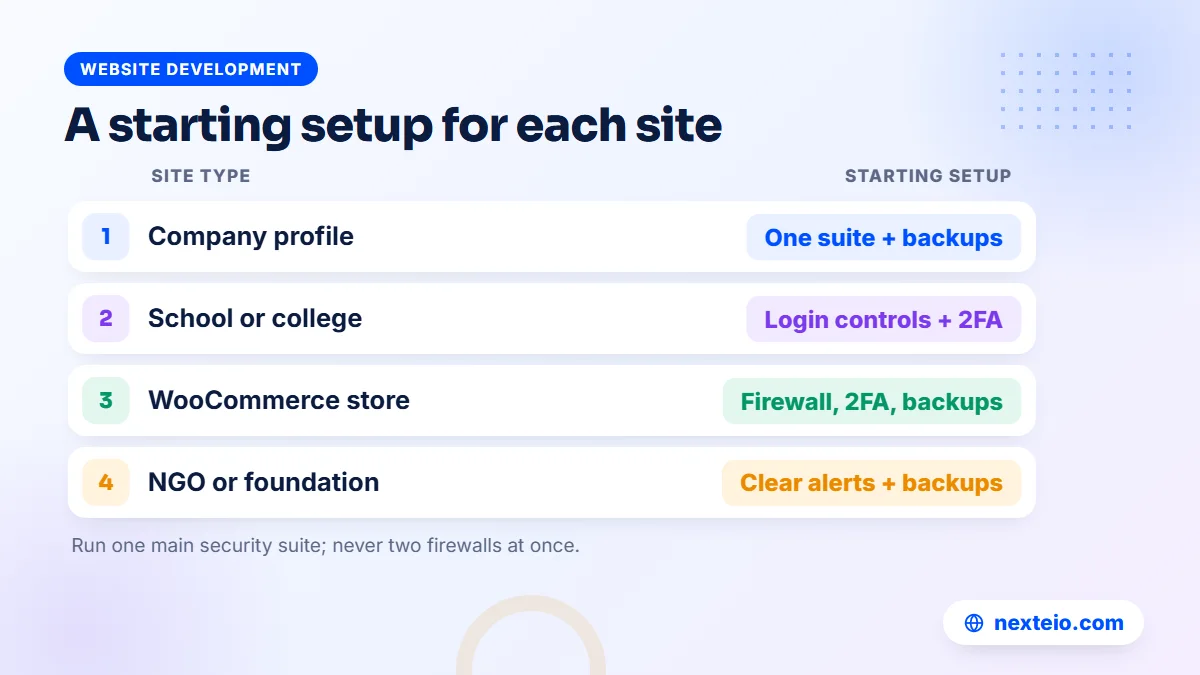
A site of five to fifteen pages that changes a few times a month needs one security suite with a firewall and login protection, two-factor login for every administrator, and scheduled off-site backups. Wordfence or All-In-One Security with UpdraftPlus is a common pairing. Keep the number of admin accounts to two or three, and give staff who only post news an editor account instead.
School, college or madrasa site
Education sites often have many users: teachers posting notices, office staff updating routines, someone uploading results. Login security matters most here. A suite with strong user controls, such as Kadence Security, plus two-factor login for administrators and editors, keeps accounts under control. Results and admission pages also attract heavy traffic on certain days, so choose a scanner schedule that does not run during those hours.
WooCommerce online store
A store handles customer names, phone numbers, addresses and orders, so the stakes are higher. Use a firewall with timely rule updates, consider a cloud firewall in front of the site, enable two-factor login for every staff account, and back up the database often enough that you never lose a day of orders. Stores also need more frequent updates and testing, which our guide to e-commerce website development in Bangladesh covers in the planning stage. A store built through a proper e-commerce development process should include this security plan from day one.
NGO or foundation site
NGO sites often hold donor information, project reports and partner contacts, and many are run by small teams with little technical help. Choose a security setup that sends clear, simple alerts to someone who will read them, keep the number of plugins small, and make sure backups run automatically. Activity logs are useful here, because several people from different projects may log in.
Related guides for keeping a WordPress site in good health:
- What to check before hiring a WordPress developer
- Technical SEO basics every website owner should know
- How page speed affects rankings and sales
Setting Up a WP Security Plugin Without Locking Yourself Out
Most problems with a new WP security plugin come from turning everything on at once. Follow this order instead:
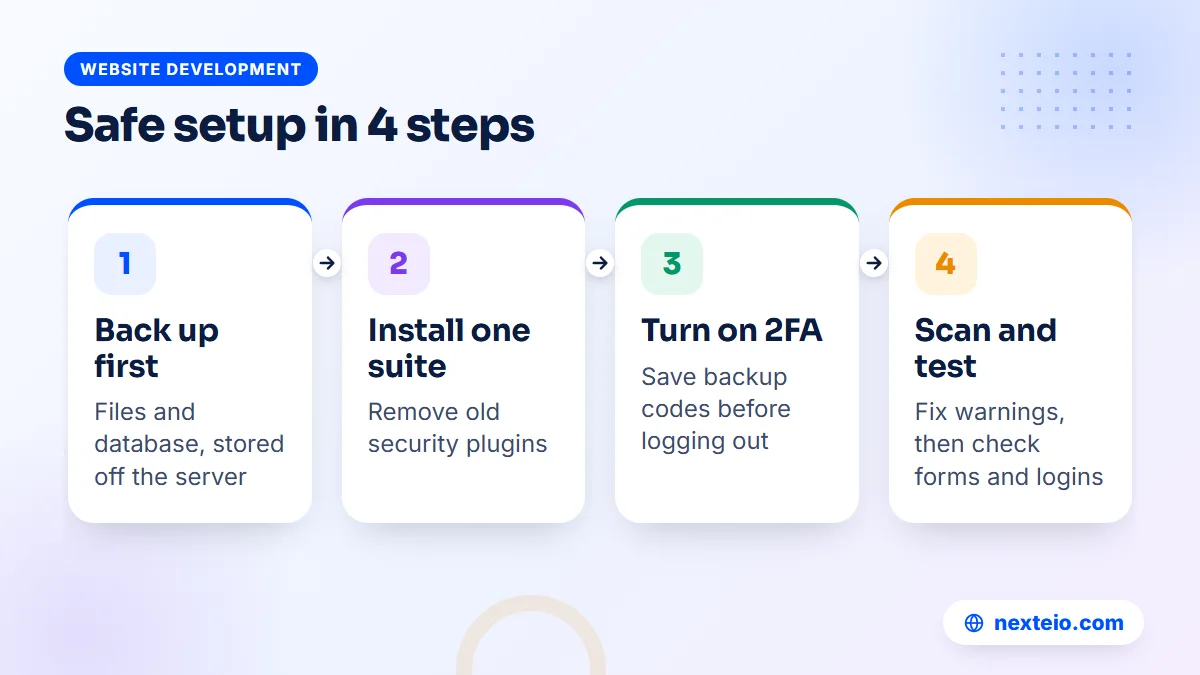
- Take a full backup first. Files and database, stored off the server, so you can roll back if a setting breaks the site.
- Update everything. WordPress core, themes and plugins, and remove any you do not use.
- Install one main security suite. Remove any old security plugins so two firewalls do not clash.
- Set the alert email. Use an official address that more than one person can read, not a personal inbox.
Then turn on the protective features one at a time:
- Turn on login protection. Limit failed attempts and set reasonable lockout times.
- Enable two-factor login for administrators. Save backup codes in a safe place before you log out.
- Turn on the firewall in learning mode if offered. Some firewalls learn normal traffic first, which reduces false blocks.
- Run the first full scan. Review every warning, and fix or remove what it finds.
- Test the site. Check forms, checkout, logins and any page that uses special features.
Write down what you changed. If the site stops working after a setting change, that note saves hours.
Lockouts happen. If you lock yourself out, you can usually regain access by renaming the plugin's folder through your hosting file manager, which disables it, then logging in and fixing the setting. That is one more reason to keep hosting access in your organization's hands rather than an outside person's.
Hardening Steps That Need No Plugin
Some of the most effective protections come from settings and habits, not from WordPress security plugins. The official WordPress hardening guide covers these in depth. For a company site, the essentials are:
- Keep everything updated. Turn on automatic updates for plugins you trust, and check the rest weekly.
- Remove what you do not use. Deactivated plugins and old themes can still be attacked, so delete them.
- Give each person their own account. Never share one admin login, and use the lowest role that does the job.
The rest are one-time settings and choices that your developer or host can help with:
- Disable the file editor. Adding a single line to wp-config.php stops anyone from editing theme and plugin code from the dashboard.
- Run a supported PHP version. Old PHP versions stop receiving security fixes, and your host should let you switch.
- Use HTTPS everywhere. A valid SSL certificate protects logins and form data in transit.
- Choose decent hosting. Account isolation, server-level scanning and off-server backups matter more than a low price.
Use only themes and plugins from the official directory or the original developer's own site. A site with a few well-maintained plugins is much easier to secure than one with forty.
The built-in Site Health screen in WordPress, under Tools, also flags several security issues, such as an outdated PHP version or inactive plugins that should be removed. It takes two minutes to check and costs nothing.
If you are deciding whether WordPress is the right platform for a site that holds sensitive data, our comparison of WordPress and custom websites explains where each approach is stronger. For portals with logins, payments and private records, a purpose-built Laravel application is often the safer base.
Mistakes That Make Security Plugins Useless
WordPress security plugins that are installed and then forgotten give a false sense of safety. These mistakes come up again and again on business sites:
- Running two security suites at once. Overlapping firewalls and scanners slow the site and clash.
- Ignoring the alerts. Warnings about outdated plugins pile up in an inbox nobody reads.
- Alerts going to a former employee. The email address was set years ago and never changed.
- Using a nulled "pro" version. A pirated security plugin is a contradiction, and often the infection itself.
- Not updating the security plugin. Security plugins have flaws too, and need updates like everything else.
- Switching rules off after one false alarm. One blocked form is a reason to adjust one rule, not to switch the firewall off.
- Treating the plugin as a backup. Scanners can find malware, but only a backup can bring back deleted data.
Most of these are people problems rather than software problems. Name one person who owns website security, and make sure they have time to do it.
What to Do If Your Site Is Already Hacked
Signs of a hack include strange pages appearing in Google results for your name, visitors being redirected to other sites, browser warnings about dangerous content, new admin users you did not create, or your host suspending the account. If you see any of these, act quickly but calmly.
- Do not delete everything in a panic. You may destroy the evidence of how the attacker got in.
- Take a copy of the current site. Even an infected copy helps to find the cause later.
- Change every password. Hosting, WordPress admin accounts, database, FTP and the email tied to the site.
Once the damage is contained, clean up and recover:
- Restore a clean backup, or clean the site. Restore from before the infection if you have one. Otherwise, use the scanners in WordPress security plugins to find infected files, remove them and replace core files.
- Find and close the way in. Usually an outdated plugin, a weak password or a nulled theme. Update or remove it.
- Check Google Search Console. Review security issue reports and request a review once the site is clean.
- Watch closely for a few weeks. Reinfection is common when the original cause was missed.
Hacked sites often suffer in search too. Spam pages added by attackers can stay in Google's index long after cleanup. Our article on common SEO mistakes covers how to spot and fix indexing problems, and a dedicated SEO service can help recover lost visibility after a serious incident.
If the site was hacked more than once, or was built years ago with abandoned plugins, cleaning it again may only buy a few months. A fresh WordPress build on current software, with security planned from the start, is often the better long-term choice. You can tell us what happened through our project form and get advice on whether cleanup or a rebuild makes more sense.
A Monthly Security Routine for Office Staff
WordPress security plugins work best with a simple routine around them. An office manager or IT officer can follow this checklist each month in under an hour:
- Confirm that backups ran and at least one recent copy is stored off the server.
- Apply pending updates, after taking a fresh backup.
- Read the security plugin's alerts and scan results from the past month.
- Review the user list and remove anyone who has left or no longer needs access.
- Check that every administrator still has two-factor login turned on.
- Look at Google Search Console for security or indexing warnings.
- Note anything unusual and send a short summary to the responsible manager.
Every three months, add a test restore of a backup and a review of installed plugins. Once a year, check who holds the hosting, domain and admin accounts, and make sure they are in the organization's name.
If nobody inside the organization has time for this, it is exactly the kind of work a WordPress care and maintenance plan should cover. A well-run plan handles updates, backups, scans and alerts, while your staff focus on content. A WordPress site kept this way, whether it was built in-house or through a custom website design project, stays far easier to protect.
How Nexteio Can Help With WordPress Security
We build WordPress websites that load fast, look right on phones and are simple for your team to update, and we look after existing WordPress sites through maintenance plans. For security, we can choose and configure the right WordPress security plugins for your kind of site, set up two-factor login and off-site backups, remove what you do not need, and keep updates on a schedule.
Maintenance plans usually fall around BDT 2,000 to 5,000 a month at the basic level, 5,000 to 12,000 at the standard level and 12,000 to 30,000 or more at the advanced level, depending on the site and the work agreed. To start, you give us access to your hosting server and the website, and we both sign an agreement that sets out exactly what we will do.
If your site has already been hacked, or runs on themes and plugins that no longer receive updates, we can also advise on whether a cleanup or a rebuild on our WordPress service makes more sense. Learn more about Nexteio, see our portfolio, send your site details through the project form, or reach us on the contact page.
Keep reading: how to build a professional business website that gets results, a buyer's checklist for web design companies, or browse all our website development guides.
Frequently asked questions
Which is the best WordPress security plugin?
There is no single best choice for every site. Wordfence and All-In-One Security suit many company sites because they combine a firewall, login protection and scanning, while Sucuri works well as a monitoring layer. The right pick depends on your hosting, how many people log in and whether you run a store.
Are free security plugins enough for a business website?
For many small company sites, a well-configured free plugin plus two-factor login, regular updates and off-site backups gives solid protection. Paid plans add faster firewall updates, extra features and support. Online stores and sites that have been attacked before often benefit from a paid plan or a cloud firewall.
Can I use two security plugins at the same time?
Avoid running two full security suites, because overlapping firewalls and scanners slow the site and can block each other. It is fine to combine one main suite with a focused tool that does something different, such as a backup plugin or a two-factor login plugin.
Do security plugins slow down a WordPress site?
They can, especially scanners on small hosting plans. Schedule scans for quiet hours, keep only one main suite and check page speed after setup. A cloud firewall can reduce load because it filters traffic before it reaches your server.
Does my hosting company already protect my website?
Hosts usually protect the server itself, and many add malware scanning or basic firewall rules. They rarely update your plugins, manage your user accounts or watch your site's login activity. Ask your host exactly what is included, then use a plugin to cover the gaps.
What should I do if a security plugin locks me out?
Wait for the lockout period to end, or use another administrator account if you have one. If that fails, rename the plugin's folder through your hosting file manager to disable it, log in, fix the setting and rename the folder back. This is why your organization should always keep its own hosting access.
How often should a WordPress site be scanned for malware?
Daily automatic scans are a sensible default for most business sites, with a person reviewing the results at least weekly. Busy stores and sites with many users benefit from closer monitoring. Scans should be paired with prompt updates, since many infections come through plugins with known flaws.