WordPress Maintenance Services: A Practical Checklist for Business Sites
In this article 15 sections
- 1.What WordPress Maintenance Services Actually Look After
- 2.Start With an Audit When You Take Over a Site
- 3.The Safe Update Order for WordPress
- 4.A Weekly, Monthly and Quarterly WordPress Checklist
- 5.Plugin and Theme Housekeeping
- 6.Keeping the Database and Media Library Lean
- 7.PHP Versions and Hosting Health
- 8.When an Update Breaks the Site: A Recovery Plan
- 9.WordPress Security Settings to Review Each Quarter
- 10.Cleaning Up a Hacked WordPress Site
- 11.Online Shops and Membership Sites Need Extra Care
- 12.What WordPress Maintenance Services Cost in Bangladesh
- 13.Doing It Yourself or Hiring WordPress Maintenance Services
- 14.How Nexteio Can Help With WordPress Maintenance Services
- 15.Frequently asked questions
WordPress maintenance services exist because a WordPress site is never really finished. The core software, every plugin and the theme all receive updates, the server's PHP version moves on, and the database slowly fills with clutter. Left alone for a year, a perfectly good company site can turn into a slow, outdated target that nobody in the office dares to touch.
The good news is that WordPress care follows a clear routine. Most of it is the same small set of jobs done in the right order, on a fixed schedule, with a backup in place before anything changes. The hard part is not the technology. It is doing the work every week, even when nothing seems wrong.
This is a practical, WordPress-specific checklist. It covers the first audit when you take over a site, the safe order for updates, weekly, monthly and quarterly tasks, database and plugin housekeeping, PHP upgrades, and what to do on the day an update breaks the homepage. It also explains how to decide between doing the work in-house and paying for WordPress website maintenance services, and what that usually costs in Bangladesh.
What WordPress Maintenance Services Actually Look After
A WordPress site is built in layers, and each layer can fail in its own way. Thinking in layers makes it easier to see what a maintenance routine must cover and where a cheap plan cuts corners:
- The server: the hosting account, the PHP version, the database server, disk space and the SSL certificate.
- WordPress core: the main software, which receives major releases a few times a year and smaller security releases in between.
- The theme: the design layer, often with a child theme holding your custom changes.
- Plugins: each one a small piece of software from a different author, with its own update schedule and its own risks.
- The database: pages, posts, settings, form entries, orders and a lot of leftover data from removed plugins.
- People and content: user accounts, passwords, roles and the information visitors read.
Each layer has its own update cycle and its own ways to fail.
Most problems happen where two layers meet. A plugin update expects a newer PHP version than the host provides. A theme update overwrites changes someone made directly in the theme files. A page builder update changes how old layouts display. Good WordPress maintenance services watch these meeting points, not just the update button.
That is also why "we keep your plugins updated" is not a full plan. Updating is one task out of many. Backups, testing, user checks, database care and a recovery plan matter just as much. How the site was built matters too. A site with a short plugin list and a child theme is far easier to look after, which is why our WordPress website service aims for that kind of setup on new builds.
Start With an Audit When You Take Over a Site
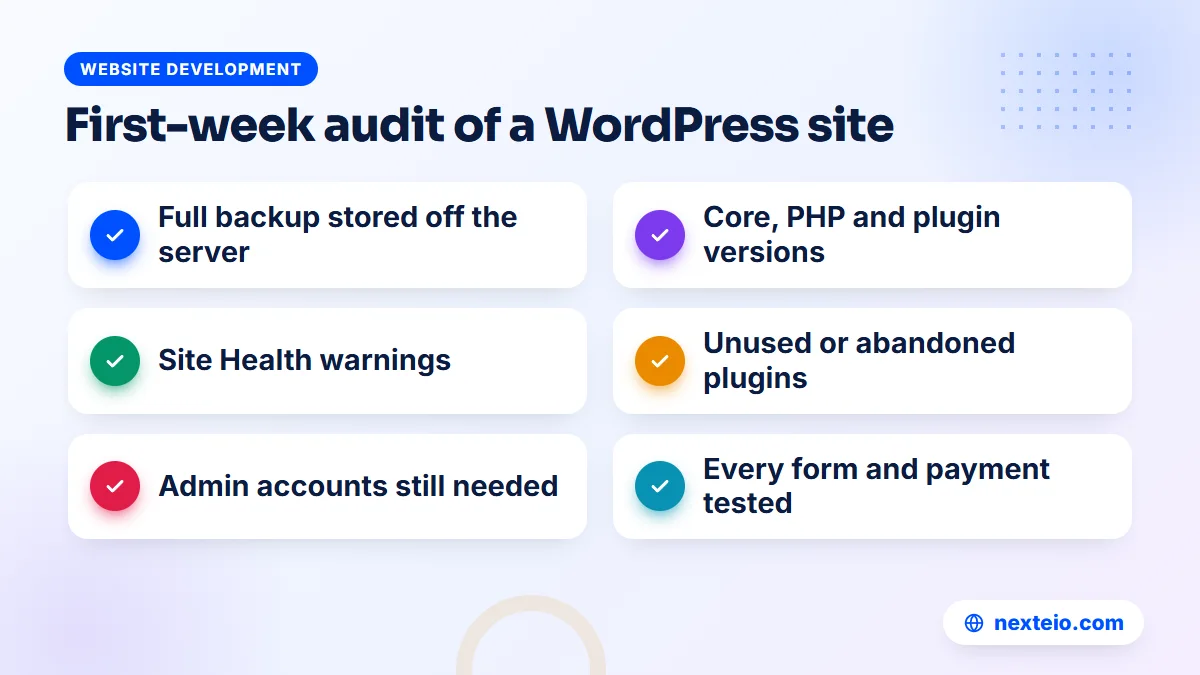
If you are hiring a new provider or giving the job to an in-house officer, the first week should be an audit, not routine updates. Updating an unknown site blindly is the fastest way to break it. The audit records what is installed, what is out of date and what is risky, so the routine can start from a safe base.
- Take a full backup of files and database, and store a copy away from the hosting server.
- Write down the WordPress version, PHP version, theme name and version, and every plugin with its version.
- Open the Site Health screen under Tools and note every critical issue and recommendation.
- Mark plugins that are inactive, duplicated, or no longer receiving updates from their authors.
- List every user with Administrator or Editor rights and confirm each one still needs that access.
- Check whether anyone edited the theme files directly instead of using a child theme.
- Test every form, the search box, the main menus and any payment or booking flow.
- Confirm who controls the domain, hosting, email and premium licenses.
Keep the results in one document that both sides can see.
The official guide to the Site Health screen explains what each check means. It flags outdated PHP versions, inactive plugins and themes, missing HTTPS and failed background updates, which makes it a useful starting point for any audit.
The audit often finds surprises. A school site may have three different slider plugins, two of them unused. A factory site may have a former marketing officer still listed as an administrator. A corporate site may run on a theme whose seller stopped releasing updates years ago. Each finding goes onto a short fix list, ordered by risk, before the regular routine begins.
The Safe Update Order for WordPress
Updates are where most maintenance work happens and where most damage is done. The order matters. A careful routine follows the same steps every time:
- Back up first. Take a fresh backup of files and database right before updating, even if last night's automatic backup ran.
- Read the changelog. Check whether any update is a major version, mentions breaking changes or needs a newer PHP version.
- Test on staging. Apply major updates on a staging copy first, especially for the theme, page builder, WooCommerce and core releases.
- Update in small groups. Update a few plugins at a time on the live site, so you know which one caused a problem.
- Check the site. Open the homepage, a few inner pages, the forms and any checkout, on a phone as well as a desktop.
- Record what changed. Note the date, the versions and anything unusual in a simple log.
The routine takes longer to describe than to do once it becomes a habit.
Small sites with few plugins can skip staging for minor plugin updates. Sites with a page builder, an online shop or custom code should not. A staging copy costs little to set up on most decent hosts and saves hours when an update clashes with something.
What about automatic updates?
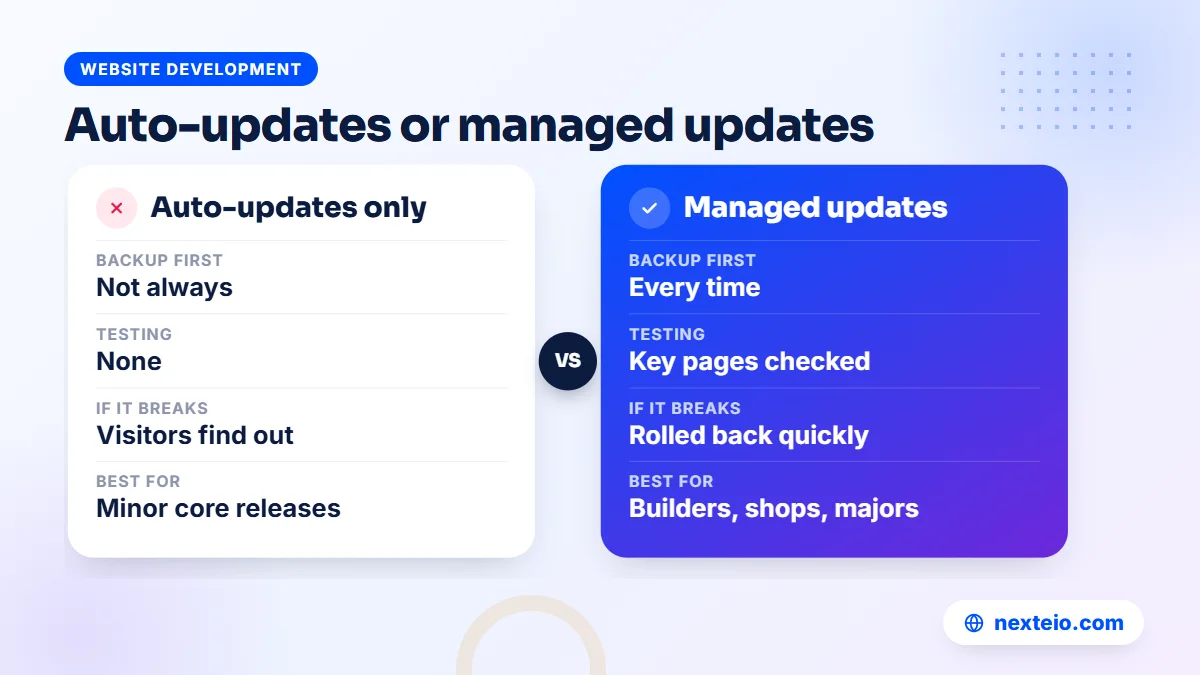
WordPress installs minor core releases, the ones that usually carry security fixes, automatically by default. Since WordPress 5.5, you can also switch on automatic updates for individual plugins and themes from the dashboard. The official page on configuring automatic background updates explains the options.
Automatic updates are useful for small, well-maintained plugins and for minor core releases. They are risky for page builders, WooCommerce and its extensions, and anything that changes how pages are built. Those deserve a backup, a test and a human check. The usual setup combines both: automatic minor core releases, automatic updates for a few trusted small plugins, and planned manual updates for the rest.
A Weekly, Monthly and Quarterly WordPress Checklist
The routine below suits a typical business or organization website. Busy online shops should run the weekly list more often, and very quiet brochure sites can stretch some items. Treat it as a starting point and adjust it to your site.
Every week
- Confirm that automatic backups ran and that a recent copy exists off the server.
- Apply pending plugin and theme updates using the safe order above.
- Check that the homepage, contact page and main forms work after updates.
- Clear spam comments and form spam, or confirm the spam filter is catching them.
- Glance at the uptime log for any downtime and its cause.
On most sites, the weekly list takes well under an hour.
Every month
- Review the Site Health screen for new warnings.
- Send a real test submission through every form and confirm the email arrives.
- Run a malware scan and review any changed core files.
- Check Google Search Console for crawl errors, indexing drops and security issues.
- Test page speed for the three most visited pages on a phone.
- Remove expired notices, finished offers and closed job posts.
The monthly checks catch the quiet failures that weekly updates miss.
Every three months
- Restore a backup to a test location to prove it works.
- Audit plugins: remove unused ones and replace abandoned ones.
- Audit users: remove people who left and lower roles that are higher than needed.
- Clean the database of old revisions, expired temporary data and spam.
- Check the PHP version against what is still supported.
- Review premium license renewals and domain expiry dates.
Write the date of each quarterly review in your log, so the next one is not forgotten.
For the search side of these checks, our guide to technical SEO basics explains what crawl errors and indexing problems mean and which ones need action. Most of them are cheap to fix when caught in the monthly review and expensive when found a year later.
Plugin and Theme Housekeeping
Plugin housekeeping is a quiet but large part of WordPress maintenance services. Plugins are the most useful and the most fragile part of WordPress. Each one is written by a different person or company, and some are abandoned quietly. A housekeeping routine keeps the list short and healthy.
Spotting abandoned or risky plugins
Open each plugin's page in the official directory once a quarter. Look at the last update date, the "tested up to" WordPress version and the support forum. A plugin that has not been updated for a year or more, or whose page shows that it has been closed, should be replaced. A closed plugin may have an unfixed security problem, and you will not receive further updates.
Premium plugins need their licenses kept active. An expired license usually means no updates, which slowly turns a paid plugin into a security risk. Keep licenses registered to the organization's email so renewals do not depend on one employee's inbox.
Inactive plugins still count
Deactivating a plugin is not the same as removing it. Its files remain on the server, and in some cases a vulnerable file can still be reached directly. If a plugin is not needed, delete it. The same goes for unused themes. Keep the active theme, its parent if you use a child theme, and one default WordPress theme for troubleshooting.
Protecting your customizations
Direct edits to a theme's files are lost the next time the theme updates. If the audit shows that someone has edited theme files, move those changes into a child theme or a small custom plugin before updating. This is one of the most common reasons a site "lost its design" after a routine update.
If you are still choosing who should look after your plugins and code, these related guides help:
- What to check before hiring a WordPress developer
- WordPress or a custom website: how each one ages
- Common SEO mistakes that hurt business websites
Keeping the Database and Media Library Lean
The database grows quietly. Every time someone saves a page, WordPress can keep a revision. Removed plugins often leave their settings and tables behind. Form plugins store every entry, including spam. Over a few years, a small company site can carry a database many times larger than it needs.
A bloated database makes backups slower and larger, can slow the admin area, and on busy sites can slow pages too. A quarterly clean-up usually covers these items:
| Item | Why it builds up | What to do |
|---|---|---|
| Post revisions | Every save of a page can add a copy | Keep a few recent revisions and limit future ones |
| Spam and trashed comments | Bots post on any open comment form | Empty them and close comments where not needed |
| Expired temporary data | Plugins store short-lived cached values | Clear expired entries with a trusted tool |
| Leftover plugin tables | Removed plugins leave data behind | Remove only after confirming they are unused |
| Old form entries | Forms store every submission | Export what you need, then clear old spam |
Many low-cost WordPress maintenance services skip this step entirely, so ask whether it is included. Always back up before any database clean-up. Deleting the wrong table is not something an undo button can fix.
The media library needs the same care. Staff often upload phone photos at full size, several megabytes each, straight into news posts. Resize images before upload, or use an image plugin that resizes and compresses on upload. Oversized images are one of the main reasons WordPress pages feel slow on mobile data, as our article on website speed and SEO explains in more detail.
PHP Versions and Hosting Health
WordPress runs on PHP, and each PHP version receives security support only for a limited time. The official PHP supported versions page shows which versions still receive fixes. Hosting companies eventually retire old versions, and when they do, sites that were never prepared for the change can break.
The safe way to move up is to treat a PHP upgrade like a major update. Check that your theme and plugins support the target version, switch the staging copy first, and look for errors or warnings. Old premium themes and custom code written years ago are the usual sources of trouble. Once staging works, switch the live site at a quiet time and check the main pages straight away.
Hosting health deserves a quarterly look as well:
- Disk space: backups stored on the same account can fill it up and stop the site from saving anything.
- Resource limits: repeated warnings from the host usually point to a heavy plugin or a bot attack.
- Scheduled tasks: WordPress relies on its own scheduler for backups, emails and publishing, and on low-traffic sites these tasks can run late or be missed unless a real server task triggers them.
- SSL renewal: automatic certificates should renew on their own, but confirm they do.
When an Update Breaks the Site: A Recovery Plan
Even careful routines meet a bad update now and then. The difference between a ten-minute problem and a lost day is having a plan written down before it happens.
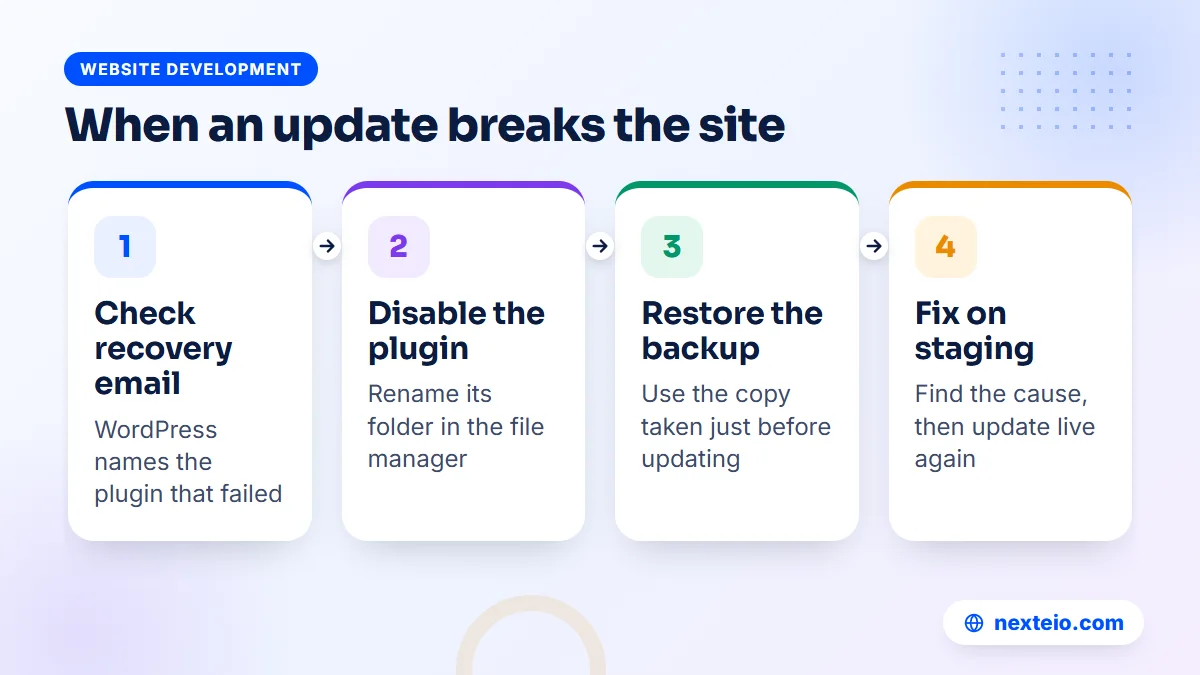
Since WordPress 5.2, a fatal error caused by a plugin or theme usually triggers recovery mode. Instead of a blank white screen, visitors see a short error message, and WordPress sends an email to the site's admin address with a special link. That link lets an administrator log in, see which plugin or theme caused the error and pause it. This is one more reason the admin email must be an inbox someone actually reads.
If recovery mode does not help, work through these steps in order:
- Note exactly what was updated and when, using your update log.
- Disable the suspect plugin by renaming its folder through the hosting file manager or FTP.
- If the site is still down, switch to a default theme in the same way.
- If nothing works, restore the backup taken just before the update.
- Reproduce the problem on staging, find the cause, and only then update the live site again.
For a school during admission week or a shop during an Eid sale, step four should come first. Restore quickly, get the site back, and investigate afterwards. A good provider decides this with you in advance, so nobody wastes time debating it while visitors see an error. A written recovery plan is one of the clearest differences between real WordPress maintenance services and a simple update package.
WordPress Security Settings to Review Each Quarter
Updates close known holes, but a few settings decide how easy the site is to attack in the first place. Good WordPress maintenance services review them during the first audit and again every few months, because new plugins and staff changes can quietly undo them.
- Two-step login for administrators: a code from a phone app on top of the password, so a leaked password alone is not enough.
- Limited login attempts: bots try thousands of password guesses against the login page, and blocking repeated failures stops most of them.
- No obvious usernames: an account called "admin" gives attackers half of the login for free.
- Dashboard file editing turned off: WordPress lets administrators edit theme and plugin code from the dashboard, and switching this off means a stolen login cannot plant code that way.
- Unused features closed: comments on sites that do not need them, and XML-RPC if no app or service relies on it.
None of these settings take long, and together they block a large share of automated attacks.
Passwords deserve their own note. In many offices, the WordPress password sits on a sticky note or in a group chat. Each person should have their own account and a password manager, and access should be removed on the day someone leaves. Application passwords, which WordPress uses to connect outside apps, should also be reviewed and deleted when they are no longer used.
Cleaning Up a Hacked WordPress Site
Most hacked WordPress sites in small businesses were not targeted personally. Automated bots look for known weaknesses in old plugins and themes, weak admin passwords and forgotten test installs. The signs are often subtle at first:
- Strange pages or spam keywords showing under your name in Google results.
- Visitors on phones being redirected to gambling or fake shop sites.
- New administrator accounts nobody recognizes.
- A browser or Google Search Console warning that the site is unsafe.
- The hosting company suspending the account for sending spam.
Cleaning up properly takes several steps. Take the site into maintenance mode, back up the infected state for reference, and change every password, including hosting, database and FTP. Replace WordPress core files with fresh copies, reinstall plugins and themes from official sources, and remove any unknown files and admin users. Then scan again and request a review in Search Console if Google flagged the site.
The official "my site was hacked" FAQ on WordPress.org lists the same basic steps. The most important lesson is what caused it. If the entry point was an abandoned plugin, it must go, or the site will be infected again within weeks.
Online Shops and Membership Sites Need Extra Care
A WooCommerce store, an admission portal or a membership site holds information that changes every hour: orders, payments, customer accounts and stock. That changes how maintenance should work.
Backups need to run more often, because restoring last night's copy would lose today's orders. Updates to WooCommerce, payment gateways and shipping plugins should always go through staging first, since a broken checkout costs money every minute it stays broken. After a WooCommerce update, the dashboard may ask for a database update, which should also run only after a backup.
For shops, WordPress maintenance services should include a real test order after every relevant update. In Bangladesh, that means checking bKash, Nagad or a gateway such as SSLCommerz with an actual payment, along with courier integrations and SMS order confirmations. Avoid major updates in the week before Eid, Pohela Boishakh or a big campaign, when traffic is highest and there is no time to fix surprises.
If your shop has grown beyond what its original setup can handle, a review through our e-commerce website development team can show whether it needs a clean-up or a rebuild. Our guide to planning an e-commerce website in Bangladesh explains the pieces a store depends on.
What WordPress Maintenance Services Cost in Bangladesh
Monthly plans for WordPress care in Bangladesh usually sit in three broad bands. Basic plans for simple company or office sites often run around BDT 2,000 to 5,000 a month. Standard plans for sites with regular content changes, such as schools, clinics and corporate groups, often run around BDT 5,000 to 12,000. Advanced plans for shops, portals and heavily customized sites can run from about BDT 12,000 to 30,000 or more.
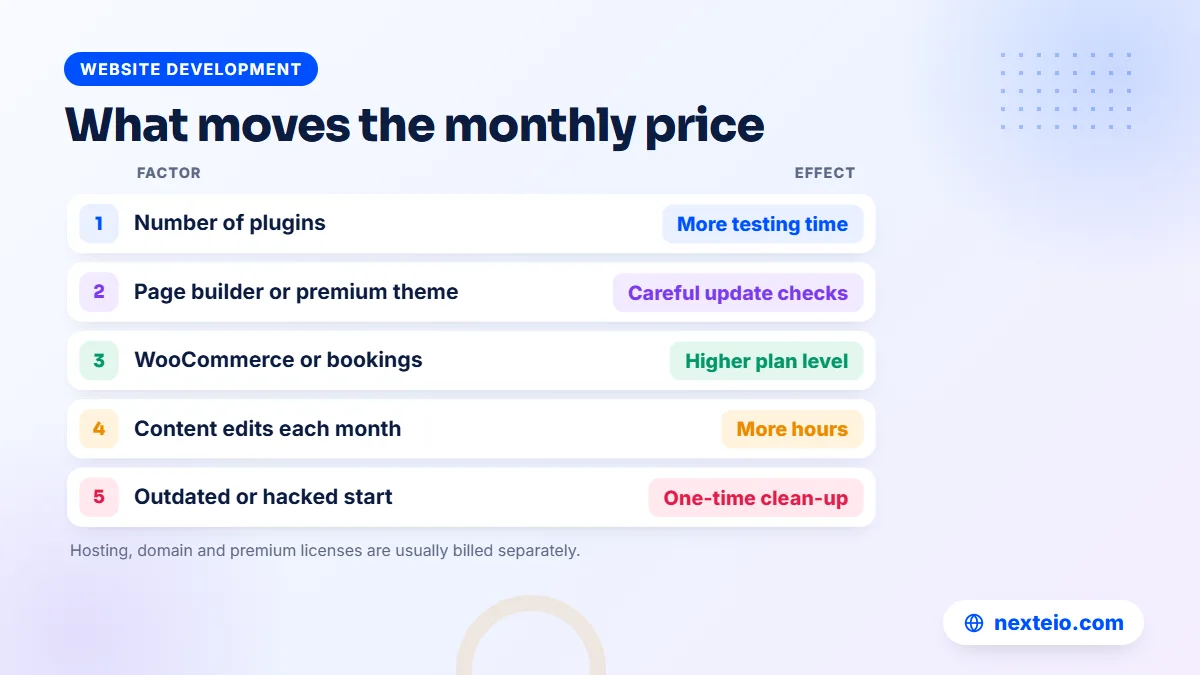
These are market ranges, not fixed prices. With WordPress specifically, a few factors move a site from one band to another:
| Factor | Why it changes the price |
|---|---|
| Number of plugins | More plugins mean more updates to test and more chances of conflict |
| Page builder and premium theme | Builder updates need careful testing on several page types |
| WooCommerce or bookings | Checkout, payment and order tests after every relevant update |
| Content changes | Monthly edits take hours, more so in Bangla and English |
| Starting condition | An outdated or infected site needs a one-time clean-up first |
Hosting, domain renewal and premium licenses are usually billed separately.
Compare the cost with the alternative. Paying a developer once a year to rescue a neglected site often costs more than a modest plan, and it comes with downtime. A sensible plan is the cheaper option for any site that brings enquiries, admissions or orders. To get a figure for your own site, send us a few details through our project form.
Doing It Yourself or Hiring WordPress Maintenance Services
Some organizations can handle part of the routine in-house. An IT officer who is comfortable with the dashboard can apply minor updates, post content, clear spam and check forms. The question is what happens when something goes wrong, and who has the skills to fix it. That is usually where outside WordPress maintenance services earn their fee.
Here is a practical split that works for many companies, schools and NGOs:
| Task | Staff can usually handle | Better with a provider |
|---|---|---|
| Content and notices | Yes, with editor accounts | Large layout changes |
| Minor plugin updates | On simple sites | Builders, WooCommerce, major releases |
| Backups | Checking they ran | Off-site storage and restore tests |
| Security | Strong passwords, removing old users | Malware clean-up and hardening |
| PHP and hosting | Rarely | Upgrades, errors and server issues |
If you hire, ask questions specific to WordPress, not just general ones:
- Do you test updates on a staging copy, and for which plugins?
- Where are backups stored, and when did you last restore one?
- How do you handle a fatal error after an update?
- How do you deal with abandoned or closed plugins?
- Will you move direct theme edits into a child theme?
- Who handles PHP upgrades, and how are they tested?
- What do we receive in writing each month?
Good WordPress site maintenance services answer these clearly and in detail. Also check that you will keep administrator access, that licenses stay in your name, and that the agreement lists each task. The official hardening guide for WordPress is a useful reference when you want to judge whether a provider's security work is serious.
If your site runs on an old, heavily patched setup, ongoing care may not be the best use of money. In that case, a rebuild through our custom website design service or a fresh WordPress website build can cost less over two or three years. And if the site needs to grow its search traffic rather than just stay healthy, that is separate work for an SEO service.
How Nexteio Can Help With WordPress Maintenance Services
We look after WordPress sites for organizations across Bangladesh, and a site does not need to have been built by us. Getting started is simple. You give us access to your hosting server and to the website, and we sign an agreement with you that sets out the work. That agreement lists the tasks your site needs from this checklist: backups, safe updates, staging tests where they matter, user and plugin audits, form checks and content changes.
For a site that has gone without care for a while, it makes sense to start with the audit described above and fix the riskiest problems before the regular routine begins. Plans generally fall around BDT 2,000 to 5,000 a month at the basic level, 5,000 to 12,000 at the standard level and 12,000 to 30,000 or more at the advanced level, depending on the site and the work agreed.
Because we also build sites on WordPress and Laravel, we can tell you honestly when a site is worth maintaining and when it needs a rebuild. Read more about Nexteio, see the sites in our portfolio, share your site details on our project form or reach us through the contact page. Tell us about your site, and our WordPress team can suggest the plan level that fits it.
Keep reading: simple SEO tips for small business websites, how to build a professional business website, or browse all our website development guides.
Frequently asked questions
What do WordPress maintenance services usually include?
A typical plan covers backups stored away from the server, core, theme and plugin updates done in a safe order, security scans, user and plugin audits, form tests and a set number of content changes. Better plans add staging tests, uptime monitoring, database clean-ups and PHP upgrade checks. Always ask for the task list in writing.
How often should a WordPress site be updated?
Check for updates at least once a week and apply security releases within a few days. Minor core releases usually install automatically. Major releases of WordPress, page builders and WooCommerce are best tested on a staging copy first and applied once you know they work with your theme and plugins.
Is it safe to turn on automatic updates for all plugins?
For a small site with a few well-maintained plugins, it is often fine. For sites with a page builder, an online shop or custom code, it is risky, because an update can break layouts or checkout without anyone noticing. A mix works best: automatic updates for small trusted plugins, and planned updates with a backup for the rest.
Can you maintain a WordPress site that another company built?
Yes. The work starts with an audit of the existing setup, including versions, plugins, users, backups and any direct theme edits. Urgent risks are fixed first, and the regular routine begins after that. You will need to provide hosting access, an administrator account and any premium license details.
What happens if my WordPress site gets hacked while on a maintenance plan?
A good provider restores a clean backup or cleans the infection, closes the way the attacker got in, changes passwords and checks Google Search Console for warnings. Ask before signing whether malware clean-up is included in the plan or charged separately, and how quickly they respond to a hacked site.
Does maintenance include changing the content on our site?
Most plans include a fixed number of small content edits each month, such as notices, news posts or staff updates. Larger work, such as new sections, redesigns or bilingual versions of many pages, is usually quoted separately. Many organizations also let their own staff post simple updates through editor accounts.
Do small WordPress sites with few visitors still need maintenance?
Yes. Bots scan small sites just as often as large ones, looking for old plugins and weak passwords. A quiet company profile can use a lighter plan with fewer content hours, but it still needs backups, updates, user checks and renewal tracking.