How to Use Google Search Console for SEO: A Beginner's Guide
In this article 16 sections
- 1.What Google Search Console Shows and What It Does Not
- 2.Setting Up: Domain Property or URL-Prefix Property
- 3.Who Should Own Your Search Console Account
- 4.Submitting a Sitemap
- 5.The Performance Report: Clicks, Impressions, CTR and Position
- 6.Finding SEO Opportunities in Your Search Data
- 7.Page Indexing Report: Why Pages Are Missing From Google
- 8.URL Inspection: Checking One Page at a Time
- 9.Core Web Vitals and HTTPS Reports
- 10.Links, Manual Actions and Security Issues
- 11.A Monthly Routine for Google Search Console for SEO
- 12.Using Search Console During a Redesign or Domain Move
- 13.Common Mistakes When Using Google Search Console for SEO
- 14.When Search Console Data Needs a Specialist
- 15.How Nexteio Can Help With Search Console and SEO
- 16.Frequently asked questions
Google Search Console for SEO is the closest thing you have to a direct line from Google about your website. It is free, it uses Google's own data, and it shows which searches bring people to your pages, which pages are missing from search and what is broken. Paid SEO tools estimate these numbers; Search Console reports them.
Many organizations in Bangladesh already have it set up without knowing. A developer verified the site years ago, the account sits in that developer's Gmail, and nobody at the company has opened it since. Meanwhile, admission pages drop out of the index, a product category returns errors, or a competitor slowly takes the top spot for the company's main service.
This guide walks through setup and verification, the reports that matter for SEO, how to read them, what to do about each common error and a short monthly routine an office manager or marketing executive can follow. No coding is needed for most of it.
What Google Search Console Shows and What It Does Not
Search Console reports how Google sees your site. It covers four broad areas: search performance (which queries show your pages and how often people click), indexing (which pages Google has stored and which it has skipped), experience (page speed on real devices and HTTPS) and problems (manual penalties, hacking and security warnings).
The tool was called Google Webmaster Tools until 2015, and older guides still use that name. People also look for it as "Google Console SEO" help or "Google Console website" setup. All of these mean the same product, now at search.google.com/search-console.
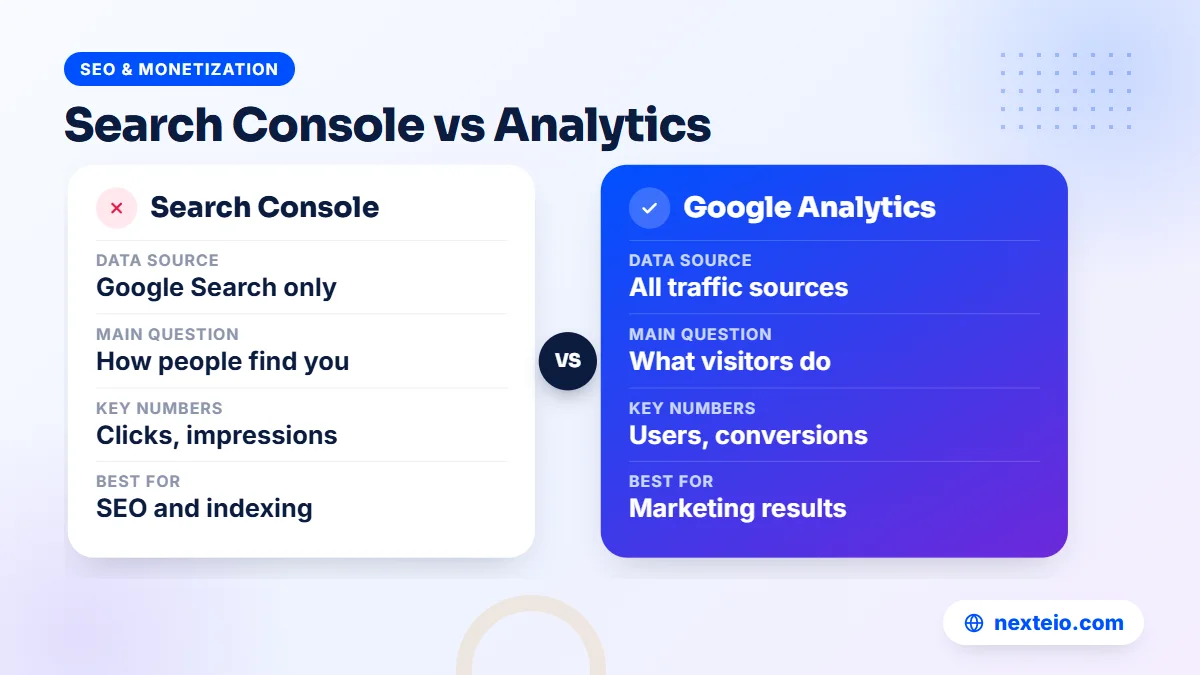
Knowing what it does not show saves confusion. Search Console only covers Google Search, including Discover and Google News where they apply. It does not show visitors from Facebook, direct visits or other search engines, and it does not show what people do after they arrive. That is the job of an analytics tool.
| Question | Search Console | Google Analytics |
|---|---|---|
| Which searches show my pages? | Yes, with clicks and impressions | No, only limited search data when linked |
| Is my page indexed? | Yes, page by page | No |
| How many people visited from all sources? | No, Google Search only | Yes |
| Did visitors fill in the enquiry form? | No | Yes, with conversion events set up |
| Is my site hacked or penalized? | Yes, with alerts by email | No |
Use both tools together. Search Console tells you how people find you, and Analytics tells you what they do next.
Setting Up: Domain Property or URL-Prefix Property
When you add a site, Search Console asks you to choose a property type. The choice decides what the property covers and how you prove ownership, so it is worth a minute of thought.
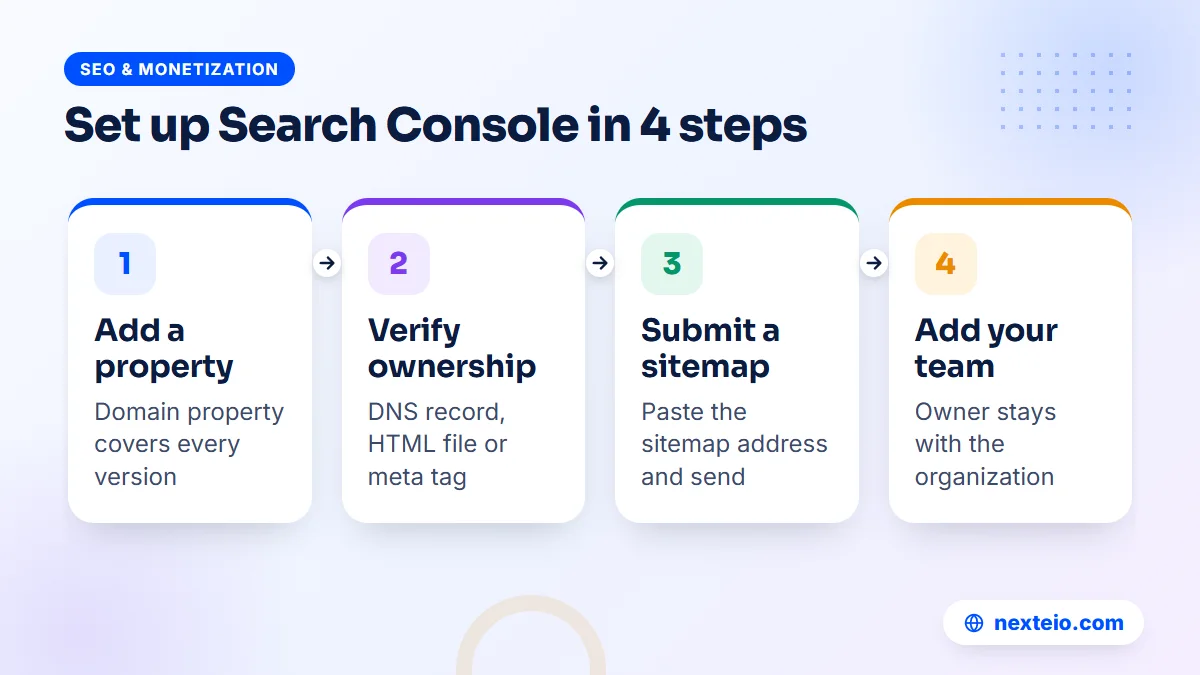
- Domain property: covers every version of the site at once, including http and https, www and non-www, and all subdomains such as admission.yourschool.edu.bd. It can only be verified through a DNS record.
- URL-prefix property: covers only addresses that start with the exact prefix you enter, such as https://www.example.com/. It offers several verification methods.
For most organizations, a domain property is the better choice because nothing falls outside it. You can add a URL-prefix property later if a section needs separate tracking, such as a blog on its own subdomain.
Verification methods
Verification proves to Google that you control the site. These are the usual options and when each one makes sense:
| Method | How it works | Good for |
|---|---|---|
| DNS record | Add a TXT record at your domain's DNS provider | Domain properties; anyone with DNS access |
| HTML file | Upload a small file to the site's main folder | Custom sites with file or hosting access |
| HTML tag | Add a meta tag to the homepage head section | WordPress sites using an SEO plugin field |
| Google Analytics or Tag Manager | Uses an existing tracking code you control | Sites that already run these tools |
Leave the file or tag in place after verification. If it is removed, the property can lose its verified status.
For .bd and .com.bd domains, the DNS record goes wherever the domain's nameservers point, which is often your hosting company's control panel rather than the registry itself. If you are not sure where your DNS is managed, ask your hosting provider or web developer before you start. Google's guide to getting started with Search Console explains each step with screenshots.
Who Should Own Your Search Console Account
Ownership is where many organizations get into trouble. Search Console has three permission levels, and the right setup keeps control inside the organization while still letting outside help do its work.
- Owner: full control, including adding and removing users and changing settings. Keep this for an organization account, such as a shared IT or marketing email.
- Full user: can see all data and take most actions, such as requesting indexing. Suitable for your SEO provider or web developer.
- Restricted user: can view most data but cannot change anything. Suitable for managers who want to look at reports.
Never let the only owner be a former employee's or agency's personal Gmail.
If that has already happened, you can usually verify ownership again yourself through DNS, then remove the old users and the verification files or tags they left behind. A school whose website was built by a teacher who has since left, or a factory whose site was set up by a freelancer, should do this check today. It takes ten minutes and prevents months of lost data.
Submitting a Sitemap
A sitemap is a file that lists the pages you want Google to know about. It does not force pages into the index, but it helps Google find new and updated pages faster, especially on larger sites or sites with few links pointing to them.
Most platforms create one automatically:
- WordPress: /wp-sitemap.xml by default, or /sitemap_index.xml if you use an SEO plugin such as Yoast or Rank Math.
- Blogger: /sitemap.xml on your blog address.
- Custom or Laravel sites: whatever path your developer set, often /sitemap.xml.
Open the Sitemaps report, paste the sitemap address and submit it.
Check back after a few days. The report should show "Success" and a count of discovered pages. If the count is much lower than the number of pages you expect, or the status shows an error, the sitemap may be out of date or blocked. Google's guide to building and submitting a sitemap covers the format rules. A sitemap full of old, redirected or deleted URLs sends mixed signals, so keep it clean.
The Performance Report: Clicks, Impressions, CTR and Position
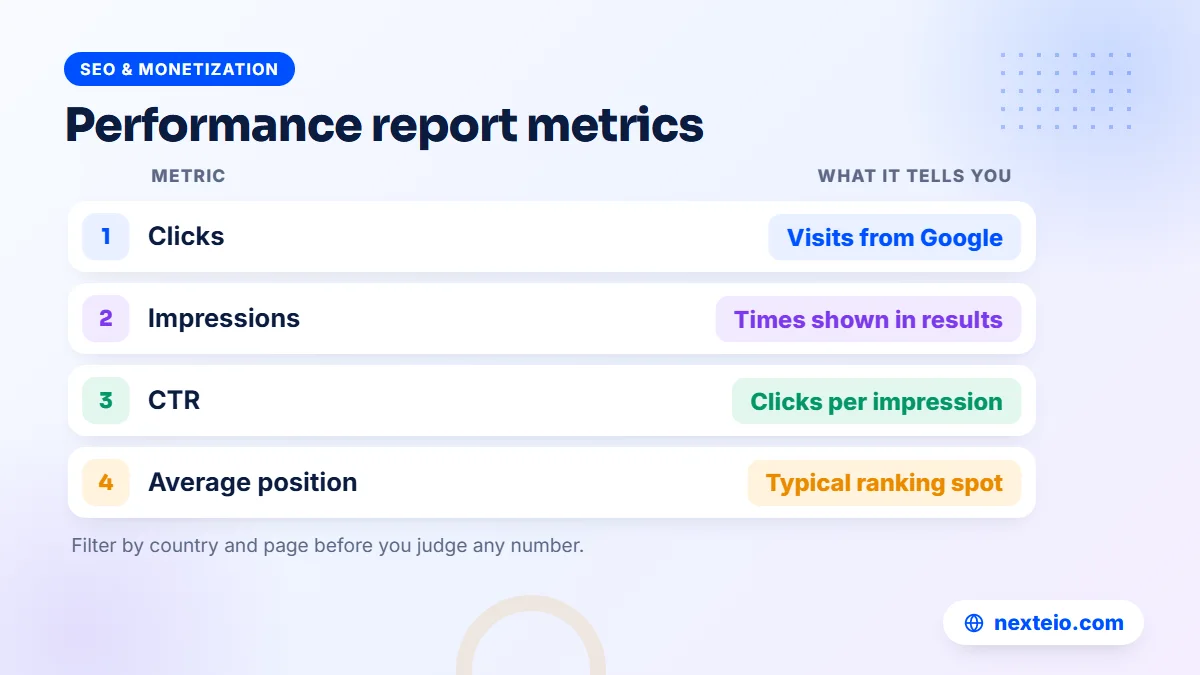
The Performance report is where using Google Search Console for SEO starts paying off. It shows how your site appears in Google Search over the last 16 months, with data that is usually a couple of days behind. Four numbers sit at the top:
- Total clicks: how many times people clicked through to your site from Google.
- Total impressions: how many times your pages appeared in results someone saw.
- Average CTR: clicks divided by impressions, as a percentage.
- Average position: the typical ranking spot of your pages for the queries shown.
Below the chart, tabs break the data down by query, page, country, device, search appearance and date.
Filters that make the report useful
The raw totals say little on their own. Filters turn them into answers. Set the country to Bangladesh if your customers are local, so visits from abroad do not blur the picture. Filter by page to see every query one service page ranks for. Use the compare option to put this month next to last month, or this year's admission season next to last year's.
The query filter also accepts regular expressions, which lets you group searches. For example, a filter for queries containing "price" or "cost" shows how many people find you while comparing prices. Google's help page on the Performance report explains every metric and filter in detail.
Some queries never appear in the list. Google hides rare queries to protect searchers' privacy, so the query totals will not always add up to the chart total. That is normal.
Finding SEO Opportunities in Your Search Data
Reading the report is one thing. Turning it into a list of jobs is where Google Search Console for SEO becomes worth the time. Most opportunities fall into a handful of patterns:
| What you see | What it usually means | What to do |
|---|---|---|
| High impressions, low CTR | Title and description do not earn the click | Rewrite them to match the query |
| Position 8 to 20 | The page is close to page one | Improve content and internal links |
| Wrong page ranking | Google prefers a weaker page | Strengthen and link to the right page |
| Two pages trading places | Both target the same search | Merge them or split the topics |
| Clicks dropping on one page | Lost rankings or a seasonal dip | Compare with last year, then check |
Pick a few pages each month rather than trying to fix everything at once.
Here is how this looks in practice. A clinic's "dental scaling" page shows thousands of impressions and an average position of 11. The page is short and does not mention cost or appointment times, which the queries clearly ask about. Adding those sections, a clearer title and a link from the homepage often moves a page like that onto the first results page within a few weeks. Our on-page SEO guide for beginners walks through those page-level changes step by step.
Also look at the language of the queries. Many Bangladeshi users search in English, in Bangla and in Bangla written with English letters. If a group of Bangla queries brings impressions but no clicks, a page or section written in Bangla may serve those searchers better.
Related guides that help you act on what Search Console shows:
- Common SEO mistakes that hurt business websites
- How to write SEO-friendly website content
- How long SEO takes to show results
Each one turns a pattern from the table above into specific fixes.
Page Indexing Report: Why Pages Are Missing From Google
A page that is not indexed cannot rank, no matter how good it is. The Page indexing report lists how many of your pages are indexed and groups the rest by reason. Not every excluded page is a problem: redirects, duplicate versions and admin pages are often excluded on purpose. The goal is to make sure the important pages are indexed.
The reasons you will see most often, and what they usually call for:
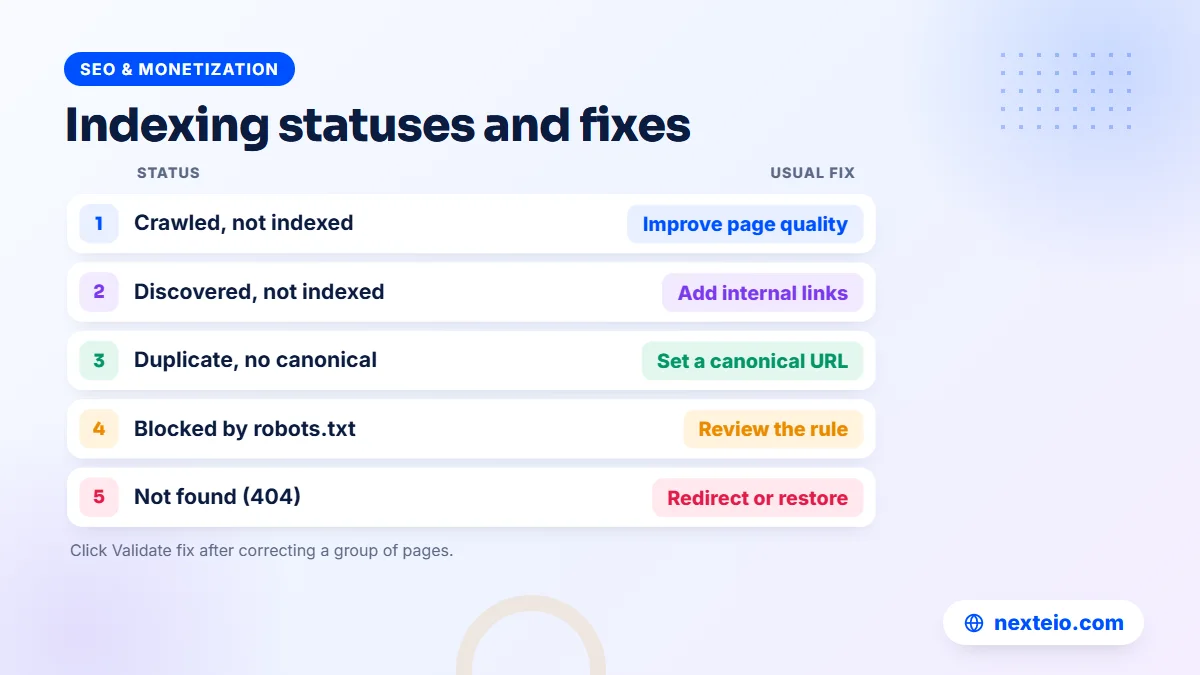
- Crawled - currently not indexed: Google read the page but chose not to store it. This usually points to thin, duplicate or low-value content. Improve the page or merge it with a stronger one.
- Discovered - currently not indexed: Google knows the URL but has not crawled it yet. Add internal links from important pages and check that the server is not slow.
- Duplicate without user-selected canonical: Google sees several similar pages and picked one itself. Set a canonical tag on the version you prefer.
Three more reasons usually come from settings or deleted pages:
- Excluded by 'noindex' tag: the page tells Google not to index it. Fine for admin pages, a serious problem if it is your homepage after a redesign.
- Blocked by robots.txt: a rule in the robots.txt file stops crawling. Check the rule was meant to be there.
- Not found (404) and Soft 404: the page is gone or looks empty. Restore it, or redirect it to the closest live page.
After fixing a group, click "Validate fix" so Google checks the affected pages again.
Indexing problems often trace back to how the site was built: duplicate URLs from filters, missing canonical tags or a theme that adds noindex by mistake. Our article on technical SEO basics explains these causes. On online shops, the same issues multiply across hundreds of products, which is the main focus of our e-commerce SEO service.
URL Inspection: Checking One Page at a Time
The URL Inspection tool answers one question in detail: what does Google know about this exact page? Paste any URL from your property into the search bar at the top of Search Console. The result shows whether the page is indexed, when Google last crawled it, which canonical URL Google chose and whether the page is in the sitemap.
Two buttons make it useful day to day:
- Test live URL fetches the page as it is now, so you can confirm a fix worked before Google crawls it again.
- Request indexing asks Google to crawl the page soon. Use it for new pages and important updates, not for every page on the site, since there is a daily limit.
Requesting indexing does not guarantee the page will be indexed. It only puts the page in the queue sooner.
A good habit is to inspect every important new page a day or two after publishing. A school's new admission notice, a company's new service page or a seasonal offer page should not wait weeks to be found. If the inspection shows the page is not indexed and not even discovered, add a link to it from the homepage or a busy page. Our guide to internal linking shows how to do that without cluttering menus.
Core Web Vitals and HTTPS Reports
The Core Web Vitals report groups your pages as Good, Needs improvement or Poor, separately for mobile and desktop. The data comes from real Chrome users visiting your site, so a small site with little traffic may show no data at all. That is normal, not an error.
The report uses three measurements, described in full on Google's Web Vitals page:
- Largest Contentful Paint (LCP): how fast the main content appears.
- Interaction to Next Paint (INP): how quickly the page responds to taps and clicks.
- Cumulative Layout Shift (CLS): how much the layout jumps while loading.
Focus on the mobile side first. Most visitors in Bangladesh browse on phones, often on mobile data, so a page that feels fine on office broadband can still fail on a commuter's phone.
The usual fixes are compressed images, fewer plugins and scripts, proper caching and decent hosting. Our guide on website speed and SEO explains where to start. If a theme is too heavy to fix, rebuilding key templates through a custom website design project can solve several problems at once.
The HTTPS report is simpler. It shows how many indexed pages load over HTTPS and flags pages that still serve over plain HTTP. Every page should be on HTTPS, with old HTTP addresses redirecting to the secure version.
Links, Manual Actions and Security Issues
Links report
The Links report lists your most linked pages, the external sites that link to you most and the anchor text they use. It also shows internal links, which reveals pages that get almost no links from the rest of your own site. If your main service page has fewer internal links than an old news post, fix that first.
Do not panic over strange links from unknown sites. Every site collects some. Google ignores most low-quality links on its own, and the disavow tool is meant for rare cases, not routine cleaning.
Manual actions
A manual action means a person at Google reviewed the site and found a clear breach of Google's spam policies, such as bought links, hidden text or pages full of spam. The report usually shows "No issues detected". If it ever shows an action, read the description, fix every affected page, and then file a reconsideration request explaining what you changed.
Security issues
This report warns when Google detects hacked content, malware or deceptive pages on your site. Hacked WordPress sites with outdated plugins often show up here first, sometimes before the owner notices anything. Search Console also sends an email alert to owners, which is one more reason to keep ownership on an email address someone actually reads.
A Monthly Routine for Google Search Console for SEO
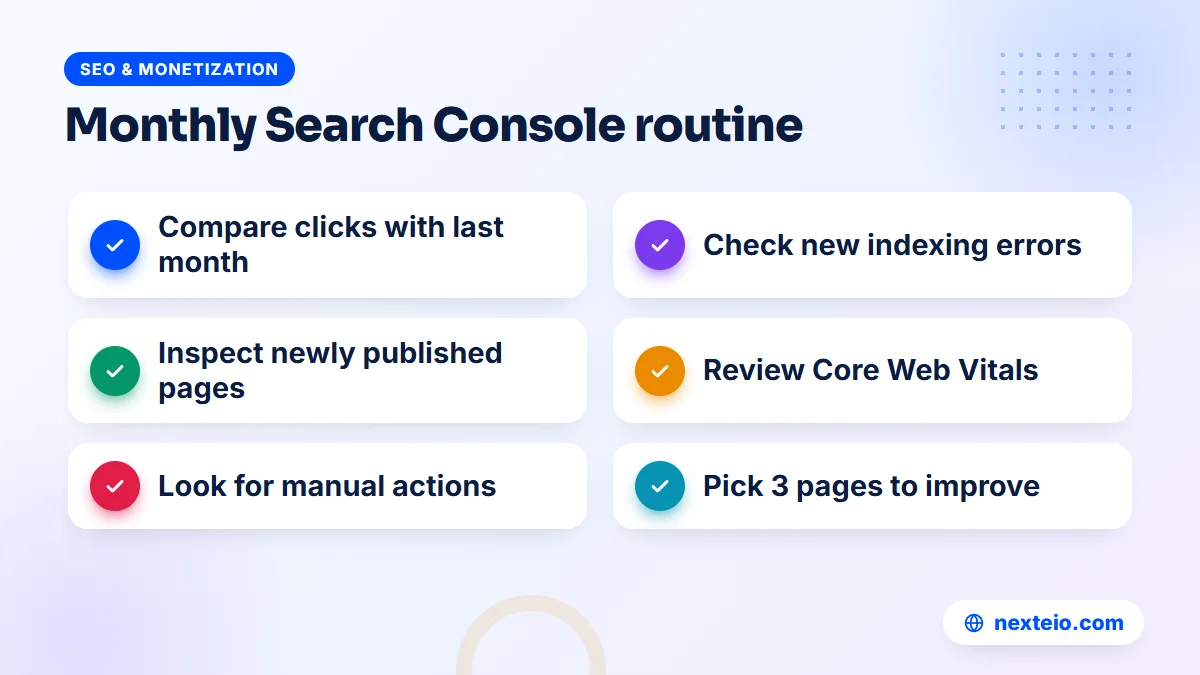
You do not need to open Search Console every day. A focused session once a month, plus a quick look after any website change, catches most problems early. This routine takes about half an hour on a typical organization site:
- Open Performance, compare the last 28 days with the previous period and note any page with a large drop.
- Sort queries by impressions and pick two or three with a low CTR for title rewrites.
- Filter positions 8 to 20 and choose one page to improve this month.
- Check the Page indexing report for new reasons or a jump in excluded pages.
- Inspect any important page published or changed this month.
- Check the Sitemaps report still shows success.
- Look at Core Web Vitals for new Poor groups on mobile.
- Confirm Manual actions and Security issues both show no problems.
Write down what you found and what you changed. Over a few months, that short log shows which changes moved results.
If nobody on your team has time for this routine, an ongoing SEO plan can cover it, with your organization still owning the property and seeing the same data.
Using Search Console During a Redesign or Domain Move
A redesign is the riskiest moment for a site's search traffic. URLs change, pages get merged, and a staging setting that hides the site from search engines sometimes goes live by mistake. Search Console is how you catch these problems in days instead of months.
Treat Google Search Console for SEO as a safety net around the launch:
- Before launch, export the top pages and queries from the Performance report so you know which URLs carry the most traffic.
- Map every old URL to its new address and set up a 301 redirect for each one.
- On launch day, run a live test on the homepage and main service pages and confirm none carries a noindex tag.
- Submit the new sitemap and remove the old one if its URLs no longer exist.
- For a move to a new domain, verify both domains and use the Change of Address tool in the old property's settings.
Then check the Page indexing and Performance reports weekly for the first month.
A dip in clicks for a week or two after a large change is common while Google processes the new URLs. A drop that keeps growing, or a sudden rise in "Not found (404)" pages, usually means redirects are missing. Fix those quickly, because old links, bookmarks and shared posts on Facebook all point to the old addresses.
Common Mistakes When Using Google Search Console for SEO
Search Console is simple to open and easy to misread. These are the mistakes that waste the most time:
- Verifying only one version: a URL-prefix property for http://example.com misses the https and www versions where the real traffic is.
- Reading average position as a promise: the average mixes every query and location; one page can rank first for one search and fortieth for another.
- Chasing every excluded URL: many exclusions are intended. Focus on pages that should rank.
- Requesting indexing again and again: repeated requests do not speed anything up once a page is in the queue.
- Judging a week of data: holidays such as Eid, exam seasons and the end of the fiscal year all shift search behaviour.
- Ignoring the email alerts: warnings sent to a former employee's inbox help nobody.
The fix for most of these is the same: check the right property, compare fair date ranges and act on the pages that matter.
The other common mistake is treating Search Console as a reporting tool only. The data is there to decide what to do next: which page to rewrite, which error to fix and which topic deserves a new page. The same query data can also guide which searches to target with paid ads and which to win through content.
When Search Console Data Needs a Specialist
Most of the routine above suits an in-house person with some training. Some situations call for more experience, because the cause sits in the site's code, server or history rather than in one page:
- Traffic fell sharply and no single page or query explains it.
- Large numbers of pages sit in "Crawled - currently not indexed" for months.
- A manual action or security warning has appeared.
- The site is moving to a new domain, platform or design.
- An online shop has thousands of duplicate filter URLs.
In these cases, guessing can make things worse. If one of them sounds familiar, tell us about the site through our project form.
A good specialist should explain findings in plain words, give you a prioritized list and leave the property owned by your organization. They should also connect search data with business results, since a page with fewer clicks but more enquiries is worth more than a popular page nobody acts on. For paid search alongside SEO, our Google Ads management uses the same query data to avoid paying for clicks you already win for free. This is also the kind of diagnosis our SEO service starts with: Search Console, the site itself and your goals, side by side.
How Nexteio Can Help With Search Console and SEO
Our SEO service uses Google Search Console as its starting point. We begin by checking that your property is set up correctly, that your organization owns it and that the sitemap and verification are in order. Then we read the performance, indexing and experience data to find the problems that hold your pages back.
From there, you get a clear list of fixes in order of impact: pages to improve, indexing errors to clear, technical problems to solve and new pages worth creating. We make the technical fixes on WordPress, custom and Laravel sites, and we can help your team set up the monthly routine so you can follow progress yourself. If your site runs on WordPress, our WordPress website team can also handle theme and plugin problems that Search Console uncovers.
To see how we approach a site, take a look at our portfolio or the full list of services. When you are ready, share your website address through our project form and ask for a Search Console and SEO review, or reach us through the contact page.
Keep reading: how to choose an SEO service in Bangladesh, SEO vs Google Ads and when to use each, or browse all our SEO and monetization guides.
Frequently asked questions
Can I use Search Console with a Blogger or WordPress site?
Yes. Any site you control can be added, whether it runs on Blogger, WordPress or custom code. If you cannot edit DNS records or upload files, the HTML tag method or a setting in your SEO plugin is usually the simplest way to verify. Once verified, the reports work the same on every platform.
Is the Google Search Console SEO tool really free?
Yes. Search Console is free for any site owner, with no paid tier. The only cost is the time to set it up and check it regularly. Paid SEO tools add competitor research and keyword ideas, but none of them can show Google's own indexing data the way Search Console does.
How long after setup does Search Console show data?
Reports usually start filling within a few days of verification. How much earlier history appears can vary, so add the site as early as possible, ideally before a launch or redesign. That way you have a baseline to compare against when something changes.
Why does Search Console show fewer clicks than Google Analytics?
The two tools count different things. Search Console counts clicks from Google Search results only, while Analytics counts sessions from every source, and it may also miss visitors who block tracking. Some queries are also hidden in Search Console for privacy, so the numbers will never match exactly.
Can I see my competitors' data in Search Console?
No. You can only see data for properties you have verified or been given access to. To understand competitors, look at who ranks for your main queries in Google itself, or use a third-party SEO tool for estimates.
Should I request indexing for every page on my site?
No. Request indexing only for new pages and important updates, since there is a daily limit and repeated requests do not speed things up. For the rest of the site, a clean sitemap and good internal links do the job.
We lost access because a former employee owned the property. What now?
Add the site again from an organization account and verify ownership yourself, ideally with a DNS record through your domain or hosting provider. Once you are a verified owner, you can see the existing data and remove the old owner and any users who should no longer have access.
Does fixing errors in Search Console improve rankings straight away?
Fixing indexing and technical errors removes obstacles, but rankings still depend on content quality, links and competition. Pages that were not indexed can start appearing within days or weeks after a fix. Ranking gains from content improvements usually take longer to show.