Create Google Business Profile: A Step-by-Step Guide for Bangladesh
In this article 15 sections
- 1.What a Google Business Profile Is and Who Can Have One
- 2.Before You Create Google Business Profile Listings: What to Prepare
- 3.Storefront, Service Area or Both
- 4.How to Create Google Business Profile: Step by Step
- 5.Verification: Proving the Business Is Real
- 6.Complete the Profile So Customers Have Answers
- 7.Google Business Profile Setup for Different Organizations
- 8.Reviews: Asking, Replying and Staying Within the Rules
- 9.Keep the Profile Active After Setup
- 10.Owners, Managers and Who Controls the Profile
- 11.Fixing Common Problems
- 12.Connect the Profile to Your Website and Ads
- 13.Mistakes to Avoid When You Create Google Business Profile Listings
- 14.How Nexteio Can Help With Your Google Business Profile
- 15.Frequently asked questions
When someone searches for a clinic, a coaching centre, a furniture showroom or a printing press near them, Google usually shows a map with three businesses before any website appears. Those entries come from Google Business Profile, and the steps to create Google Business Profile listings are free and open to almost any business that meets customers in person. If you are not there, the customer calls whoever is.
The profile is more than a pin on a map. It shows your opening hours, phone number, photos, reviews, directions and a link to your website, often answering everything a customer needs before they decide to call or visit. For many local businesses in Bangladesh, it brings more calls than the website itself.
Setting one up takes less than an hour. Getting it verified and filled out properly takes longer, and that is where most businesses stall: the verification video fails, the pin lands on the wrong road, or a former employee still owns the listing.
This guide covers the full process: checking eligibility, choosing between a storefront and a service area, each setup screen, verification, completing the profile, reviews, access for staff, fixing common problems and connecting the profile to your website and ads.
What a Google Business Profile Is and Who Can Have One
Google Business Profile, called Google My Business until Google renamed it in late 2021, is Google's free listing for local businesses and organizations. A verified profile can appear in Google Search, in the local map results and in Google Maps. You manage it directly from Google Search or the Maps app while signed in, and businesses with many branches can manage them together in the Business Profile Manager.
Eligibility comes down to one rule: the business must make in-person contact with customers during its stated hours. That covers a wide group:
- Shops, showrooms, restaurants, salons and pharmacies customers visit.
- Schools, colleges, madrasas, coaching centres and universities.
- Hospitals, clinics, diagnostic centres and dental chambers.
- Offices of companies, NGOs, law firms and consultants that receive visitors.
- Service businesses that visit customers, such as electricians, AC repair or pest control.
A business that only sells online, with no place customers can visit and no visits to customers, is not eligible.
The same goes for a rented virtual office that nobody staffs. Google's guidelines for representing your business list these rules in detail, and breaking them is the most common reason profiles get suspended. Read them once before you start. It takes ten minutes and saves weeks of trouble later.
Before You Create Google Business Profile Listings: What to Prepare
Gather the details first, so the setup screens take minutes rather than an afternoon of searching for documents. Everything you enter should match what customers see in real life.
| Detail | What to prepare | Tip |
|---|---|---|
| Business name | The exact name on your signboard, trade licence and letterhead | No extra keywords or locations |
| Category | The one category that best describes the main business | Search the list for the closest match |
| Address | Full address with house, road, area, district and postcode | Note a landmark for the pin |
| Service area | Districts or areas you serve, if you visit customers | Keep it realistic |
| Phone | A number answered during business hours | Use the +880 format |
| Website | Your homepage or the branch page | A Facebook page works if there is no site |
| Proof for verification | Signboard, trade licence, utility bill, office keys or equipment | Have them ready on the day |
Keep these details in one document, so every branch and every staff member uses the same wording.
Also decide who will own the profile. Use a Google account the organization controls, ideally linked to an official email, not the personal Gmail of whoever happens to set it up. A profile owned by a former staff member is one of the hardest problems to fix later.
Storefront, Service Area or Both
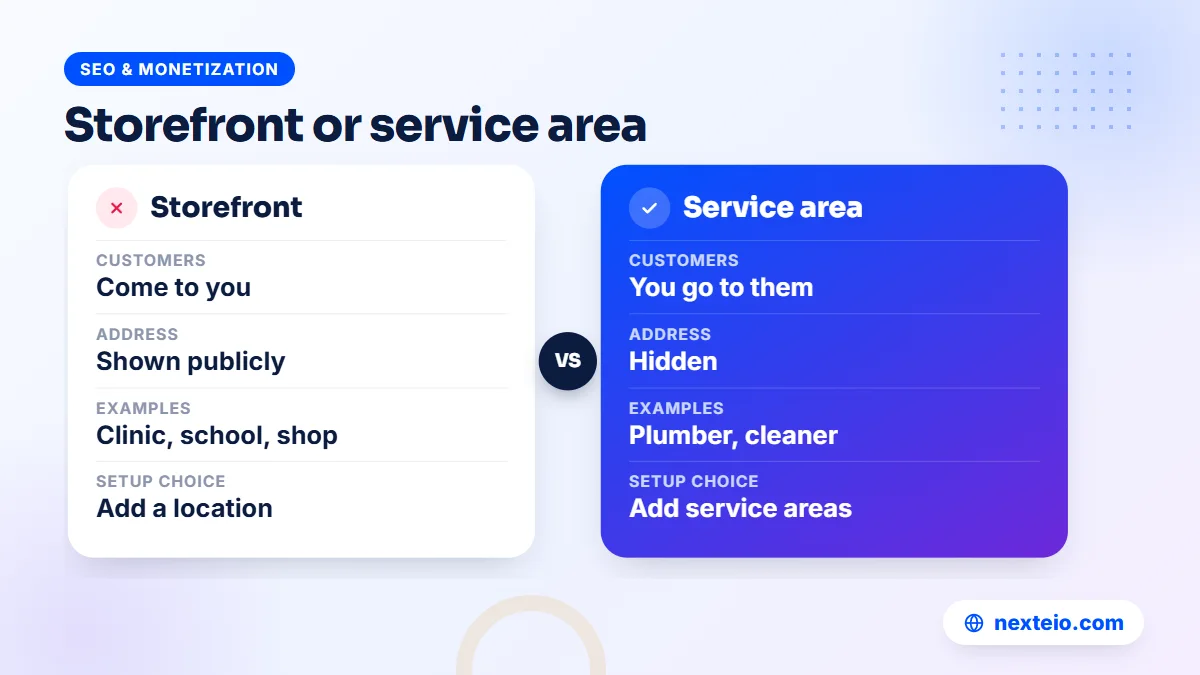
Early in the setup, Google asks whether customers visit your location and whether you serve customers at their location. Your answers decide whether your address is shown publicly. Choosing wrongly is a common cause of suspension, so think about how your business really works.
| Type | How it works | Examples | Address shown? |
|---|---|---|---|
| Storefront | Customers come to you during opening hours | Clinic, school, shop, restaurant | Yes |
| Service area | You go to customers; no public premises | Plumber, cleaner, home tutor service | No, only the area served |
| Hybrid | Customers visit, and you also visit them | AC repair shop with home service, caterer with an office | Yes, plus the service area |
If you work from home and do not receive customers there, choose service area and hide the address. Home-based businesses that create Google Business Profile listings as storefronts are a common target for suspension.
Service areas can be districts, areas or postcodes. Google suggests keeping the overall area within about two hours of driving from where the business is based, so a home-service company in one district should not list all sixty-four. Pick the places you actually serve.
How to Create Google Business Profile: Step by Step
The steps below follow Google's own guide to add or claim your Business Profile. The screens change from time to time, but the order of questions stays much the same. Start at google.com/business and sign in with the account that will own the profile.
Name, category and location
- Click to manage or create your profile, then type your business name. If Google suggests an existing listing with your name and address, select it and claim it instead of creating a duplicate.
- Choose your primary business category. Start typing and pick from Google's list; you cannot invent one.
- Answer whether you want to add a location customers can visit. For a storefront or hybrid, choose yes.
- Enter the address carefully, then drag the map pin to the exact entrance if it lands in the wrong spot.
- Answer whether you also serve customers outside this location, and add service areas if so.
Take extra care with the pin. In many parts of Bangladesh, Google's automatic placement can be a building or two off.
Contact details and verification
- Add the phone number customers should call and your website address.
- Choose whether to receive updates and recommendations from Google.
- Pick a verification method from the options Google offers for your business.
- Complete verification, or choose to do it later if you need time to prepare.
- Add opening hours, a description, photos and services when Google prompts you.
You can edit everything later, but filling it in now saves a second round of reviews.
If you prefer your phone, the Google Maps app offers the same route: open your profile picture, then look for the option to add your business. People often search for how to add a business to Google Maps as if it were a separate process, but it leads to the same Business Profile. Phrases like "google business page create" or "add to google business" in searches all point to this same setup.
A worked example: a dental chamber with two branches
Picture a dentist who runs two chambers in different areas and wants both to appear on Maps. She signs in with the clinic's own Google account, not her personal one, and starts with the older branch. Google suggests an existing listing that a patient added years ago, so she claims it instead of starting fresh.
She keeps the name exactly as on the signboard, chooses "Dentist" as the primary category and "Dental clinic" as an additional one, and drags the pin to the clinic door on the first floor. Each branch gets its own number, so patients reach the right reception. For the second chamber she repeats the steps to create Google Business Profile details from scratch, with its own hours and photos.
Both branches pass video verification on the first try because she recorded each video in daylight, starting from the main road, showing the signboard, the treatment room and her registration papers. The whole job takes one afternoon of setup and a few days of waiting.
Verification: Proving the Business Is Real
An unverified profile is not fully live, and you cannot manage most of it. Google decides which verification methods to offer based on the business type, location and history, so two businesses on the same road may see different options. The help page on how to verify your business on Google explains each one.
| Method | How it works | What helps |
|---|---|---|
| Phone or text | A code arrives by call or SMS | A number that matches the profile |
| A code arrives by email | Access to the listed business email | |
| Video recording | You record a short continuous video and upload it | Good light and a steady phone |
| Live video call | You show the business to a Google staff member | A stable internet connection |
| Postcard | A code arrives by post at the address | Where offered, a reliable postal address |
Video verification has become one of the most common methods, and it is where many people who create Google Business Profile listings get stuck.
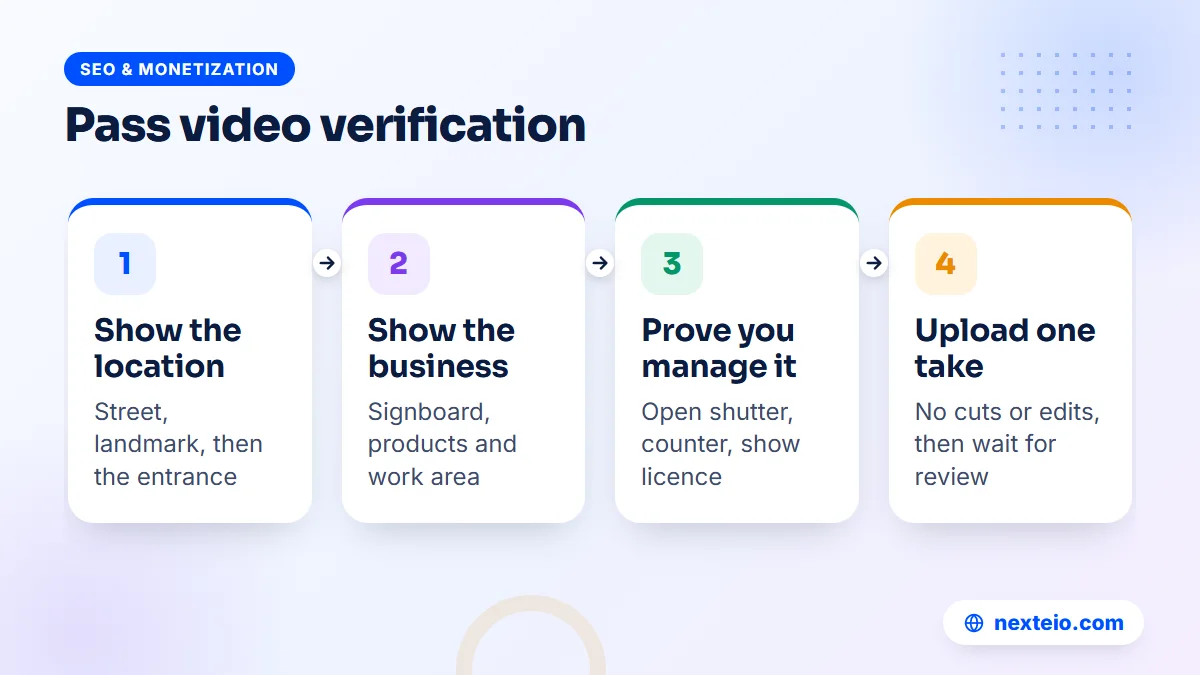
How to pass video verification
The video should be one continuous recording, without cuts or edits. Plan it before you press record, and practise once. A good video usually shows three things in order:
- Location: the street outside, a nearby landmark or road sign, then the entrance.
- Business: the signboard with your name, then products, equipment or the work area inside.
- Management proof: something only the owner or manager can do or show, such as opening the shop shutter, opening the cash counter or showing the trade licence or business documents.
Record in daylight, move slowly and keep the camera steady.
The most common failures are a missing or temporary signboard, a business name on the profile that does not match the sign, and videos that start inside the building with no proof of where it is. After you submit, review can take a few days. If verification fails, read the reason, fix the gap and try again rather than creating a second profile.
Complete the Profile So Customers Have Answers
A verified but half-empty profile wastes the effort you spent getting there. Customers compare profiles side by side on a phone screen, and the one with clear hours, real photos and recent reviews usually gets the call. Google also says that complete, accurate information helps a profile match relevant searches.
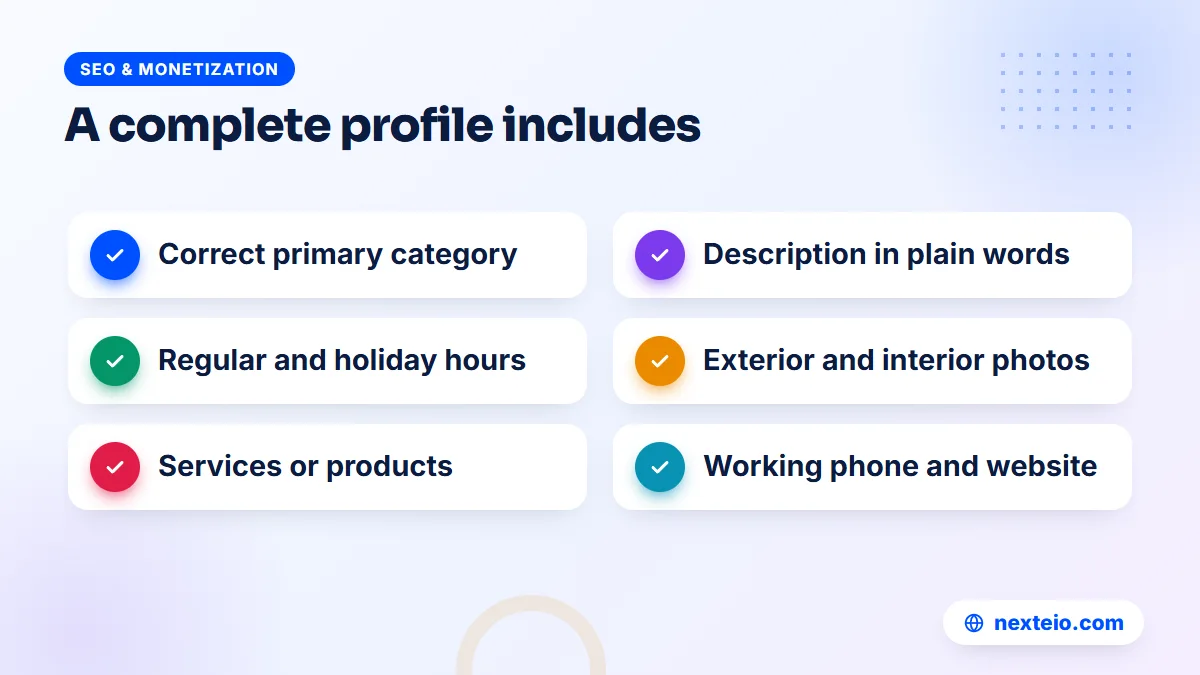
Categories
Your primary category matters most, because it tells Google what the business is. You can add up to nine additional categories for other things you genuinely do. A diagnostic centre might use "Diagnostic center" as primary and add "Medical laboratory". Do not add categories just to appear in more searches; they must describe the business, not what you wish it ranked for.
Description, hours and services
The description allows up to 750 characters. Use it to say what you do, who you serve and what makes you different, in plain words. Do not stuff it with keywords or paste in links and offers. Set regular hours, then add special hours for Eid, Puja, national holidays and any closures, since wrong hours on a holiday turn into angry reviews. Add your services or products with short descriptions, and prices where you can share them.
Photos
Upload a logo, a cover photo, the outside of the building as customers see it on arrival, the inside, your team at work and your products or services. Real photos taken on a phone in good light work better than stock images. Exterior photos are especially useful in Bangladesh, where people often find a place by its look rather than its house number.
Google Business Profile Setup for Different Organizations
The basic Google Business Profile setup is the same for everyone, but each type of organization has its own details to get right.
Schools, colleges and madrasas. Use the official institution name as on the signboard. Set office hours for when guardians can visit or call, not class hours. Add photos of the campus gate, building and facilities, and link to the admission or notice page on your website. Universities with separate public-facing departments, such as an admission office, may qualify for separate listings under Google's guidelines.
Hospitals and clinics. Keep the main phone number current and add special hours for holidays. Individual doctors who see patients at the clinic can sometimes have their own profiles, but follow the guidelines for practitioners carefully. Many patients read reviews before booking, so plan how you will respond to complaints about waiting time or billing.
Factories and exporters. Buyers and suppliers use Maps to find the factory gate and check that the business is real. A verified profile with clear exterior photos, correct office hours and a link to a professional website supports that trust.
Shops and showrooms. Add products with photos and prices, keep hours exact and post updates for new arrivals and sales. If you also sell through an online store, link the profile to the website rather than only to a Facebook page.
Branches. Each branch that serves customers needs its own profile with its own phone number and hours. To create Google Business Profile entries for ten or more locations, Google offers bulk tools in the Business Profile Manager.
Reviews: Asking, Replying and Staying Within the Rules
Reviews influence both customers and how prominent your profile appears. Once the profile is verified, Google gives you a short link that takes customers straight to the review form. Share it after a good experience: in a thank-you SMS, on the receipt, on a small card at the counter or in a follow-up message.
The rules here are strict. Google's prohibited and restricted content policy bans fake engagement. In practice that means:
- Do not offer discounts, gifts or payments in exchange for reviews.
- Do not ask only happy customers to review while steering unhappy ones elsewhere.
- Do not post reviews for your own business or have staff do it.
- Do not buy reviews from services or swap reviews with other businesses.
Profiles caught doing this can lose reviews or face restrictions.
Reply to every review, good or bad, in a calm and specific way. Thank people by name for positive ones. For complaints, apologize where it is fair, explain briefly and invite the person to contact you directly. Future customers read your replies as much as the reviews themselves. A thoughtful answer to a one-star review often does more for trust than ten five-star ones.
Keep the Profile Active After Setup
A profile is not a one-time job. Customers can suggest edits to your hours, phone number or address, and Google sometimes applies them. Check the profile at least once a month and review any updates Google flags for your approval.
A short monthly routine keeps the profile accurate:
- Check hours, phone number and address for unwanted edits.
- Reply to any new reviews you have not answered.
- Add two or three fresh photos of the place, team or products.
- Post one update about news, an offer or upcoming holiday hours.
- Note calls, direction requests and website clicks in your report sheet.
It takes about half an hour once you are used to it.
Use updates, sometimes called posts, to share news, offers and events. An admission circular, a new service, a seasonal offer or holiday hours are all good reasons to post. Add new photos every few weeks, especially after renovations or when products change.
The performance section shows how people found you and what they did: searches that showed your profile, calls, direction requests and website clicks. If you add a tracking parameter to the website link, Google Analytics can also show these visits separately from other search traffic. Watch the trend over months rather than reacting to one slow week. If the numbers stay flat, the cause is often the website or the wider search picture, which is where an SEO review helps.
Related guides that help a local business get more from search:
- Simple SEO tips for small business websites
- What SEO is and how it brings in customers
- How long SEO takes to show results
Together they explain how the profile and the website support each other.
Owners, Managers and Who Controls the Profile
Google Business Profile has three levels of access. The primary owner has full control, including adding or removing other people. Owners can do almost everything, and managers can edit the profile and reply to reviews but cannot remove owners. Add staff and agencies as managers with their own Google accounts, never by sharing a password.
Whoever you ask to create Google Business Profile listings for you, whether an agency or a staff member, the primary owner should be an organization account. Add at least one senior person as a second owner. When someone leaves, remove their access the same week. When an agency's contract ends, remove the agency too.
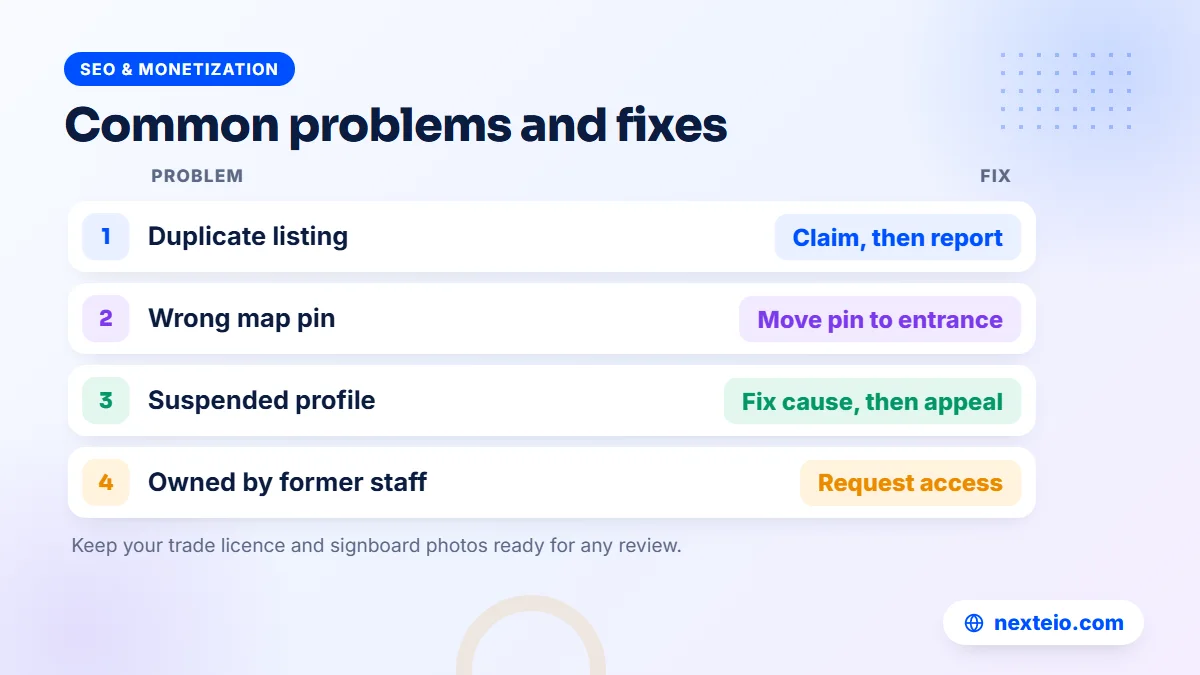
If a profile for your business already exists and someone else owns it, such as a former employee, an old agency or an unknown person, you can request access from within the setup flow. Google contacts the current owner, and if they do not respond within the given time, you may be able to claim it. Keep proof of your business ready in case Google asks.
Fixing Common Problems
Even a careful setup can hit problems. Here are the ones businesses in Bangladesh run into most, and what to do about each.
Duplicate listings. A customer or Google itself may have created a listing for your business years ago. Claim it rather than creating a new one. If you end up with two, request that the duplicate be marked as a duplicate through support instead of leaving both live.
Wrong pin or address. Edit the address and move the pin to the entrance. Changes may go to review, and very large moves can trigger re-verification. For places with unclear addresses, a Plus Code from Google Maps can help customers and couriers find the exact spot.
Suspended profile. Suspensions usually follow a guideline problem: keywords in the name, a virtual office, a hidden address that should be shown, or the wrong business type. Fix the cause first, then submit an appeal from your profile with photos and documents that prove the business is real.
Edits you did not make. Google accepts suggestions from the public. Check your profile regularly and correct anything wrong straight away.
Connect the Profile to Your Website and Ads
Google says local results are based mainly on three things: relevance, distance and prominence. Its page on improving your local ranking explains each. You cannot change distance, but your website affects both relevance and prominence. A site that clearly lists your services, address and phone number, with a page for each branch, gives Google more confidence that your profile is accurate.
Directories and listing sites matter too. When your business appears on trade association lists, supplier directories or local business pages, the details should match the profile word for word. Each correct mention helps Google trust that the address and phone number are real; each old or wrong one adds doubt.
Make sure the name, address and phone number on the website match the profile exactly. Add the website link to the profile, and add a map and directions on the website's contact page. A well-built WordPress website or a custom-designed site with fast mobile pages turns profile visitors into enquiries instead of losing them on a slow homepage. Our guide to building a professional business website covers what those pages need.
Local search work around the profile is also part of a wider plan. Our SEO service covers the website side: service pages, local content, technical fixes and consistent business details across the web. If you run paid search, link the profile to your Google Ads account so ads can show your address, distance and directions through location assets, which our Google Ads team can set up as part of a campaign.
Mistakes to Avoid When You Create Google Business Profile Listings
Most problems with local listings trace back to a few early decisions. Avoid these and the profile will usually stay healthy:
- Adding words like "best" or a location to the business name.
- Setting up the profile on a staff member's personal account.
- Choosing storefront when customers never visit the address.
- Using a call centre or personal number nobody answers during listed hours.
- Creating a new profile after failed verification instead of fixing the cause.
- Asking staff and relatives for reviews, or offering rewards for them.
- Leaving holiday hours unchanged during Eid and other long closures.
Each of these is easy to avoid at the start and slow to undo later.
If you are about to create Google Business Profile listings for several branches at once, check this list for each one, because a mistake copied ten times takes ten times as long to fix.
A final point: the profile works best when the business behind it is easy to deal with. Answer the phone, keep the hours accurate and respond to reviews. Many businesses find that the profile simply reflects how well they serve customers, which no setting can replace. For more on common search mistakes, see our guide to SEO mistakes that hurt business websites.
How Nexteio Can Help With Your Google Business Profile
We can help businesses and organizations across Bangladesh with Google Business Profile setup as part of our local SEO work. That can include checking whether an old listing already exists, choosing the right category and business type, writing a clear description, preparing for verification and filling in hours, services and photos so customers get answers at a glance.
Because the profile depends on your website, we also look at the site behind it. We check that business details match, that branch and service pages exist where needed, and that pages load quickly on a phone. If the site needs work, our web team can fix or rebuild it. For businesses that also run ads, we can link the profile to Google Ads for location assets.
The profile should always stay in your name, with anyone who helps you, including us, added as a manager. You can read more about Nexteio, see sites we have built in our portfolio, or send your business details through our project form. For a quick question, use the contact page, or start a project that combines the profile with ongoing SEO for your website.
Keep reading: why a website gets traffic but no customers, how to choose an SEO provider, or browse all our SEO and monetization guides.
Frequently asked questions
Is it free to create a Google Business Profile?
Yes. Creating, verifying and managing the profile costs nothing, and there is no paid version that ranks higher. Be careful with anyone who charges for a "Google listing" while implying it comes from Google. You only pay if you hire someone to help or choose to run Google Ads alongside the profile.
Is Google My Business the same as Google Business Profile?
Yes. Google renamed Google My Business to Google Business Profile in late 2021, so older guides that tell you to create a Google My Business account, or to create Google My Business profile listings, describe the same tool. Some screens and steps have changed since then, so follow Google's current help pages where they differ.
Can I set up Google Business Profile without a website?
Yes. The website field is optional, and you can leave it empty or add a Facebook page. A profile linked to a fast, clear website usually turns more views into enquiries, because customers can check services, prices and proof before calling.
How long does it take to create Google Business Profile listings and get verified?
The setup screens take under an hour. Phone, text and email codes arrive almost at once when Google offers them. Video verification usually needs a few days of review after upload, and sometimes longer. If Google asks for more information or rejects the video, fix the reason it gives and try again rather than starting a new profile.
Can I list my business at home?
Yes, if you meet customers in person, either at your home or at their location. If customers do not visit your home, choose a service-area business and hide the address. Listing a home address as a storefront when nobody receives customers there breaks Google's guidelines.
Why is my profile not showing on Google Maps?
The most common reasons are that it is not yet verified, that it is still under review after an edit, or that it is suspended. If it is live, it may simply rank low for that search because of distance, relevance or few reviews. Search for your exact business name first to confirm it appears at all.
Can I delete a negative review?
No, you cannot remove a review just because it is negative. You can report a review that breaks Google's policies, such as spam, hate speech or a review from someone who was never a customer. For genuine complaints, a calm public reply usually helps more than trying to remove it.