Multi Site WordPress for Universities and Group Companies
In this article 15 sections
- 1.What Multi Site WordPress Actually Is
- 2.Who Uses Multisite in Bangladesh, and Why
- 3.When a Multi Site WordPress Network Makes Sense, and When It Does Not
- 4.Subdomains, Subdirectories or Separate Domains
- 5.Roles and Permissions: Who Controls What
- 6.Themes, Plugins and Brand Consistency
- 7.Hosting, Speed and Server Requirements
- 8.Security and Backups on a Shared Network
- 9.Content Governance: Keeping Thirty Sites Current
- 10.Planning and Launching a Multi Site WordPress Network Step by Step
- 11.Moving Existing Department Sites Into One Network
- 12.Costs and Timeline for a Multisite Project
- 13.Common Mistakes to Avoid
- 14.How Nexteio Can Help With Multi Site WordPress
- 15.Frequently asked questions
A multi site WordPress network lets one WordPress installation run many separate websites from a single dashboard. A university can give each faculty, department and hall its own site. A corporate group can run one site for the holding company and one for each sister concern. A school with several campuses can let each branch post its own notices while the head office keeps control of the design, the software and the security.
That is the promise. The reality depends on planning. Set up well, a network saves time, keeps every site on brand and makes updates far simpler. Set up in a hurry, it becomes one large site where a single bad plugin can take down thirty departments at once, and where nobody is sure who is allowed to change what.
This guide is written for the people who usually make this decision in Bangladesh: the ICT cell of a university or college, the IT or marketing head of a group company, and the office that manages a chain of schools or clinics.
It explains how a multi site WordPress network works, when it is the right choice and when separate sites are better, how to choose a URL structure, who should hold which role, and how to launch and run a network without losing control.
What Multi Site WordPress Actually Is
Multisite is a feature built into WordPress itself. You do not buy it or install it as a separate product. You switch it on in an existing installation, and WordPress turns into a "network" that can host many sites. The official WordPress Multisite documentation covers the full technical detail. In plain terms, a multi site WordPress network works like this:
- One set of WordPress files on the server runs every site in the network.
- One database holds all the sites, with a separate set of tables for each site's posts, pages and settings.
- One list of users is shared, and each person can be given a different role on different sites.
- One place to install themes and plugins, controlled by the network's top-level administrator.
- Separate content and media for each site, so the physics department's photos never mix with the admission office's notices.
A new role appears too: the Super Admin. This person manages the whole network, creates new sites, decides which themes and plugins are available and can step into any site. Each individual site still has its own administrators, editors and authors, but their powers are narrower than on a normal standalone WordPress site.
Think of it as an apartment building. Each flat has its own door, furniture and residents, but the building shares one foundation, one water line and one caretaker. That shared base is both the main benefit and the main risk.
Who Uses Multisite in Bangladesh, and Why
The organizations that benefit most from multi site WordPress have many related websites that should look and work alike but be run by different people. Some typical cases:
Universities and colleges
A private or public university may have faculties, departments, institutes, research centers, residential halls, an alumni association and quality assurance cells, each wanting its own pages. Without a plan, each one hires its own developer, picks its own theme and buys its own hosting. Five years later, the university has forty websites in twenty designs, half of them outdated and some of them hacked. A network brings them under one roof, one design system and one update routine.
School and madrasa groups
An English-medium school with several branches, or an education trust that runs schools and madrasas in different districts, faces a smaller version of the same problem. Each branch needs its own notices, class routines, results and teacher lists. Guardians should still see one recognizable brand. A network lets the head office control the design while each branch posts its own updates.
Corporate groups and sister concerns
Many business groups in Bangladesh run several companies under one name: a garment unit, a textile mill, a packaging company, a trading arm. Foreign buyers often check the specific factory's site for certifications, capacity and compliance details, while the group site tells the overall story. A network keeps all of these consistent and lets one team maintain them.
Hospital and clinic chains
A diagnostic chain or a hospital group may want each branch to show its own doctors, schedules and phone numbers, while services and policies stay centrally controlled. Multisite fits well here, as long as appointment features are planned for the whole network rather than bolted onto one branch.
When a Multi Site WordPress Network Makes Sense, and When It Does Not
Multisite is not automatically better than separate websites. The official documentation itself asks whether you really need a network, and points out that the sites in a network are separate rather than deeply connected. The right answer depends on how alike your sites are and who will run them.
A multi site WordPress setup usually makes sense when:
- You have five or more sites that should share a design and the same basic features.
- One central team (an ICT cell, a group IT office) will handle updates and security.
- Each site has its own content editors who should not touch the others.
- You expect to add new sites regularly, such as a new department or a new branch.
Separate installations are often better when:
- The sites are unrelated brands with very different designs and features.
- One site needs heavy plugins, such as a large online store, that the others do not.
- Different outside vendors must manage different sites on their own terms.
- A failure on one site must never affect the others, for legal or contractual reasons.
There is also a third option that people overlook: one single website with well-organized sections. If your "sites" are really just different groups of pages, such as a few departments with five pages each, a single site with a clear menu and good page templates may be simpler than any network. Multisite earns its extra complexity only when each site truly needs its own administration.
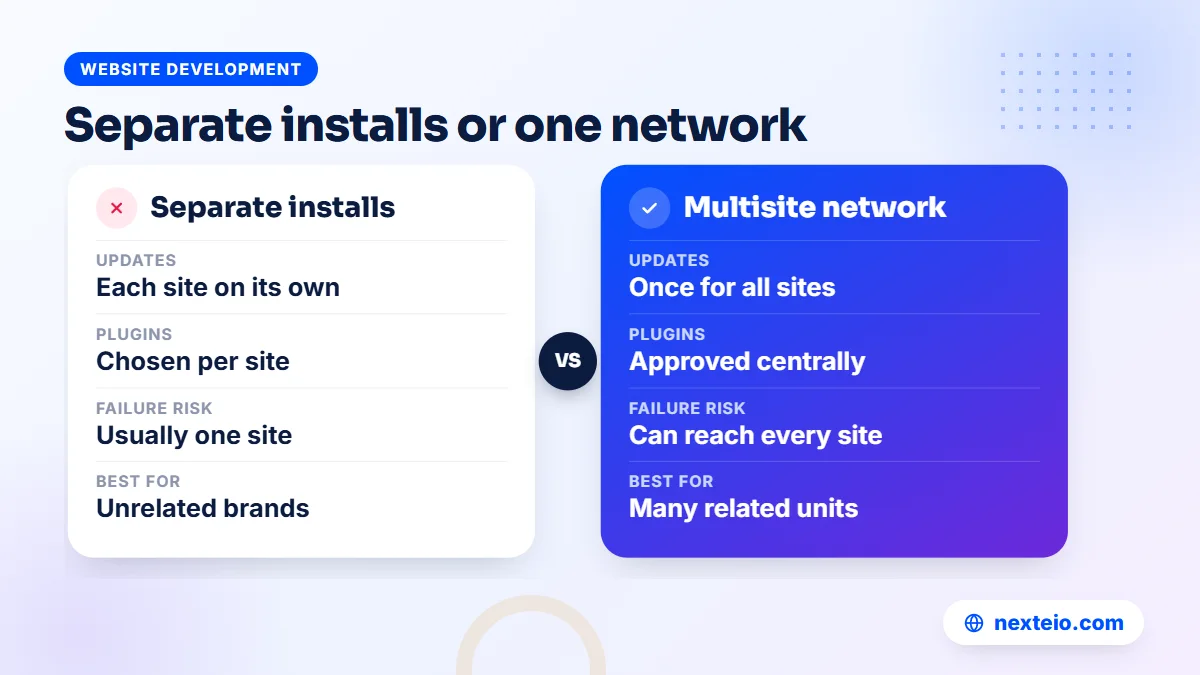
| Need | One site with sections | Multisite network | Separate installs |
|---|---|---|---|
| Shared design | Automatic | Easy to enforce | Must be copied manually |
| Independent editors per unit | Limited | Yes, per site | Yes |
| Updates | One site | Once for the whole network | Each site separately |
| Different plugins per unit | No | Limited, set centrally | Fully independent |
| Effect of one failure | Whole site | Can affect every site | Usually one site |
If you are still weighing WordPress against a fully custom platform for a large portal, our comparison of WordPress and custom websites explains the trade-offs in more detail.
Subdomains, Subdirectories or Separate Domains
Every site in a network needs its own address, and you must choose how those addresses look before you create the network. WordPress offers two basic structures, plus the option of mapping a completely separate domain to a site.
| Structure | Example | Good for | Watch out for |
|---|---|---|---|
| Subdomain | cse.youruniversity.edu.bd | Faculties, departments and branches that feel like separate units | Needs DNS setup for each subdomain or a wildcard record, plus SSL that covers them |
| Subdirectory | youruniversity.edu.bd/cse | Sections that should feel part of one main site | Not offered on an existing install that has run for more than a month |
| Mapped domain | yoursisterconcern.com | Sister concerns with their own brand and domain | Extra DNS and SSL work for every domain |
The WordPress guide on preparing a network lists the server conditions for each type. Two of them catch people out. A subdomain network requires WordPress to be installed at the root of the domain, not in a folder. A subdirectory network cannot be chosen on an existing installation that has been running for more than a month, because its permalinks may clash with the new site paths.
For most universities, subdomains feel natural, because departments already think of themselves as units with their own identity. For a school group, subdirectories often work better, because guardians should feel they are on one school's site. Corporate groups frequently mix both: a subdomain or subdirectory for small units, and a mapped domain for sister concerns that have their own brand with buyers.
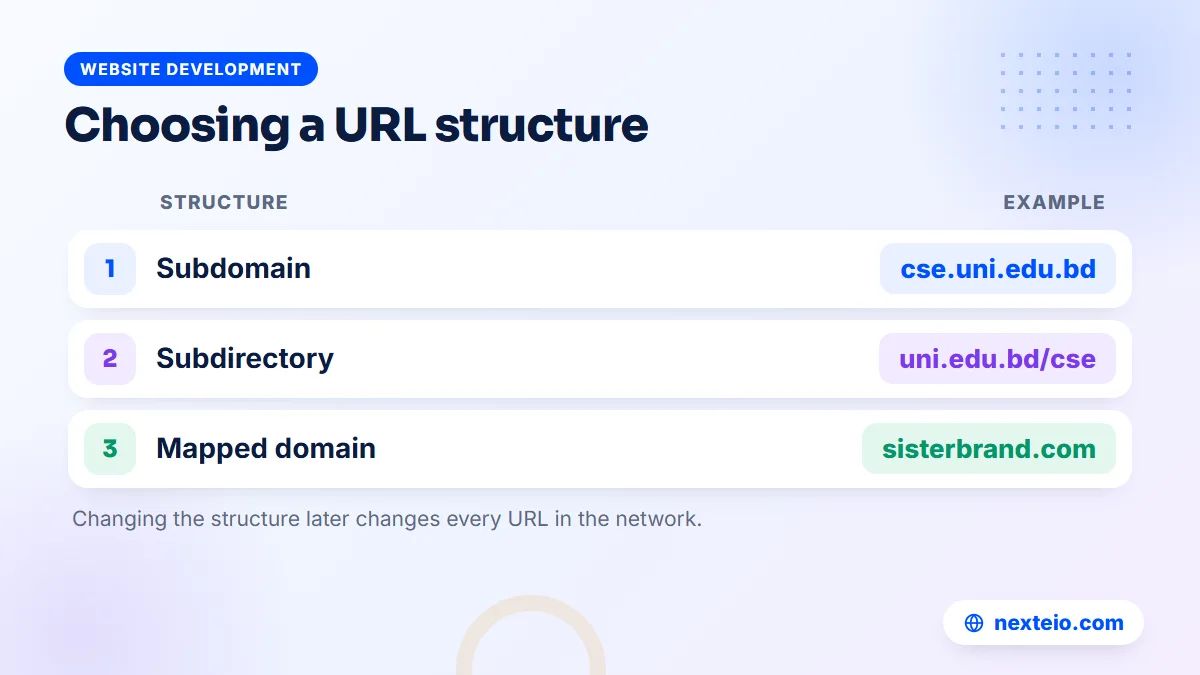
Whatever you choose, choose it once. Changing the structure of a live network later changes every URL, breaks links that other sites and search engines have stored, and needs careful redirects. Our guide to technical SEO basics explains why stable URLs matter so much for search visibility.
Roles and Permissions: Who Controls What
Roles are where a multi site WordPress network either works smoothly or turns into daily friction. WordPress's standard roles and capabilities still apply on each site, but a network adds the Super Admin on top and quietly reduces what ordinary site administrators can do.
What changes on a network
- Only Super Admins can install themes and plugins. Site administrators can only use what has been made available to them.
- Only Super Admins can create new sites and manage the full list of sites in the network.
- On a network, only Super Admins can save raw HTML such as embed codes and scripts, so a department admin pasting a map or video embed may see it stripped out.
- Network-activated plugins run on every site and cannot be switched off by individual site admins.
That third point surprises many teams. A department that is used to pasting embed codes into its old standalone site may suddenly find them removed. The fix is planning: provide approved blocks or shortcodes for maps, videos and forms, so editors never need raw code.
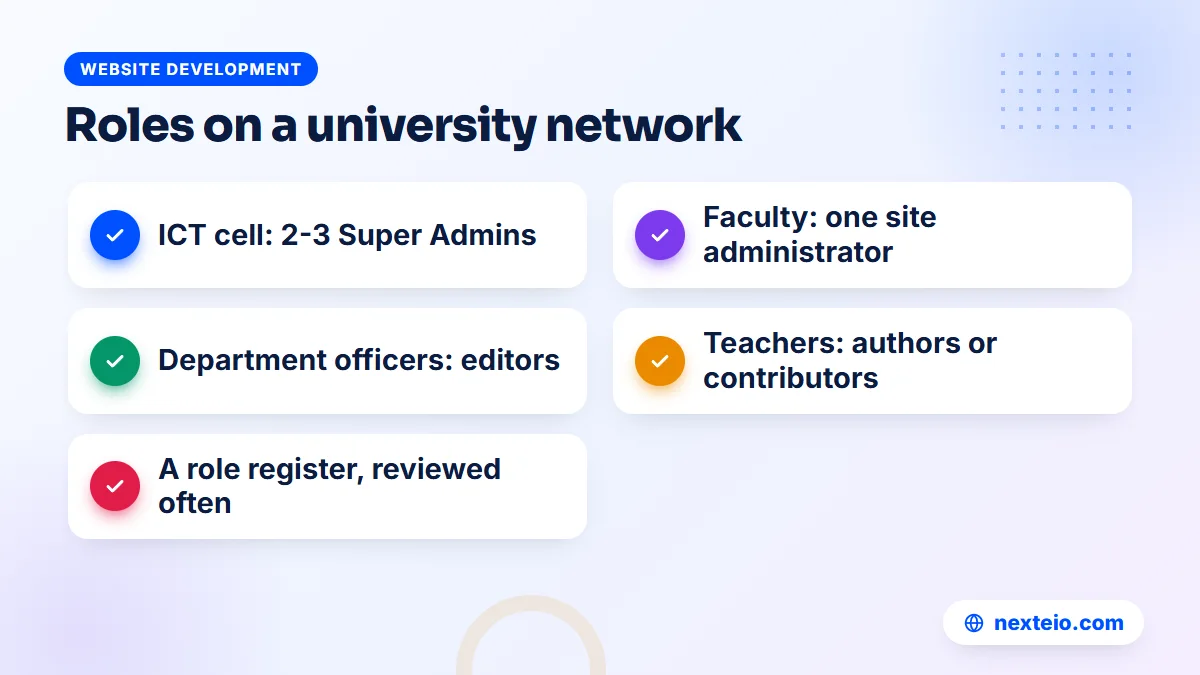
A practical role plan for a university
- Super Admin: two or three people in the ICT cell or the web team, never more than needed.
- Site administrator: one trained person per faculty or institute, who manages users and settings for that site.
- Editor: department officers who publish notices, events and news after approval.
- Author or contributor: teachers or staff who draft content that an editor reviews before it goes live.
The same pattern works for a corporate group, with the group IT team as Super Admins and a marketing or HR officer in each sister concern as the site administrator.
Keep a simple role register: who has which role on which site, who approved it and when it should be reviewed. Staff change often in universities and large groups. A register makes it easy to remove access when a teacher leaves or a marketing officer moves to another company.
Themes, Plugins and Brand Consistency
The central control of themes and plugins is the main reason organizations choose multisite. The Super Admin decides which themes are "network enabled" and which plugins are installed. Each site then picks from that approved list, or simply uses the defaults.
Designing one theme for many sites
The cleanest approach is a single main theme designed for the whole network, with a few controlled options for each site: a site name, a logo variant, perhaps an accent color for each faculty or sister concern. If some units need noticeably different layouts, use child themes built on the same parent rather than unrelated themes. That way a design fix or a speed improvement reaches every site at once.
Build a template site before you build real ones. It should hold the standard pages every unit needs (about, people, notices, contact) with sample content and the agreed menus. New sites start as a copy of that structure, so the twentieth department looks as finished as the first.
Choosing plugins carefully
Not every plugin is written with networks in mind. Some store settings in a way that breaks across sites, some are licensed per site and get expensive on a large network, and some slow down every site even if only one uses them. Before adding a plugin, check three things:
- Does the developer say it supports Multisite, and has it been tested on a network?
- Should it be network-activated for every site, or activated only where needed?
- How is a paid license counted on a network: per network, per site or per domain?
Fewer plugins mean fewer surprises. For a university network, a sensible core set usually covers forms, SEO settings, caching, backups, security and perhaps an events calendar. Everything else should need a clear reason.
For organizations with many units, settle this design system before any site is built, whether the work is done in-house or by a WordPress website team: one shared design first, then the sites built on top of it.
Hosting, Speed and Server Requirements
A multi site WordPress network shares one server, so the hosting must be sized for the whole network, not for one site. Twenty quiet department sites may use fewer resources than one busy admission page, but on result day or during admission season, traffic to a few sites can slow down all of them.
Basic shared hosting is rarely a good fit for a serious network. Many shared plans restrict wildcard subdomains or the server settings Multisite needs, and they share CPU and memory with many unrelated customers. A VPS or cloud server, or a managed hosting plan that explicitly supports Multisite, gives you control over resources, caching and DNS. Before you buy, confirm that the host supports the URL structure you chose and allows the rewrite rules WordPress requires.
SSL for every site
Every site needs HTTPS. With subdirectories, one certificate for the main domain covers everything. With subdomains, you need either a certificate for each subdomain or a wildcard certificate that covers all of them. Free wildcard certificates from Let's Encrypt are issued only through the DNS validation method described in its guide to challenge types, so your DNS provider must support automated updates or someone must handle renewals carefully. Mapped domains each need their own certificate.
Speed on mobile data
Most visitors to a university or school site are students and guardians on phones. Use page caching, compress images on upload, and keep the shared theme light. Because every site uses the same theme, a speed fix in one place helps the whole network.
Power cuts and unstable internet at the campus do not affect a site hosted in a proper data center. They do affect sites still run from a server in the campus building, which some institutions use for internal portals. Moving the public network to professional hosting removes that risk.
Security and Backups on a Shared Network
Shared software means shared risk. If a vulnerable plugin is installed on a multi site WordPress network, every site that uses it is exposed, and an attacker who gains Super Admin access controls every site at once. Security on a network is therefore stricter than on a single site, not looser.
A sensible baseline for a network includes:
- Two-factor login for every Super Admin and site administrator.
- As few Super Admins as possible, each with a named personal account.
- A staging copy of the network where updates are tested before going live.
- Regular removal of unused plugins, themes, sites and user accounts.
- Monitoring for file changes and suspicious logins across the network.
Backups need special thought. Most backup tools copy the whole network, which is good for disaster recovery but awkward when only one department needs last week's version of its pages. Ask whether your backup method can restore a single site, and test it before you need it.
Also plan what happens when a unit closes or merges. WordPress lets a Super Admin archive or deactivate a site without deleting it, which keeps old notices available for reference while removing the site from active use.
Content Governance: Keeping Thirty Sites Current
The technical setup is the easy part. The harder part is keeping every site accurate year after year. A multi site WordPress network with thirty sites and no content rules will soon have ten sites showing last year's routines and three with a former chairman's message.
Agree on a few simple rules before launch:
- Every site has a named owner who is responsible for its content.
- Notices and events carry a date and are removed or archived when they expire.
- Staff and faculty lists are reviewed at the start of each semester or financial year.
- Bangla and English versions are updated together, or the site clearly states which is primary.
- The central team checks each site briefly every quarter and reports gaps to its owner.
Content quality also affects how the network appears in Google. Thin department pages with a heading and a phone number rarely rank for anything. Clear, useful pages about programs, research, admissions or products do. Our guide on writing SEO-friendly website content helps department editors write pages people actually read.
Linking matters on a network too. Department sites should link back to the main admission and contact pages, and the main site should link to each department. Our article on internal linking for SEO explains how to connect pages so both visitors and search engines can find their way around.
Related guides for teams planning a large WordPress project:
- How page speed affects rankings and sales
- How to build a professional business website that gets results
- Common SEO mistakes that hurt business websites
Planning and Launching a Multi Site WordPress Network Step by Step
A network launch goes best in clear stages. Here is a practical sequence for a university or group company.
Stage 1: Plan
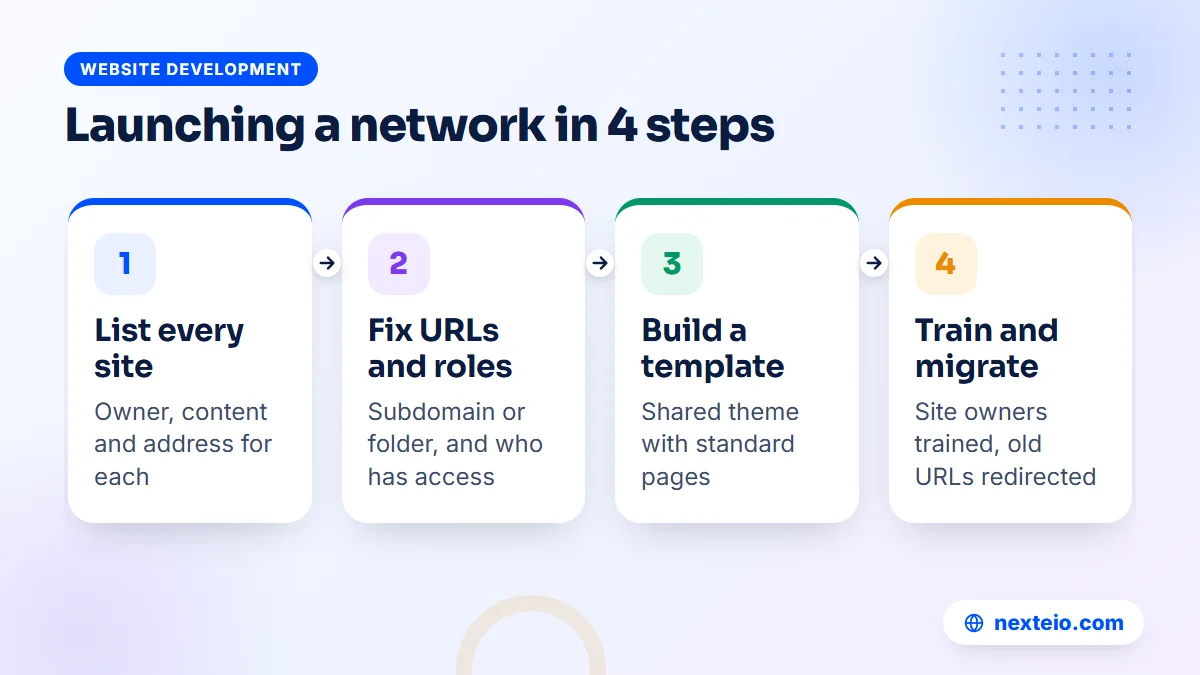
- List every site you need. Include existing sites, planned ones and the person responsible for each.
- Choose the URL structure. Decide on subdomains, subdirectories or mapped domains for each type of unit.
- Agree on roles. Name the Super Admins and each site's administrator before anyone gets a login.
- Design the shared theme. Approve the layout, the options each site may change and the template pages.
Get these decisions signed off before any building starts.
Stage 2: Build
- Set up the network. Prepare the hosting, DNS and SSL, then enable Multisite as described in the official guide to creating a network.
- Install the core plugins. Keep the set small and test each one on the network.
- Build the template site. Fill it with sample content and check it on phones and slow connections.
Fix any problems on the template before you copy it to real sites.
Stage 3: Launch
- Create the first few real sites. Start with two or three willing units and learn from them.
- Train site owners. A short hands-on session and a one-page guide prevent most support requests.
- Migrate and redirect. Move old content, set redirects from old URLs and retire the old sites.
Enabling Multisite itself takes only a few steps: a line added to the wp-config.php file, a network setup screen under Tools, and some code that WordPress gives you to paste into wp-config.php and the server's rewrite rules. The planning around it is what takes weeks.
Moving Existing Department Sites Into One Network
Most organizations do not start from zero. They already have a main site and several department or branch sites on different hosting accounts, some built years ago by developers who are no longer reachable.
Start with an audit, ideally done by the same WordPress development team that will build the network. For each existing site, note its address, where it is hosted, who controls the domain, how much useful content it holds and whether anyone still updates it. You will usually find three groups: sites worth moving fully, sites where only a few pages are worth keeping, and sites that can simply be retired.
Then move content site by site rather than all at once. The WordPress export tool and the official importer handle posts and pages from other WordPress sites, though media and custom features often need extra work. Content from non-WordPress sites usually has to be copied and cleaned by hand, which is also a good moment to remove outdated material.
Redirects are the step that protects your search visibility. Every old URL that people or search engines know about should point to its new home with a permanent redirect. Without that, years of links to a department's research page or a factory's certification page simply break. Keep the redirect list in a spreadsheet so it can be checked later.
Finally, keep control of the old domains even after you retire their sites. A lapsed domain that once belonged to your institution can be bought by someone else and used to mislead people who still follow old links.
Costs and Timeline for a Multisite Project
A multi site WordPress network costs more to set up than a single site, but it can cost much less to run than many separate sites. The main cost drivers are:
| Cost driver | Why it matters |
|---|---|
| Number and type of sites | Each unit needs setup, content and training, even when it uses a template |
| Theme design | A shared theme with options for each unit takes more design work than a single-site theme |
| Migration | Moving and cleaning old content, plus redirects, is often the longest part of the job |
| Hosting | A VPS or cloud server sized for the whole network, often billed monthly |
| Ongoing care | Updates, security, backups and support for every site owner |
For timing, a network with a handful of sites and fresh content can launch in four to eight weeks. A university with dozens of departments and years of old content often takes three months or more, mostly because content collection and approvals move at the pace of the institution, not the developer.
Ongoing care for a network belongs at the higher end of maintenance plans, because one update affects many sites and each site owner needs support. It is still usually cheaper than paying separately to maintain twenty unrelated sites, and far safer than leaving them unmaintained. If you would like help sizing a WordPress network project, send us your list of sites and the teams that will run them.
Common Mistakes to Avoid
- Choosing multisite for two or three sites. The extra complexity rarely pays off below about five related sites.
- Giving Super Admin to every department. It defeats the purpose of central control and multiplies the security risk.
- Picking cheap shared hosting. Networks need resources and server settings that basic plans often restrict.
- Installing plugins without testing. A plugin that breaks one site on a network can break all of them.
- Skipping the template site. Without it, every new site starts from a blank page and drifts from the brand.
- Forgetting redirects. Migration without redirects throws away years of search visibility.
- No content owners. Sites without a named owner go stale within a semester.
Each of these is easy to avoid at the planning stage.
They usually come from treating multisite as a quick technical switch rather than a long-term structure. When a network is planned with the same care as a building, it serves an organization for many years. Basic search setup should also be planned for the whole network at once, which is where an SEO service can help large institutions avoid duplicate pages and broken indexing.
Some needs are better served outside WordPress altogether. If your institution needs student logins, result processing, fee collection or a staff portal with complex workflows, a Laravel web application built for that purpose often sits alongside the public network. For a single flagship site with a unique design, a custom website design may be the better path.
How Nexteio Can Help With Multi Site WordPress
We build WordPress sites that load fast, look right on phones and are simple for staff to update, and that same approach carries over to networks for universities, school groups and corporate groups. We can start with the plan in this guide: the list of sites, the URL structure, the roles and the shared design, agreed before anything is built.
From there we can set up the network and hosting, design the shared theme and template site, migrate content from old department or branch sites with proper redirects, and train each site owner to manage their own pages. If your organization also needs a portal or a custom system next to the public sites, we build those with Laravel.
For ongoing care, the client gives us access to the server and the network, and we both sign an agreement that sets out the work. You can read more on our WordPress service page, browse our portfolio, see all our services, share your project details through our brief form, or reach the team through the contact page.
Keep reading: what to check before hiring a WordPress developer, how to hire the right Laravel developer, or browse all our website development guides.
Frequently asked questions
Is WordPress Multisite free?
Yes. Multisite is part of the standard WordPress software, so there is no separate license to buy. The costs come from planning, design, setup, hosting strong enough for the whole network, any paid plugins and the ongoing care of every site.
Can each site in a network use a different theme?
Yes, as long as the Super Admin has enabled that theme for the network. Most organizations use one main theme or a parent theme with child themes, because it keeps the brand consistent and means design fixes reach every site at once.
Can one site in a network have its own domain name?
Yes. A site can be mapped to a separate domain, such as a sister concern's own .com, while staying inside the network. The domain's DNS must point to the network's server and the site needs its own SSL certificate.
What happens to all the sites if one site is hacked?
It depends on how the attacker got in. If the cause is a vulnerable plugin or a stolen Super Admin login, every site may be at risk, because they share the same software and user list. That is why networks need strict update routines, two-factor login and very few Super Admin accounts.
Can we convert an existing WordPress site into a network?
Yes. You can enable Multisite on an existing installation, and the current site becomes the main site of the network. Be aware that the subdirectory option is not offered on installations that have been running for more than a month, so older sites usually use subdomains.
Can a site be moved out of a network later?
It can, but it takes work. The site's content, media and users need to be exported into a new standalone installation, and its URLs redirected. Plan the network so that units likely to become independent, such as a sister concern being sold, are easy to separate.
How many sites can a WordPress network hold?
WordPress does not set a small fixed limit, and large networks with many sites do exist. In practice, the limit comes from your hosting resources, your plugins and how well the network is maintained, so size the server for the number of sites and the traffic you expect.